Connection Profiles & Key Deployment
The Connection Manager in sshs3 (accessible via Ctrl+Shift+O or the primary sidebar) centralizes configuration, credentials, and topology management for SSH servers, Kubernetes clusters, and Amazon S3 object storage in a unified, searchable workspace.
Team Collaboration: To share connection profiles and folders securely across your team using hardware YubiKeys, see Team Vault: Shared Connection Profiles. Shared teams appear as dedicated tabs alongside Personal profiles.
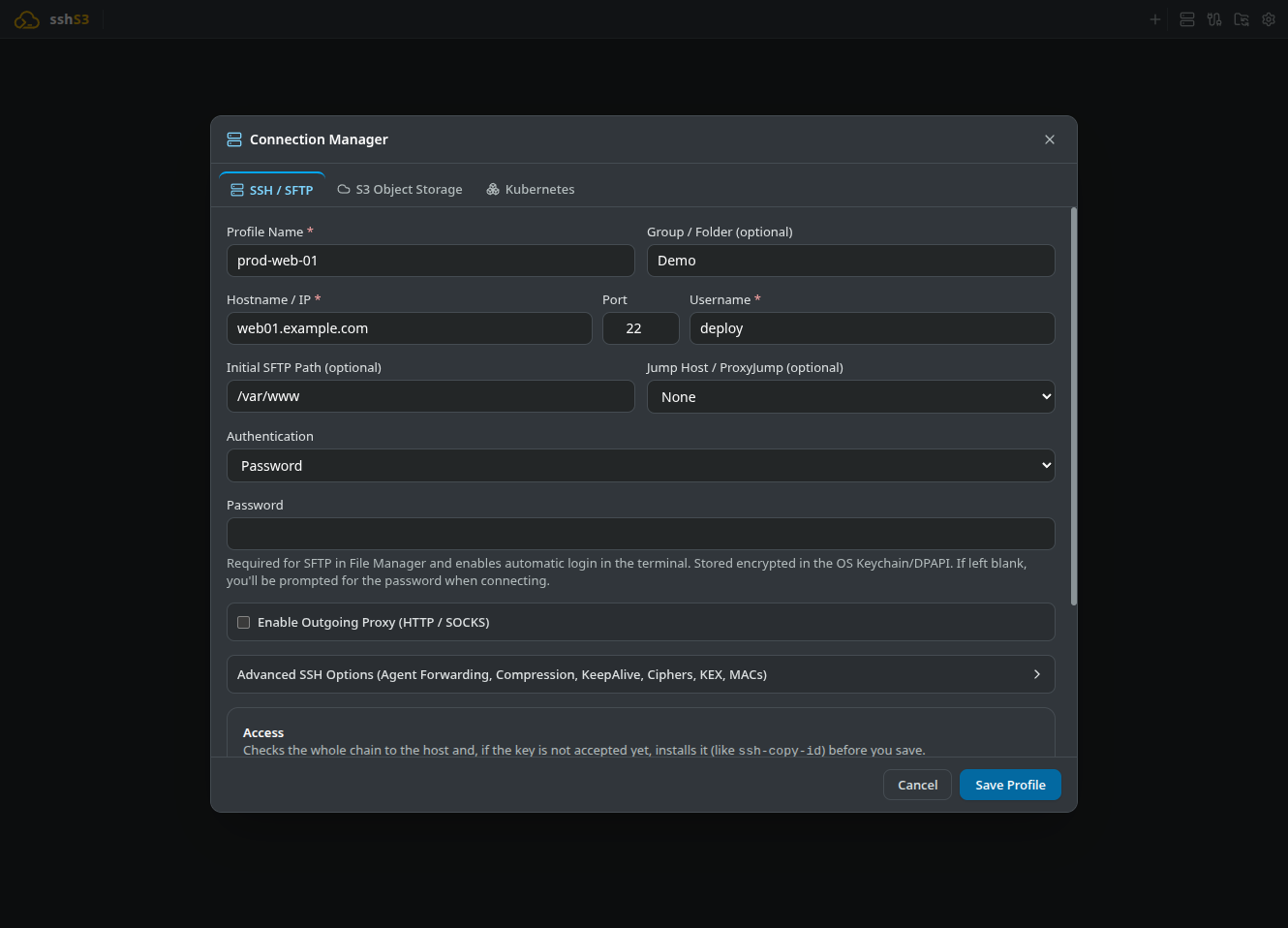
1. SSH Profiles & Hierarchical Folders
Organize fleets of hundreds or thousands of servers into logical folder trees (e.g. Prod/Database/Stockholm, Staging/Web) and filter targets instantly in real time.
Cross-Source Search & Origin Badges
Typing in the search bar finds matching profiles across all profile backends simultaneously:
- Local personal connections
- Remote Profile Sync connections
- All joined Team Vaults
Matches outside the current view display an origin badge (e.g. Team: Infra or Sync), making it effortless to jump to any server across all your teams without switching tabs.
"Unlock All" for Locked Hardware Teams
When one or more Team Vaults are currently locked, an Unlock all action button is displayed. Clicking it sequentially prompts your hardware security key or smartcard PIN to unlock all your team vaults in one flow.
SSH Profile Field Reference
| Field Name | Default | Purpose & Description | Constraints |
|---|---|---|---|
| Profile Name | Required | Display label used in tab headers and connection lists. | Cannot be empty. |
| Group / Folder | Empty | Organizes profiles into folder trees (e.g. Production/Web). | Subfolders supported with /. |
| Hostname / IP | Required | Target FQDN (e.g. server.internal) or IPv4/IPv6 address. | Resolvable via DNS or reachable via ProxyJump. |
| Port | 22 | Target SSH daemon listening port. | Integer between 1 and 65535. |
| Username | Required | Remote user account (e.g. ubuntu, root, deploy). | POSIX username standards. |
| Initial SFTP Path | Empty | Default folder opened in the file manager upon connecting. | Defaults to remote home directory. |
| Jump Host / ProxyJump | None | Reach the server through another saved profile or manual bastion (user@bastion:22). | Target host must be accessible from jump host. |
| Outgoing Proxy | Off | Route connection through an HTTP, SOCKS4, or SOCKS5 proxy. | Credentials encrypted in OS keyring. |
| Dotfiles Pool & Sync | Not assigned | Assign a dotfiles pool to this profile and select sync behavior. | See Environment & Profile Sync. |
Technical Architecture: Storage & Secret Encryption
Profiles are serialized into profiles.json inside the user data directory (~/.config/sshs3/). Writes execute sequentially via queueMutation promises to prevent file corruption during concurrent operations. Secret fields (passwords, private key passphrases) are extracted and encrypted via Electron's safeStorage API using your native OS keyring (libsecret on Linux, DPAPI on Windows, Keychain on macOS).
Good to Know & Limitations: Profile Organization & Folders
- Folder Names: Group and folder names cannot contain reserved filesystem characters (
<,>,:,",|,?,*). Subfolders are created by separating segments with/(e.g.Databases/Postgres/Replica). - Pruning Empty Folders: Personal profile folders are virtual groupings; empty folders are cleaned up automatically when all member profiles are moved or deleted. (For persistent empty folders, use Team Vault).
2. Authentication Methods & Hardware Tokens
sshs3 supports five distinct authentication mechanisms:
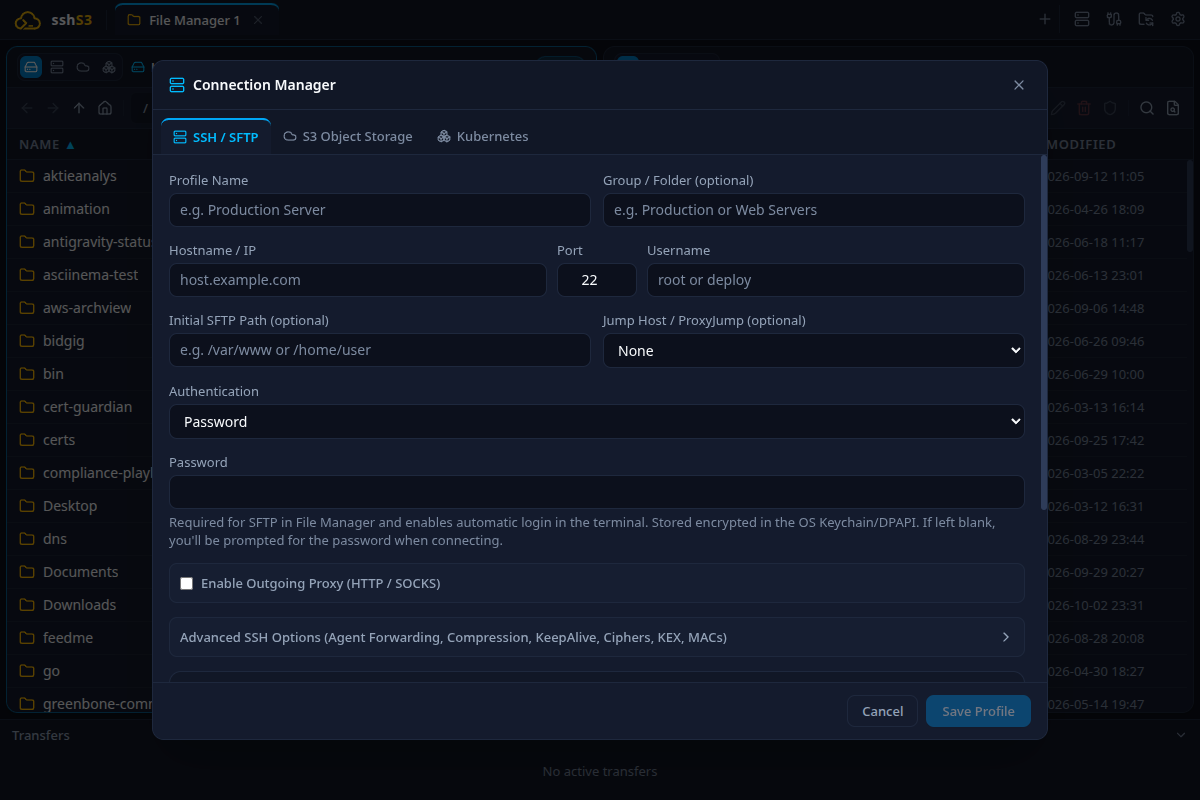
- Password: Traditional password authentication, encrypted at rest via the OS keyring.
- Private Key File: Local private key file (
id_ed25519,id_rsa) with optional passphrase. - SSH Agent: Delegates authentication to the running SSH agent (
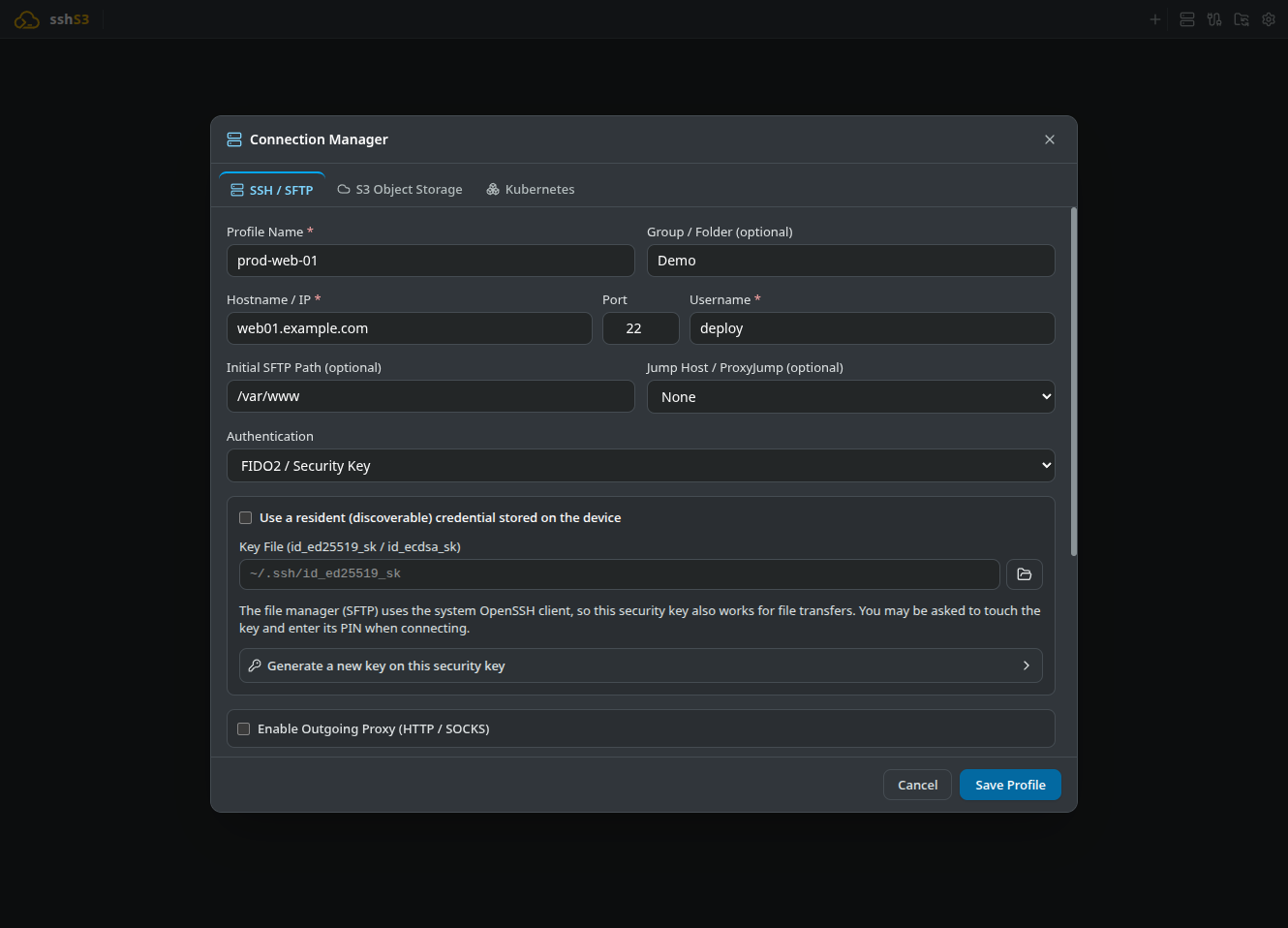
$SSH_AUTH_SOCK). - FIDO2 / Hardware Security Key: Hardware WebAuthn/FIDO2 credentials via YubiKey (
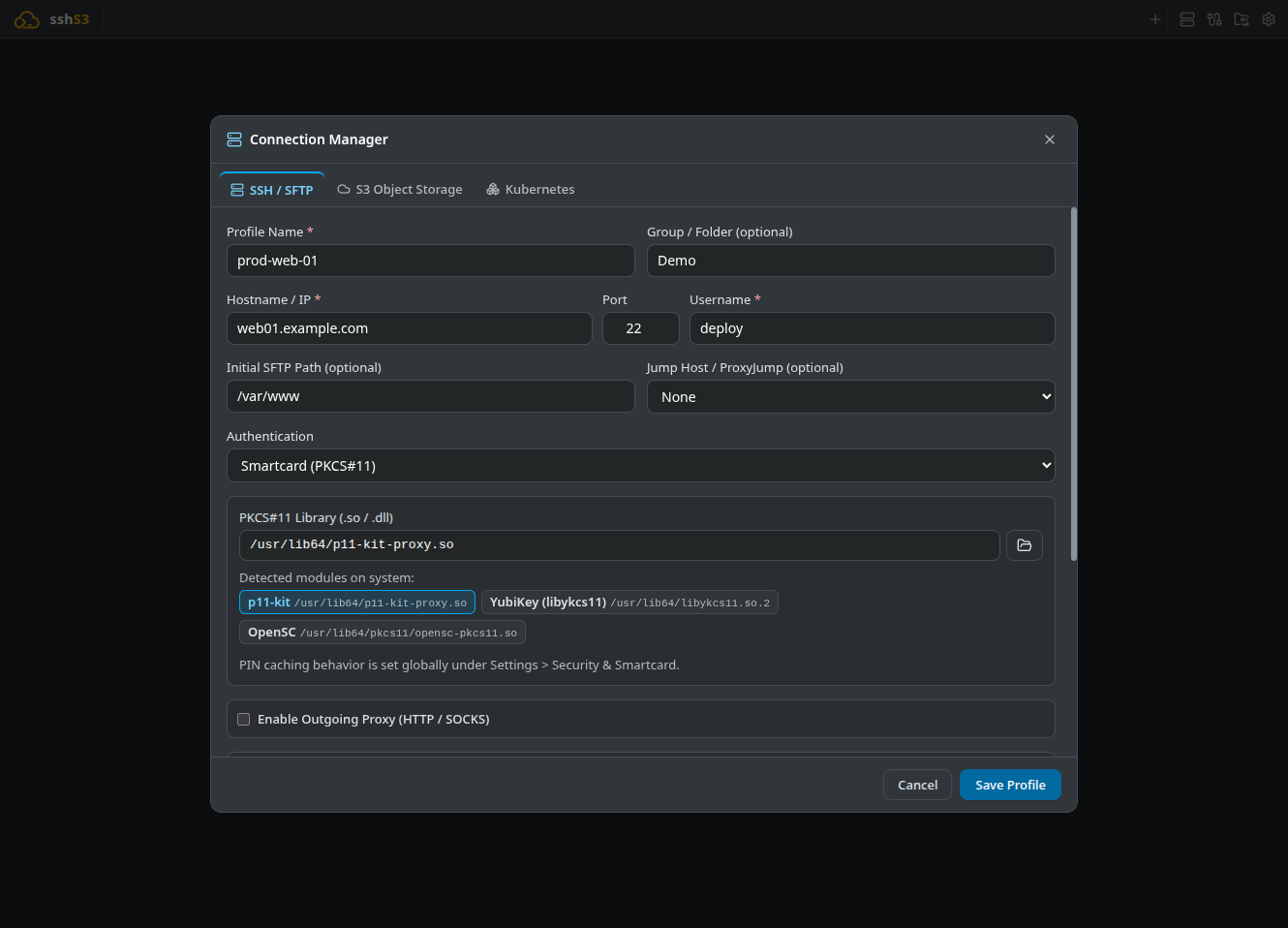
ed25519-sk,ecdsa-sk). - Smartcard (PKCS#11): Smartcards (PIV, CAC, SITHS) via native PKCS#11 libraries (
p11-kit,opensc,libykcs11).
Hardware Key Guidelines
- FIDO2 Resident Credentials: Select FIDO2 and tick Use a resident (discoverable) credential stored on the device. No key file is needed: the app queries resident credentials stored inside the physical token upon connection.
- Generate New FIDO2 Key: Expand Generate a new key on this security key, choose
ED25519-SK(orECDSA-SKfor legacy firmware), tick Require PIN + touch on every use, and touch your key when prompted. - U2F-Only Keys: Older keys (YubiKey 4, NEO) lack FIDO2 support (
ykman inforeportsFIDO2 Not available). On these devices, generate anECDSA-SKkey without PIN and without resident storage, or use the token's PIV smartcard application instead. - Safe Password Fallback: When password authentication is chosen, sshs3 passes
-o PubkeyAuthentication=noso inserted hardware keys cannot trigger unexpected touch prompts.
Security Model: Zero Private Key Extraction
sshs3 enforces Zero Private Key Extraction. Private key bytes never traverse Node.js or Chromium heaps:
- FIDO2: Key files reference a key handle (
-i ~/.ssh/id_ed25519_sk). Resident keys load via OpenSSH's native agent integration (ssh-add -K). - Smartcards: Configured via
-o PKCS11Provider=<library-path>coupled with the app's internalAskpassServer, delivering user PINs over an isolated Unix domain socket.
Good to Know & Limitations: Hardware Keys & Protocol Compatibility
- OpenSSH Version Requirement: FIDO2 security keys require OpenSSH 8.2 or later on both your local workstation and the destination SSH server.
- U2F-Only Keys (YubiKey 4, NEO): Older hardware tokens support U2F but not the FIDO2 standard (
ykman infoshowsFIDO2 Not available). They cannot generateed25519-skkeys, resident discoverable credentials, or keys with PIN protection (verify-required), causing generation to fail withPIN incorrector Windows' "This security key can't be used". On these tokens, choose ECDSA-SK, untick Require PIN + touch and Resident, and specify a new output filename; the token will require physical touch only. Alternatively, utilize the card's PIV smartcard applet. - Dedicated Key Filenames: Assign distinct filenames to each key handle (e.g.
id_ed25519_sk_work,id_ed25519_sk_personal) so multiple tokens do not overwrite each other's credentials.
3. Public Key Deployment (ssh-copy-id GUI)
Replace error-prone manual ssh-copy-id commands with a graphical multi-key deployer that safely installs public keys without duplicating lines in ~/.ssh/authorized_keys:
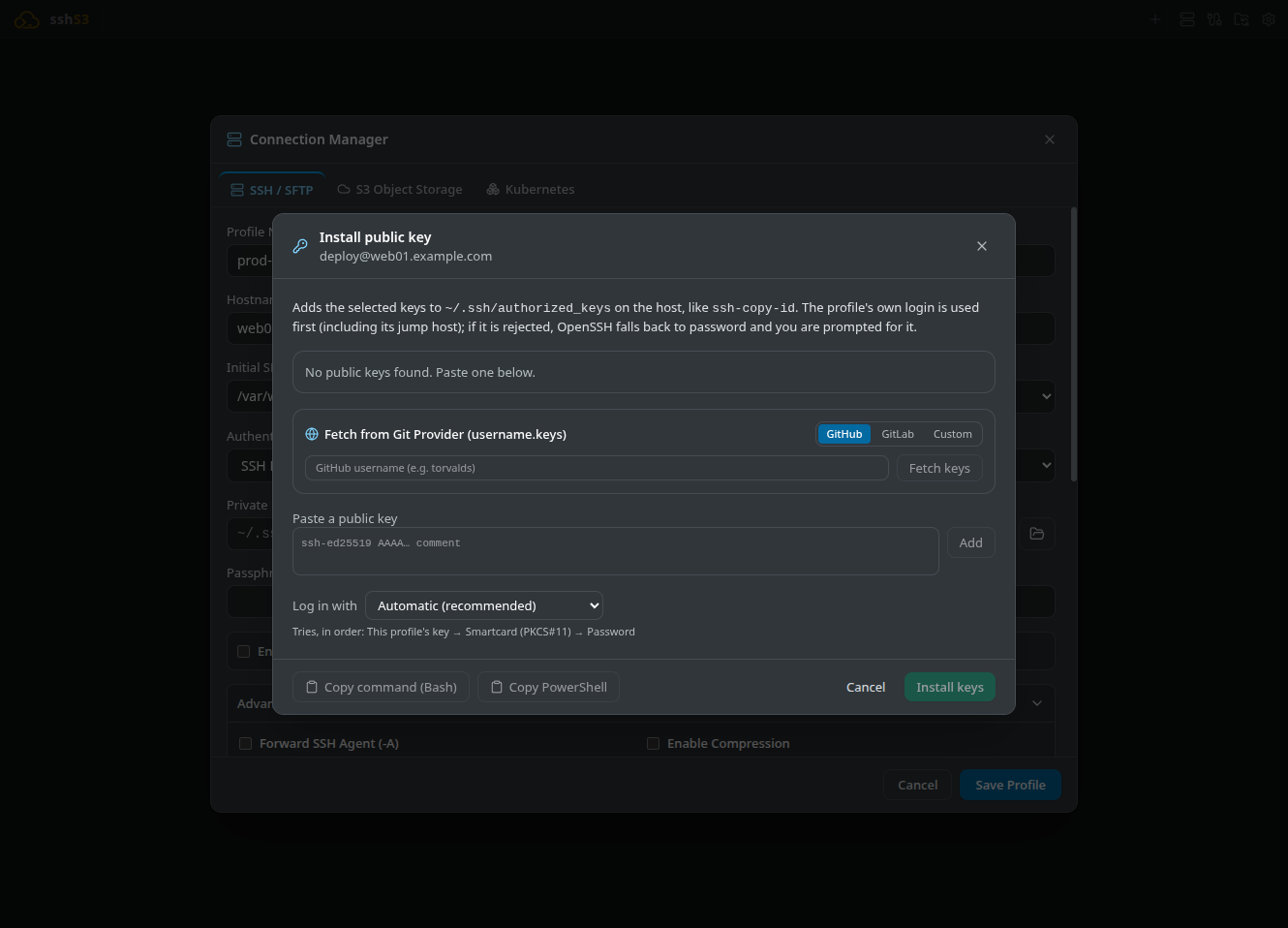
- Right-click any SSH profile and select Install public key (or click the key icon in the profile editor).
- Select the public keys you want to authorize (e.g. workstation key, YubiKey FIDO2 key, or smartcard certificate).
- Select your login method under Log in with (Automatic, Password, or Existing Key) and click Install.
- Out-of-Band Copy: Click Copy command (Bash) or Copy PowerShell to generate a safe, idempotent one-liner ready to paste into web consoles or out-of-band management terminals (iLO, iDRAC):
mkdir -p -m 700 ~/.ssh && echo 'ssh-ed25519 AAAAC3NzaC1lZDI1NTE5AAAAIG...' >> ~/.ssh/authorized_keys && chmod 600 ~/.ssh/authorized_keys5-Stage Connection Health Timeline
The Access Check timeline automatically diagnoses remote connection health before or during key installation:
- Reach Host: Verifies raw TCP socket connectivity to target port.
- Host Key: Validates the server's public key fingerprint against
~/.ssh/known_hosts. - Login Methods: Probes the OpenSSH daemon for permitted authentication methods without requiring PIN entry.
- Key Installed: Scans
~/.ssh/authorized_keysto determine whether selected public keys are already present. - Login Works: Executes an end-to-end authentication test verifying session authorization.
Good to Know & Limitations: Public Key Deployment
- Initial Login Access: Automated installation requires an existing authentication path (password authentication or an already authorized SSH key). If password authentication is disabled on the server, use Copy command (Bash) and run it via an out-of-band console.
- Read-Only / SELinux Filesystems: Deployment fails if the remote filesystem is mounted read-only, if disk quota is exceeded, or if strict SELinux policies on the server reject writes to
~/.ssh/authorized_keys.
4. Trust On First Use (TOFU) & Host Verification
Connecting to an unknown host displays an interactive fingerprint dialog:
┌────────────────────────────────────────────────────────────────────────┐
│ ⚠️  The authenticity of host '10.0.4.12 (ED25519)' can't be established.│
│ Fingerprint: SHA256:d8b248a...                                         │
│ Are you sure you want to continue connecting?                          │
│ [ Trust Host ]                                           [ Cancel ]    │
└────────────────────────────────────────────────────────────────────────┘- Verify Fingerprint: Review the SHA256 host key fingerprint and click Trust Host to append the key to
~/.ssh/known_hosts. - Changed Host Key Guard: If a host key changes unexpectedly, OpenSSH rejects the connection to protect against Man-In-The-Middle (MITM) attacks. sshs3 displays a security warning and allows you to replace the stale key only after explicit confirmation.
- Fail-Closed Policy: Host key prompts captured by
AskpassServerabort automatically if not answered within 60 seconds.
Good to Know & Limitations: Host Key Replacement & TOFU
- Host Key Replacement: If a remote server is reinstalled and generates a new host key, OpenSSH halts with
HOST KEY VERIFICATION FAILEDand sshs3 presents a red security warning. Clicking Replace Key removes the outdated entry from~/.ssh/known_hosts(identical tossh-keygen -R <host>), allowing you to verify and trust the new key. Only execute key replacement when you know the remote server was reinstalled intentionally.
5. Advanced OpenSSH Protocol Options
In any SSH profile, expand Advanced SSH Options to fine-tune low-level OpenSSH flags:
| Parameter | Flag | Purpose | Recommended Use |
|---|---|---|---|
| Agent Forwarding | -A | Exposes your local SSH agent to the remote server for chaining outbound connections. | Only on trusted target servers. |
| X11 Forwarding | -Y | Forwards remote graphical Linux GUI applications to your local display. | On Windows, uses bundled VcXsrv. |
| Compression | -C | Enables Gzip compression across the SSH stream. | Recommended on slow/high-latency WAN links. |
| ServerAliveInterval | 0 | Sends periodic keep-alive null packets (in seconds). | Set to 30 or 60 to avoid firewall NAT timeouts. |
| X11 Display Location | 127.0.0.1:0.0 | Target X-server socket where forwarded X11 windows are drawn. | Leave default unless running a custom external display server. |
| Custom Algorithms | Defaults | Overrides ciphers, KEX algorithms, or MACs (comma-separated lists, e.g. chacha20-poly1305@openssh.com,aes128-gcm@openssh.com). | Connecting to legacy or hardened appliances; the remote server must support the chosen algorithms. |
6. Migration: Import & Export (~/.ssh/config & JSON)
- Import from OpenSSH: In the Connection Manager, click Import Hosts from ~/.ssh/config. Imports all
Hoststanzas, hostnames, ports, users,IdentityFile, andProxyJumpdirectives into organized folders. - JSON Backup: Click Export JSON Backup to save your folder structure and profiles to a clean JSON file. Saved passwords and secret keys are stripped for safety.
- Import JSON: Restore saved profiles on a new workstation via Import JSON Backup.
Good to Know & Limitations: Configuration Import Filtering
- Directive Allowlist: When importing from
~/.ssh/config, only safe connection parameters are imported (Host,HostName,User,Port,IdentityFile,ProxyJump,LocalForward,RemoteForward,DynamicForward). Wildcard patterns (*,?) and executable directives (ProxyCommand,LocalCommand) are strictly ignored to prevent configuration injection.
7. Troubleshooting & Diagnostics
| Symptom / Error | Probable Root Cause | Corrective Action |
|---|---|---|
Host key verification failed | Server host key mismatch in ~/.ssh/known_hosts | If server was reinstalled, purge stale entry: ssh-keygen -R <hostname>. |
Permission denied (publickey) | Server rejects offered credentials | Verify key assignment. Use Install public key to deploy your public key. |
Connection timed out | Firewall blocking port 22 or incorrect IP | Verify connectivity via ping or nc -zv <host> 22. Verify if a ProxyJump bastion is needed. |
FIDO2 device not found | Token unplugged or OS lacks FIDO2 support | Reconnect key. Run ssh-keygen -K in terminal to verify device detection. |