Git Integration & Developer Tooling
For DevOps engineers and developers, sshs3 integrates cryptographic Git commit signing, developer SSH key management, and remote key discovery directly within the workspace under Settings → Git & GitHub.
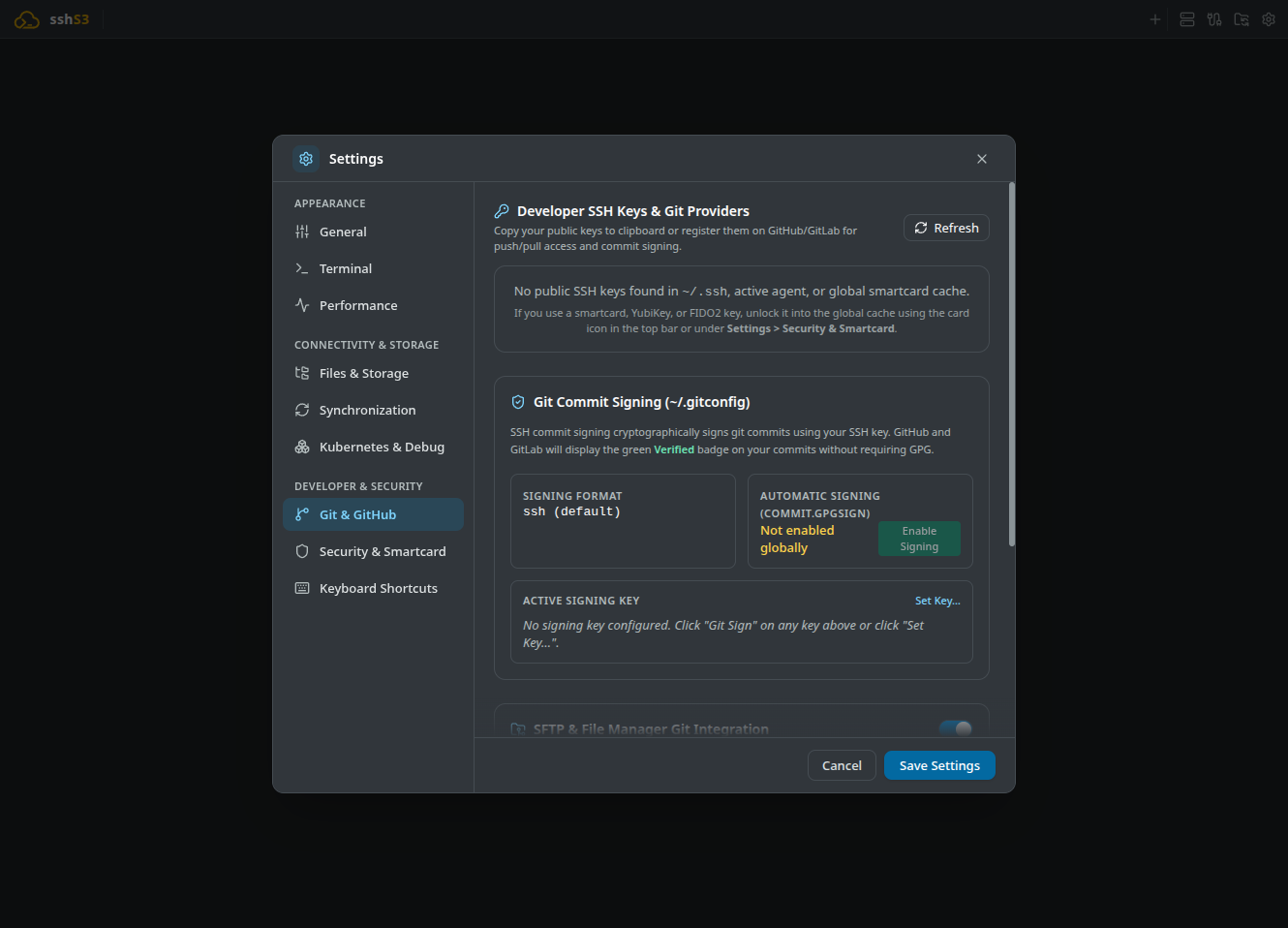
1. Cryptographic SSH Git Commit Signing (Without GPG)
Traditionally, cryptographically signing Git commits required configuring GnuPG (GPG), which is notoriously brittle and complex to manage. Git 2.34+ introduced native support for signing commits using standard SSH keys.
git config --global gpg.format ssh
git config --global user.signingkey ~/.ssh/id_ed25519.pub
git config --global commit.gpgsign true
git config --global gpg.ssh.allowedSignersFile ~/.ssh/allowed_signers
Once configured, verify signed commits locally with git log --show-signature -1:
commit 440f7768a12bc9e2 (HEAD -> main)
Good "git" signature for ops@example.com with ED25519 key SHA256:d8b2...
One-Click Git Signing Configuration
- Open Settings → Git & GitHub.
- Select your preferred SSH key (e.g. your local Ed25519 key or hardware YubiKey).
- Click Git Sign next to the key (or Sign Active for the active key), and enable Automatic Signing (commit.gpgsign).
- sshs3 automatically updates your global
~/.gitconfigand maintains~/.ssh/allowed_signersfor offline local signature verification.
Technical Architecture: Git Config & Allowed Signers File
sshs3 configures your global Git settings:
[user]
  signingkey = ~/.ssh/id_ed25519.pub
[gpg]
  format = ssh
[commit]
  gpgsign = true
It populates ~/.ssh/allowed_signers with your identity and public key and sets gpg.ssh.allowedSignersFile, enabling git log --show-signature to verify commits offline without network lookups.
2. Key Discovery & One-Click Provider Registration
Eliminate manual key hunting, copy-pasting, and navigation through provider account settings to authorize SSH keys on GitHub and GitLab:
- Open Settings → Git & GitHub.
- sshs3 automatically scans and discovers:
- Local key pairs in ~/.ssh/ (id_ed25519.pub, id_rsa.pub, etc.). - Active keys loaded in your running ssh-agent. - Unlocked FIDO2 tokens and smartcard authentication certificates.
- Click Add to GitHub or Add to GitLab next to any detected key.
- sshs3 copies the public key string to your system clipboard and opens your default browser directly at the provider's key creation page with the key title pre-filled. You must already be signed in to the provider in that browser.
3. Remote Public Key Lookup (username.keys)
Inspect and verify public keys belonging to colleagues or open-source maintainers directly from GitHub or GitLab without exchanging keys over unencrypted chat channels:
- In the Lookup Public Keys bar, type a username (e.g.
torvalds) and select a provider (GitHub, GitLab, or a custom self-hosted instance). - sshs3 fetches the public
<username>.keysendpoint and displays each key alongside its SHA256 fingerprint. - Click Copy to copy the key string, or click Deploy to add it to your server's
~/.ssh/authorized_keys. - Only public profiles are queried; a self-hosted GitLab instance must be reachable from your workstation.
4. Troubleshooting & Diagnostics
| Symptom / Error | Probable Root Cause | Corrective Action |
|---|---|---|
error: unsupported gpg.format 'ssh' | Workstation Git binary is older than 2.34 | Upgrade Git to 2.34+ (sudo apt install git or brew upgrade git). |
GitHub displays Unverified on commit | Key is not registered as a Signing Key | In GitHub SSH Settings, ensure key is added as a Signing Key (not only Auth). |
Signing failed: agent refused operation | Hardware YubiKey requires user touch | Tap your physical YubiKey when it flashes to complete the signature. |
| Remote key lookup returns 404 | Username does not exist or has no public keys | Check profile URL in browser: https://github.com/<username>.keys. |