Terminal, Split Panes & Ergonomics
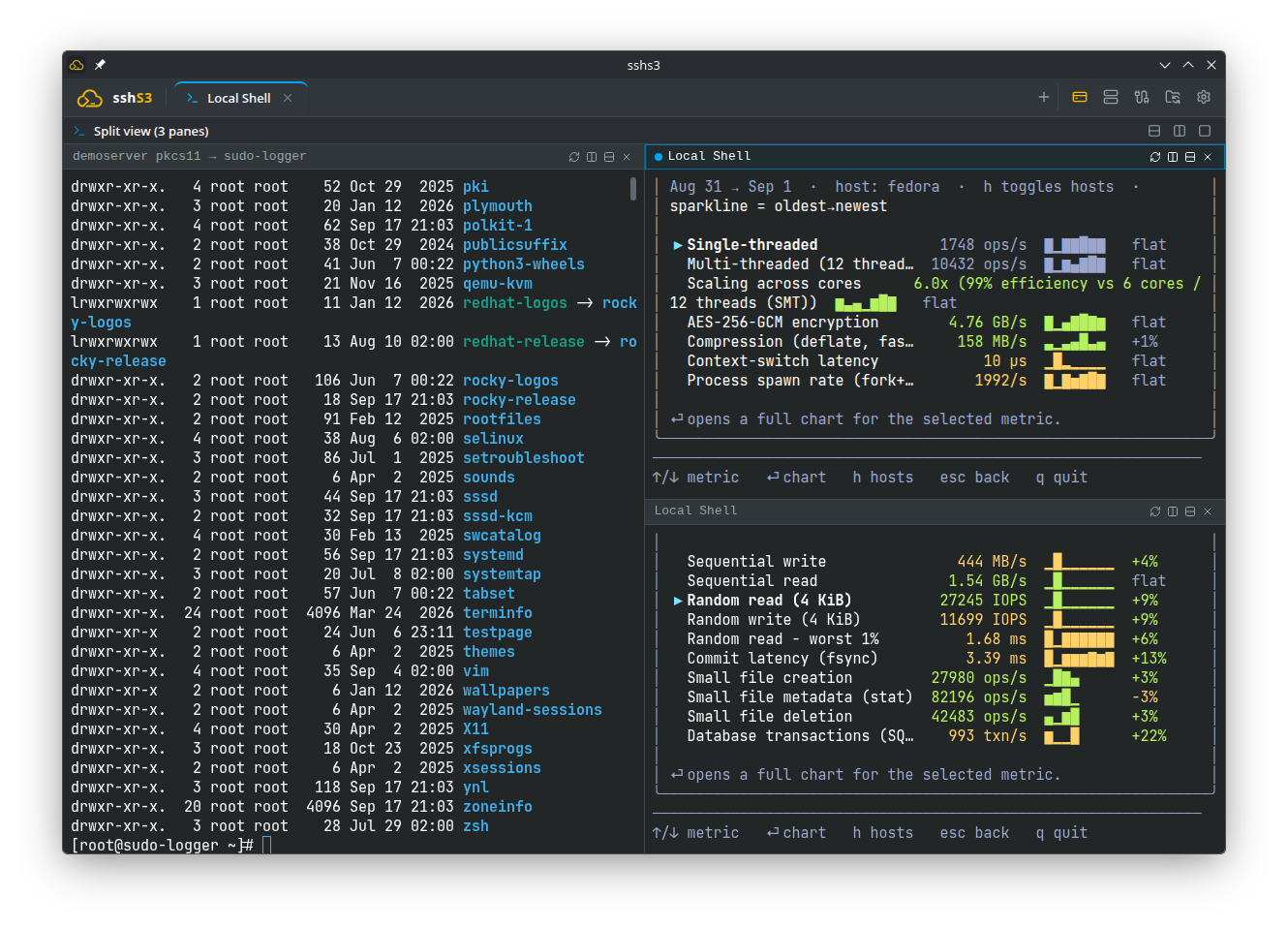
The terminal engine in sshs3 pairs hardware-accelerated web rendering via xterm.js with your operating system's native OpenSSH client process via node-pty. Unlike clients relying on JavaScript SSH emulators, all native OpenSSH options, configuration files, smartcards, and command-line habits function identically to your standard terminal.
1. Native OpenSSH Engine via node-pty
sshs3 executes your operating system's real ssh binary directly in an isolated pseudo-terminal (PTY). Every OpenSSH configuration directive — including ~/.ssh/config, ProxyJump, Match blocks, hardware security keys, and Kerberos/GSSAPI — works out of the box with zero emulation layers.
Terminal Capabilities At a Glance
| Feature | Specification | User Control |
|---|---|---|
| Terminal Emulation | ANSI / VT100 / VT220 / xterm-256color | Full mouse tracking in htop, mc, tmux, nvim |
| Color Rendering | 24-bit TrueColor (RGB) | Auto-adapts to Breeze, Dark, and Light themes |
| Font Scaling | Dynamic per-tab zoom | Ctrl++, Ctrl+-, Ctrl+0 (Reset) |
| Scrollback Buffer | Default 5,000 lines (configurable from 500 up to 50,000 lines) | Searchable in real time via Ctrl+Shift+S |
Technical Architecture: PTY Allocation & Data Streaming
SSHPtyManager (src/main/ssh/SSHPtyManager.ts) allocates a pseudo-terminal through C++ bindings provided by node-pty. It spawns ssh <arguments> <host> in an isolated session. Terminal data streams pass across process boundaries via asynchronous Electron IPC channels:
IPC_CHANNELS.TERMINAL_DATA: Multiplexed standard output stream from PTY to xterm.js.IPC_CHANNELS.TERMINAL_WRITE: Keystrokes and input events from renderer to PTY.IPC_CHANNELS.TERMINAL_RESIZE: Window dimensions and column/row geometry adjustments.
System Requirements: Requires an OpenSSH client binary (ssh) accessible in system $PATH. On Windows, the optional OpenSSH Client feature must be active (enabled by default in Windows 10/11).
2. Konsole-Style Recursive Split Panes
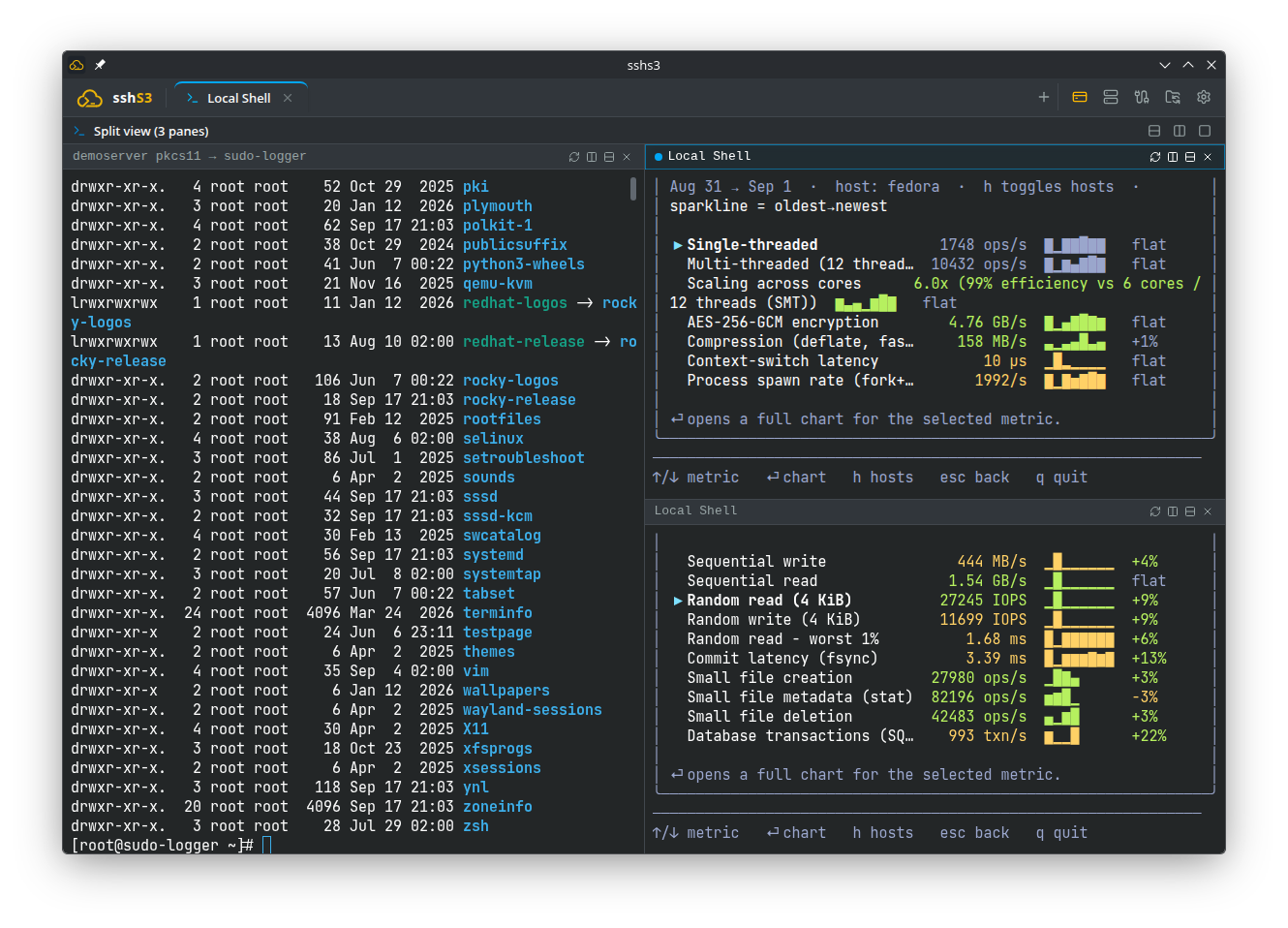
sshs3 implements non-destructive recursive pane splitting modeled on KDE's Konsole (ViewSplitter). You can divide workspace real estate horizontally and vertically without disrupting existing background processes, breaking terminal state, or losing scrollback buffers.
Split Actions & Spatial Navigation
| Action | Shortcut | Description |
|---|---|---|
| Split Vertically | Ctrl+Shift+D | Subdivides active pane into left and right terminals. |
| Split Horizontally | Ctrl+Shift+E | Subdivides active pane into top and bottom terminals. |
| Spatial 2D Focus | Ctrl+Shift+Arrows | Moves focus in the given direction across 2D split space. |
| Cycle Splits | Ctrl+Shift+N / P | Cycles focus sequentially to Next / Previous pane in the tree. |
| Zoom Split Pane | Ctrl+Shift+Z | Temporarily maximizes the focused pane; press again to restore. |
| Close Split Pane | Ctrl+Alt+Shift+W | Closes the active pane (or type exit). Neighbors expand to fill space. |
| Close Active Tab | Ctrl+Shift+W | Closes the entire workspace tab and terminates all splits in it. |
Resizing Splits & Unsplit (Close Others)
- Resizable Dividers: Drag the divider line between any two split panes to resize them horizontally or vertically. Double-click the divider to immediately reset to an equal 50/50 split.
- Close Other Panes (Unsplit): Click the unsplit icon on the pane's mini-toolbar or click Close others in the Split view bar to restore a single-pane layout keeping only the focused pane. If the panes being closed hold active sessions, sshs3 explicitly prompts for confirmation first because their running sessions will terminate. To temporarily focus on one pane without ending other sessions, use Zoom (Ctrl+Shift+Z).
Spatial Tab Escape: Pressing Ctrl+Shift+Up from the top row of splits moves keyboard focus directly into the Tab Bar. From there, use Left/Right to switch tabs, and press Down or Enter to return to the active terminal.
Multi-Window Workspaces (Multi-Monitor Setup)
- Open New Window: Press Ctrl+Alt+Shift+N to open an independent sshs3 window on the monitor where the mouse pointer is located.
- Tab Actions Menu: Press Ctrl+Alt+Shift+K (or Shift+F10 / Menu key on a focused tab) to open the Tab Actions menu, then select Move to New Window or Move to Window N.
- Move Tab Shortcut: Press Ctrl+Alt+Shift+M to immediately detach the active tab into a new window.
- Live Transfer: A terminal keeps running while it moves: it is the same shell or SSH connection, and the most recent ~1 MB of output is redrawn in the new window.
- Window State Restoration: Position and size of every window, and the tabs in each, are restored on the next start. A window whose monitor is no longer connected reopens on the primary monitor.
- Window Lifecycle: Closing a secondary window ends its sessions (prompting first when sessions are running). Closing the main window quits the application and closes all windows.
Good to Know & Limitations: Multiple Windows & Splits
- Unsaved Editor Tabs: A tab with unsaved changes in the built-in editor cannot be moved to another window until saved.
- Unsaved SSH Credentials: A moved SSH tab does not carry credentials that were typed interactively for an unsaved connection; reconnecting such a tab prompts for credentials again.
- Wayland Window Positioning: On Linux Wayland sessions, the Wayland protocol prohibits client applications from reading or setting absolute window coordinates. Secondary windows open where the desktop compositor places them.
- File Manager Tabs: When moving file manager tabs, both panes (host, folder, split) and their underlying connections are preserved. Kubernetes log views automatically re-establish log following.
- Split Count & Columns: Splitting a terminal excessively on smaller displays can reduce column width below 40 characters, causing line wrapping in wide tabular utilities (
htop,ps).
3. Interactive Path Hover Cards & Smart Detection
Hovering over any recognized file or directory path in the terminal displays an interactive Path Hover Card, allowing you to inspect, edit, or copy remote files without leaving your terminal flow.
At a Glance: Path Card Capabilities
| Capability | Description |
|---|---|
| Instant Peek | Asynchronously loads the first 3 lines, total line count, and file size over the active SSH connection. |
| Image Thumbnails | Renders live raster thumbnails for .png, .jpg, .jpeg, .webp, .gif, and .svg files directly in the card. |
| Edit File | Opens the remote file directly in the built-in CodeMirror 6 Editor without switching tabs. |
| Reveal in Manager | Opens the dual-pane file manager, navigates to the parent directory, and highlights the target file. |
| Drag & Drop Handle | Drag the grip handle, file icon, or preview to drop the file directly onto your desktop or email client (up to 500 MB). For remote SSH/K8s terminals, a confirmation dialog downloads a temporary copy before dragging. |
Path Detection Mechanics & Operational Filters
- Real-Time Existence Check: Before a card opens, the path is verified over the active connection. Strings that merely look like paths (
Node.js,example.com,v1.2.3,3.5MB/s,Notes) produce no card when the file does not exist. - Reliable CWD Tracking: Relative paths (
config/app.json) are checked only when the working directory is reliable: reported by the shell through OSC 7, or read from a local shell process via/proc/<pid>/cwd. In an SSH terminal without OSC 7, the directory can only be inferred from prompt heuristics. - Zero-Touch FIDO2 Multiplexing: On Linux and macOS, lookups multiplex through the terminal's active OpenSSH
ControlMastersocket. Your hardware token is touched only once when connecting, never again for hover cards. On Windows, a secondary connection is opened which asks for the key. - Latency Protection: Any path lookup taking longer than 500 ms aborts silently to prevent sluggishness over slow WAN connections.
- Pointer Anchoring & Edge Detection: The card never grows past the available screen room on its side of the pointer (content scrolls instead), avoiding cursor clipping or jumps.
- Local Shells Running SSH (Linux): Hover peek is intentionally not offered when a local shell runs an external
sshcommand, because on-screen text belongs to the remote host while local lookups would read files from your workstation. Use a dedicated sshs3 SSH profile terminal for remote previews. - Trigger Mode (Ctrl-Only): Under Settings → Terminal (Show the card), select Only while Ctrl is held (Cmd on macOS) instead of When hovering over a path. Cards will only open when you deliberately hold Ctrl over a path, keeping them out of the way during text-heavy sessions.
4. Local Shells & Intelligent SSH Agent Injection
sshs3 allows opening local terminal tabs executing directly on your workstation (bash, zsh, fish, pwsh, WSL) alongside remote SSH tabs. Open one with New Terminal (Ctrl+Shift+T) and the local option, or with Open Local Terminal in an empty pane.
Local Terminal SSH Agent Management
Configure agent behavior under Settings → Terminal (Local Terminal SSH Agent):
| Mode | Behavior | Best Used When |
|---|---|---|
| Auto (Default) | If Global PIN caching is enabled, local shells automatically inherit the app-wide AppAgent socket. Unlocked smartcards and FIDO2 keys are instantly available for local git, ssh, and terraform! | Standard workstation workflow with hardware keys. |
| System Only | Strictly inherits your desktop's pre-existing $SSH_AUTH_SOCK (e.g. gpg-agent or systemd ssh-agent) and never starts an app agent. | Using an external specialized agent daemon. |
| Disabled | Completely unsets SSH_AUTH_SOCK and SSH_AGENT_PID in the spawned shell environment. | Air-gapped or testing environments requiring zero credentials. |
Technical Architecture: AgentLifecycleManager Resolution Order
When a local shell tab is spawned, AgentLifecycleManager (src/main/ssh/AgentLifecycleManager.ts) resolves credentials in this sequence:
- Under Global PIN caching: Injects
AppAgenton a dedicated, permission-checked socket ($XDG_RUNTIME_DIR/sshs3/agent.sockwith0700permissions). Because the socket path is stable, a shell opened before unlocking a card immediately picks up the credentials once unlocked! - Inherits any running app-managed agent instance.
- Inherits the desktop system agent from the parent login environment.
- Spawns a fresh private agent daemon if none of the above are available.
5. Terminal Productivity & Power Tools
5.1 Scrollback Buffer Search (Ctrl+Shift+S)
- Opens an overlay search bar with match count indicator (e.g.
3/6). Matches update dynamically as you type. - Step through occurrences forward with Enter and backward with Shift+Enter. Close with Esc.
- Search highlights adapt automatically to Breeze, Dark, and Light themes. Stepping through matches highlights text without triggering Copy-on-Select.
- Tip: To search inside files on the remote filesystem rather than terminal scrollback, use Search in Files (Ctrl+Shift+K, see File Manager).
5.2 Clickable URLs and File Paths (Ctrl+Click)
Hold Ctrl (Cmd on macOS) and click:
- Web URLs: Any
http://orhttps://link opens in your workstation's default browser (supported in terminals and Kubernetes log streams). - Remote & Local File Paths: Clicking a file or directory path in an SSH or local terminal (e.g.
/var/log/syslog,~/notes.md,src/index.ts,./build.sh:42:7) immediately opens that folder in a file manager tab! - Path Resolution: Quotes and spaces are parsed cleanly. Tilde paths (
~/) resolve to the user's home directory. Clicking a file without a trailing slash opens its containing parent folder.
5.3 Clean Output Copy (Ctrl+Shift+Y)
- Copies the clean output of the previous command directly to clipboard without manual mouse highlighting.
- Prompt Stripping: Strips Starship, Powerlevel10k, and default shell prompts, box lines (
╭─,╰─$), and git decorators. - OSC 133 Shell Integration: In modern shells emitting OSC 133 semantic prompt marks (
fish,zsh,bash), command boundaries are 100% exact. - Heuristic Fallback: In shells without OSC 133, tracks command boundaries via Enter keypress markers while ignoring full-screen interactive programs (
vim,less,htop).
5.4 Encrypted Clipboard History (Ctrl+Shift+R)
- When Copy text automatically on selection is active, copied strings are stored in an encrypted ring buffer.
- Press Ctrl+Shift+R or right-click to search and paste previous clippings (Up/Down to navigate, Enter to paste).
- Ctrl+Shift+V, Shift+Insert, and middle-click paste directly.
- Encrypted at rest via OS Keyring (
safeStorage). If the OS keyring is unavailable, history is retained in volatile memory only. Can be scoped per connection or configured to purge on application exit.
5.5 Saved Snippets Palette (Ctrl+Shift+L)
- Searchable palette of reusable shell runbooks. Press Enter to insert into prompt, or Ctrl+Enter to insert and execute immediately. Multi-line snippets paste as an atomic batch.
- Supports dynamic variables:
{{host}},{{user}}, and{{date}}(formattedyyyy-mm-dd HH:mm). - Security Note: Snippets are stored unencrypted in
snippets.json. Do not store passwords or API secrets in snippets!
5.6 Smart Drag-and-Drop: Drop-to-Upload & Paste Path
- SSH Terminals: Dropping a file onto a remote SSH terminal activates an animated frosted drop overlay indicating the remote working directory. The file uploads via SFTP in the background, and its properly shell-quoted remote path (e.g.
'/var/www/site/dump.sql') is automatically typed into the prompt upon completion. - Local Terminals: Dropping a file into a local shell immediately quotes and pastes the workstation path (
'/home/user/Downloads/archive.tar.gz') into the prompt. On Windows, paths are pasted in double quotes (PowerShell and cmd); a path containing$, a backtick, or%is single-quoted. In WSL terminals, dropped Windows files paste as/mnt/<drive>/...paths.
5.7 Web Service & Port Forward Auto-Detection
The terminal monitors output streams for web servers and listening ports:
- Framework Detection: Automatically detects Vite, Next.js, Django, Flask, Express, Spring Boot / Tomcat, Python
http.server, Go (Gin/Fiber), and standardhttp://localhost:<port>/http://127.0.0.1:<port>URLs. - Action Banner: An interactive floating banner appears:
- SSH Sessions: Clicking Forward & Open (or Retry) spins up a background SSH local tunnel (window.multissh.sshTunnelStart) on a free local port and opens the forwarded URL in your workstation's default browser. - Local Sessions: Clicking Open in Browser opens http://localhost:<port> directly. - Kubernetes Sessions: Port detection is not offered (use the dedicated pod port forwarding view instead).
- Custom Regex: Under Settings → Terminal, operators can provide custom regular expressions with capture group
(\d+)to match proprietary server port announcements.
5.8 Re-run with sudo (Ctrl+Shift+X)
Pressing Ctrl+Shift+X offers to re-run the last command with sudo at any time, not only after an error. Furthermore, when a command fails with a permission error (cat: /etc/shadow: Permission denied, Operation not permitted, Are you root?), an action bar appears:
- Press Enter to paste
sudo <your command>onto the prompt line. You see the whole command on the real line, can edit it, and press Enter again to run it (or clear the line to cancel).sudoasks for the password in the shell as usual; sshs3 never sees it. - The first Enter is ignored for a moment after the bar appears to prevent accidental acceptance from rapid double-pressing.
- Press Esc or type anything else to dismiss the prompt.
- Safety Exclusions: Never offered for
ssh,scp,sftp,rsync,git; commands starting withsudo/su/doasorNAME=value; shell builtins (cd,source,export); package managers (npm,pip,cargowhere running as root pollutes home folders); commands with;,&&,||or redirects (>,<); long output; or when you are already root (#orroot@hostprompt). Never shown in PowerShell or cmd.
6. Terminal Settings Reference
| Setting | Default | Description |
|---|---|---|
| Terminal Font Size | 13 | Base font size. Adjust dynamically with Ctrl++, Ctrl+-, Ctrl+0. |
| Terminal Font Family | Monospace stack | Select from curated monospace fonts or enter a custom font name. |
| Cursor Style | Block | Visual cursor style: Block, Underline, or Vertical Bar. |
| Scrollback Buffer (lines) | 5000 lines | Retained scrollback per pane (configurable from 500 up to 50,000 lines), searchable with Ctrl+Shift+S. |
| Enable file path hover preview | On | Shows an interactive preview card when hovering over paths that exist. |
| Show the card | When hovering over a path | Or Only while Ctrl is held. Disabling the preview above leaves Ctrl+Click path activation fully working. |
| Offer to re-run failed commands with sudo | On | After a permission error, press Enter to re-run with sudo or Esc to dismiss. |
| Enable web service & port forward auto-detection | On | Detects web servers and listening ports in terminal output and shows a quick-forward banner. |
| Custom port detection regex (optional) | Empty | Optional regex with capture group (\d+) to match custom port strings. |
| Copy text automatically on selection | Off | Copies highlighted text to the clipboard and records it in encrypted history. |
| Clipboard history scope | Global | Global (shared by all hosts and terminals) or Per host (follows the connection). |
| Empty clipboard history on exit | Off | Wipes the encrypted clipboard history when sshs3 quits. |
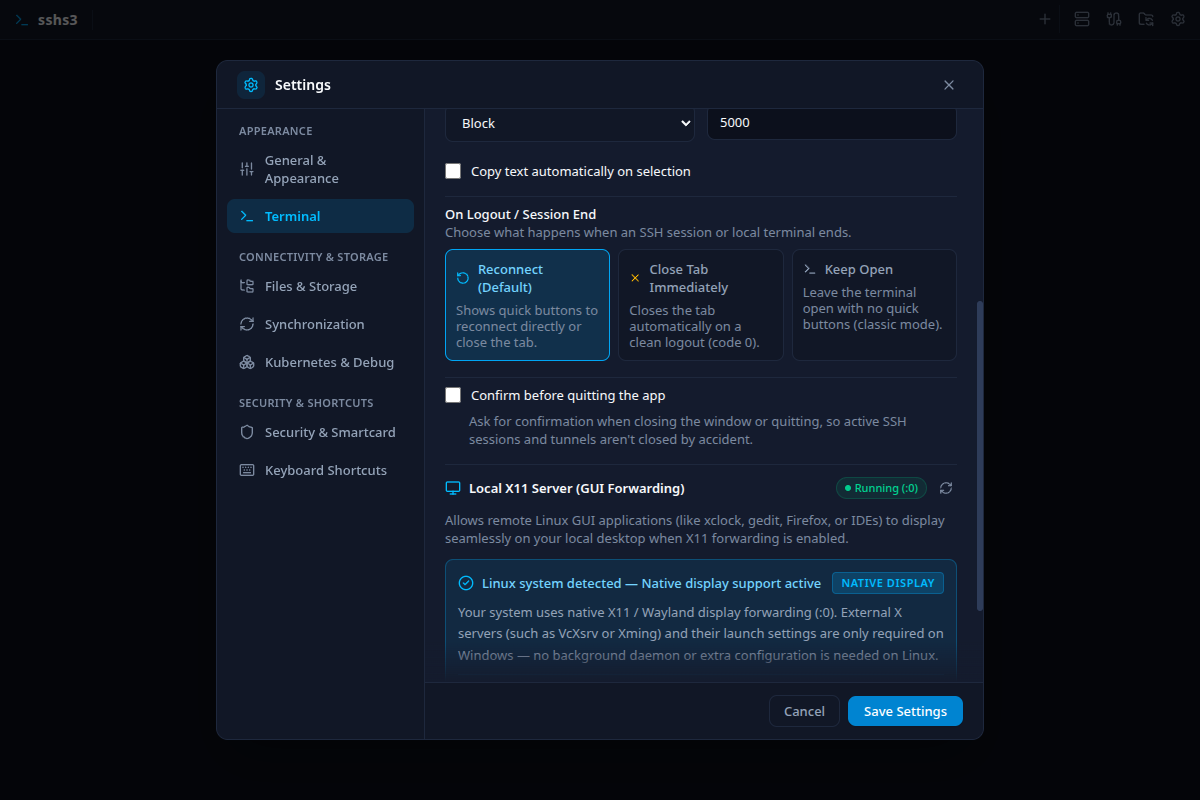
| On Logout / Session End | Reconnect | Action when the session ends: Reconnect, close the tab, or Keep Open. |
| Local Terminal SSH Agent | Auto | Selects agent injection for local workstation shell tabs: Auto, System Only, or Disabled. |
Keep ~/.ssh/config in sync with saved SSH profiles | On | Maintains a marked block in ~/.ssh/config so external terminals can connect to profiles. |
7. Troubleshooting & Diagnostics
| Symptom / Error | Probable Root Cause | Corrective Action |
|---|---|---|
| Blank black terminal screen | System exhausted PTY descriptors | Check availability: cat /proc/sys/kernel/pty/nr. Close unneeded sessions. |
| Swedish / non-ASCII characters garbled | Remote server locale is not UTF-8 | Check echo $LANG on remote host. Export UTF-8: export LANG=en_US.UTF-8. |
| Path click (Ctrl+Click) does nothing | File does not exist or remote CWD unavailable | Absolute paths (/...) always resolve directly. Verify directory export via OSC 7. |
| Clipboard history is empty | "Copy text automatically on selection" is disabled | Open Settings → Terminal and check Copy text automatically on selection. |