Team Vault: Shared Connection Profiles
Team Vault lets operations teams securely share SSH and S3 connection profiles (including server hostnames, accounts, passwords, and secret access keys) through any standard S3 bucket. There is no shared master password, no centralized sshs3 cloud service, and no user tracking: every member unlocks the vault with their own hardware YubiKey. Removing a team member cryptographically revokes access through automatic key rotation, and the S3 storage backend only ever sees authenticated ciphertext.
Team Vault operates completely independently from Remote Profile Synchronization, which synchronizes personal profiles across your own workstations. Personal profiles never enter any Team Vault, and shared profiles never land in your personal profile store. Furthermore, you can belong to multiple Team Vaults concurrently (e.g. Infra Team, Database Ops, Customer Staging), each with its own isolated vault file, membership list, and S3 backend.
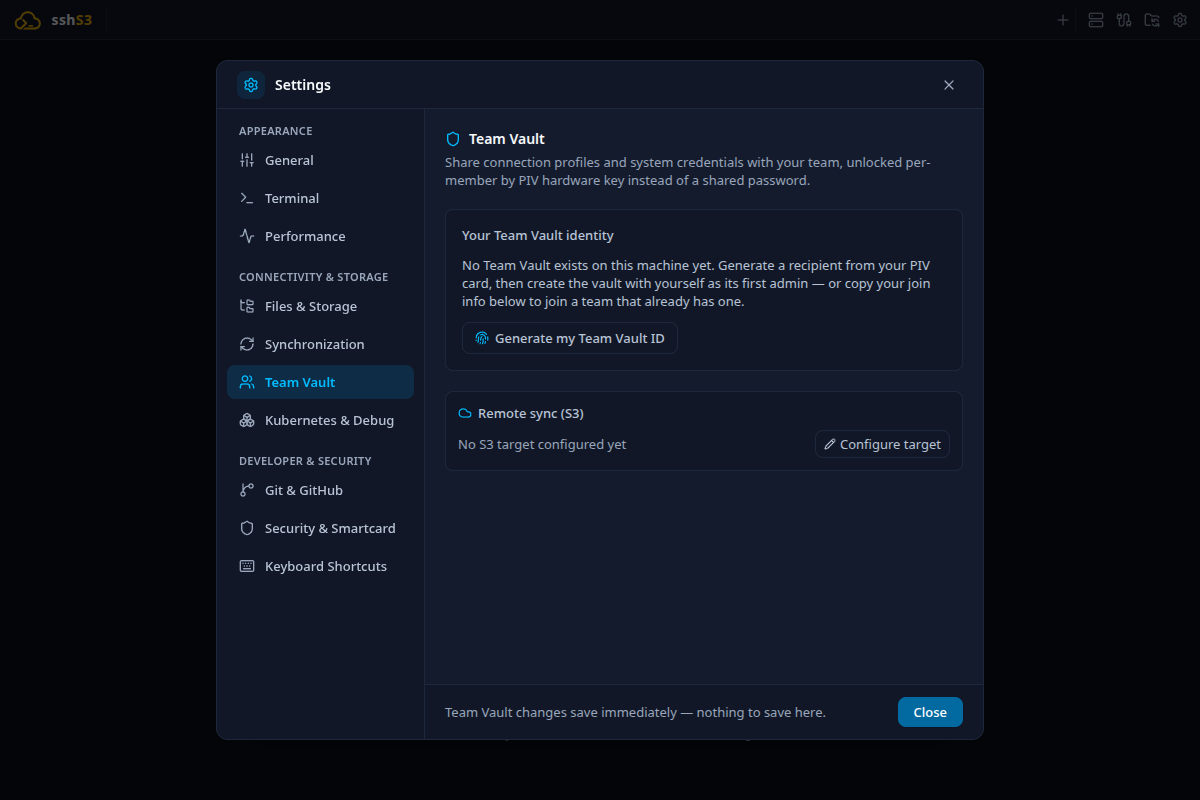
1. Prerequisites & YubiKey Preparation
System Requirements
- YubiKey with PIV support for every member (YubiKey 4 or 5 series). Other smartcards (Gemalto, Thales, SafeNet, SITHS, etc.) cannot be used: Team Vault relies on
age-plugin-yubikey, which communicates directly with the YubiKey's hardware management protocol rather than a generic PKCS#11/PIV middleware. - Operating System: Linux or Windows. macOS is not yet supported. YubiKey 4 and 5 series keys work across both Linux and Windows.
- Smartcard Subsystem: On Linux,
pcscdmust be installed and running on the host (the standard smartcard daemon already used for smartcard SSH authentication). Windows uses its built-in smartcard service without extra installation. - S3-Compatible Storage: An S3-compatible bucket accessible by all team members (AWS S3, MinIO, Ceph, Wasabi, Cloudflare R2). SFTP is not supported as a Team Vault storage target.
- Vault File Size Limit (10 MB): To protect members from remote denial-of-service (DoS) or memory exhaustion attacks via compromised S3 buckets, remote
vault.jsonfiles exceeding 10 MB are strictly rejected with an error before download.
Prepare Your YubiKey (One-Time Setup)
A YubiKey PIV applet contains three distinct secrets: the PIN, the PUK, and the Management Key. Changing the PIN and PUK does not alter the Management Key.
| Card State | Action Required |
|---|---|
Factory-default PIN 123456 / PUK 12345678 | Change them first via ykman piv access change-pin and ykman piv access change-puk. sshs3 deliberately avoids running card credential wizards and halts with an error if factory defaults are detected. |
| PIN/PUK changed, Management Key still factory default (common on YubiKey 4) | No action needed. The first Generate my Team Vault ID operation automatically migrates the default management key to a PIN-protected management key using the PIN you enter. |
| Custom Management Key, but not PIN-protected | Run ykman piv access change-management-key --generate --protect once in your terminal. sshs3 does not know your custom management key and will never prompt for or guess it. |
Dedicated Retired Slot: Generate my Team Vault ID generates a dedicated key in one of the YubiKey's 20 spare ("retired") PIV key management slots. Your existing SSH authentication key in slot 9a is never modified or overwritten.
2. Creating a Team Vault (First Admin)
- Open Settings → Team Vault and click Create a new team.
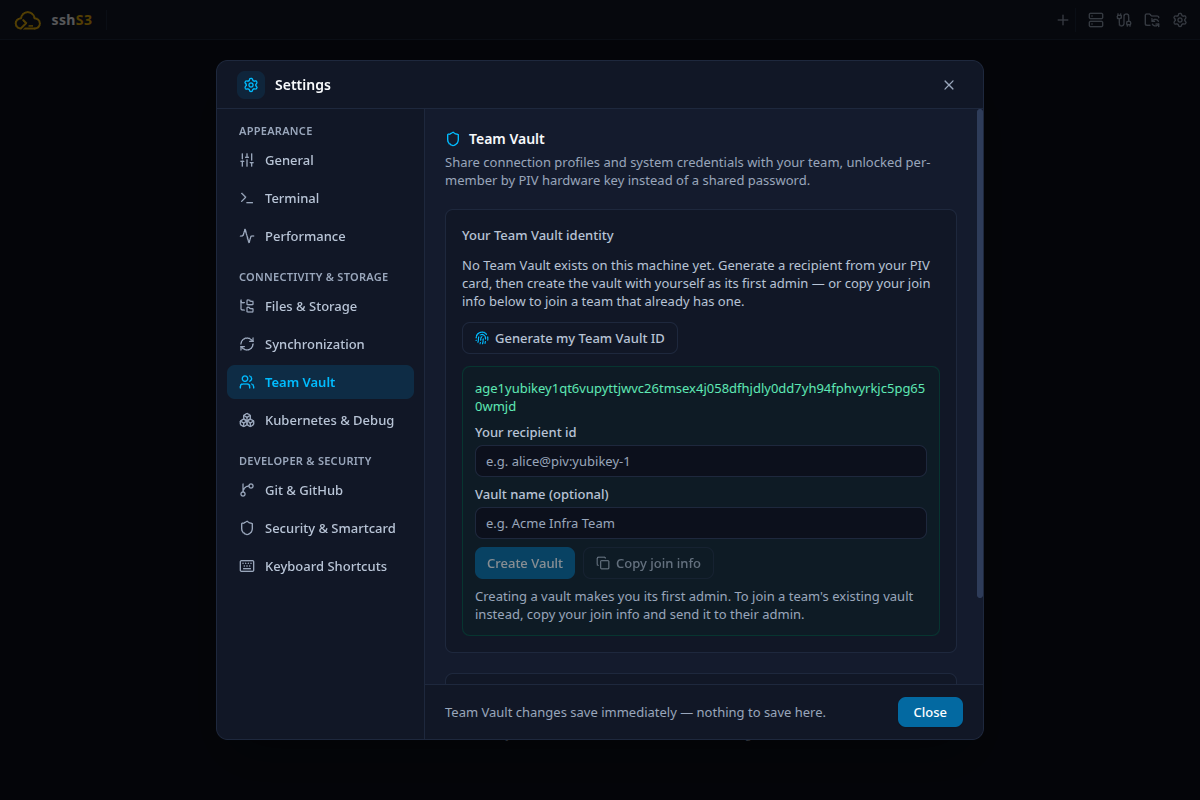
- Click Generate my Team Vault ID. Enter your YubiKey PIV PIN in the dialog and touch the gold sensor when the touch presence banner appears.
- Fill in Your recipient id, which is the label other team members will see (e.g.
alice@corp.internal). If a smartcard certificate with a UPN is configured in Remote Profile Sync, sshs3 automatically suggests your UPN. - Optionally enter a Team name (e.g. Acme Infra Team). The name is displayed in tab titles and team lists instead of the internal ID.
- Click Create team. You become the vault's founding Admin.
- Save your emergency recovery key. The recovery key (
AGE-SECRET-KEY-1...) is displayed exactly once. Click Copy recovery key or print it out, store it securely (e.g., in a physical safe), tick I have printed/saved this recovery key, and click Done. See Recovery.
Configuring Remote S3 Synchronization
- On the team's detail page, under Remote sync (S3), click Configure target.
- Enter the S3 endpoint, credentials (Access Key ID and Secret Access Key), and the target bucket (optionally with a prefix, e.g.
company-vaults/production). The vault file is stored atteam-vault/<vault-id>/vault.jsonunder that path. All credentials are encrypted with your OS keychain (safeStorage). - Click Push to upload the initial vault payload to S3.
When editing an existing target later via Edit target, non-secret fields (endpoint, region, access key ID, bucket) are pre-filled automatically. The Secret Access Key field is left blank to retain your existing saved key, or you can type a new one to replace it. A Test Connection button is available to verify S3 connectivity before saving.
Admins can update the team name or provide a multiline Description at any time.
3. Adding Members & Joining Teams
Team Vault uses an asymmetric invite workflow designed to eliminate manual S3 configuration while preventing unauthorized server connections.
Step 1: The New Member Requests Access
- Open Settings → Team Vault and click Join an existing team.
- Under Step 1, click Generate my Team Vault ID (enter PIV PIN and touch the YubiKey).
- Type Your recipient id (e.g.
bob@corp.internal). - Click Copy join info and send the resulting text block to a vault Admin via chat, ticket, or email. Because this block contains only public identifiers, transmitting it over standard communication channels is completely safe.
Step 2: The Admin Enrolls the Member & Generates an Invite
- Open Settings → Team Vault, select the team, and Unlock it.
- In the Add a member section, paste the member's join info block. sshs3 automatically parses and validates the recipient ID and public
age1yubikey1...string. - Select their initial role (Member or Admin) and click Add member.
- In the members table, click Copy invite next to the new member's name. This packages the vault ID, S3 endpoint, region, credentials, and bucket path into a ciphertext payload encrypted specifically to that member's public hardware key.
- Click Push to upload the updated access header to S3.
- Send the copied invite block to the new member.
Step 3: The New Member Verifies & Joins
- Back in Settings → Team Vault → Join an existing team, navigate to Step 2.
- Paste the invite block into Paste invite from your admin and click Read invite. Enter your PIV PIN and touch the key.
- Verify the decoded team details: sshs3 decrypts the invite and presents the Team ID, S3 Endpoint, Region, and Path for human verification. Important: while
ageencryption proves the invite was addressed to your YubiKey, it does not authenticate the sender. Reviewing the decoded target before connecting prevents malicious endpoints from being accepted blindly. - Click This is my team — join. sshs3 configures the S3 target, downloads the vault file from S3, and unlocks it immediately.
(If preferred, teams can bypass invite blobs and configure S3 targets manually via the collapsed fallback options).
4. Roles & Secret Protection
Team Vault enforces strict role separation directly within the main process:
| Capability | Admin | Member |
|---|---|---|
| Connect to shared SSH and S3 targets | Allowed | Allowed |
| Add, edit, and organize shared profiles & folders | Allowed | Allowed (restricted if profile has stored secret) |
| View plaintext passwords, passphrases & secret keys | Allowed | Redacted |
| Modify or overwrite stored credentials | Allowed | Preserved |
Copy member invites (team-vault:build-invite) | Allowed | Denied |
| Add / remove members, promote / demote roles | Allowed | Denied |
| Rename vault & edit team description | Allowed | Denied |
| Remove vault from this machine (Admin danger zone) | Allowed | Denied |
| Remove a locked team from this device (Local cleanup) | Allowed | Allowed |
How Credential Protection Works for Members
Non-admin members can connect to shared servers and S3 endpoints transparently, but they cannot read or exfiltrate passwords or secret access keys:
- When a non-admin reads the vault payload (
getPayloadForRenderer), the main process strips all plaintext secrets (password,passphrase,proxy.password,secretAccessKey,sessionToken) and replaces them with boolean flags (hasPassword: true,hasSecretAccessKey: true). - When a non-admin initiates an SSH or SFTP connection, the main process looks up the full profile internally in memory (
resolveProfileForConnect), authenticating the connection without exposing the raw secret to the renderer process. - If a non-admin saves changes to a shared profile, any existing secrets are preserved intact. An attempt to set or change a password, passphrase, proxy password or S3 secret key is rejected ("Only a Team Vault admin can …").
- On a profile that has a stored secret, a non-admin also cannot change where it connects (host, port, username, auth type, jump host or proxy), because that would let them redirect the admin-set secret to a server of their choosing. On profiles without a stored secret, members can edit those fields freely.
Offboarding a Member
When an Admin removes a member (Remove member):
- sshs3 generates a brand-new 32-byte AES-256-GCM Vault Key.
- The entire payload (profiles, folders, credentials) is re-encrypted with the new key.
- The new Vault Key is wrapped individually for each remaining member and for the recovery key.
- The file's cryptographic rotation proof (
prevKeyProof) is signed with the old Vault Key. - The removed member retains only whatever local snapshot they had previously downloaded; they are permanently locked out of all subsequent pulls, profile updates, and key rotations.
Keep at least two admins in every vault. The settings view warns whenever a vault has only one admin, as losing that single card leaves the emergency recovery key as the only administrative path. When another member is present, the warning provides a direct Promote <member> action to elevate them to co-admin with one click.
5. Unlocking & Session Management
Shared profiles and credentials remain accessible in memory only while the vault is unlocked. You can unlock from:
- Connection Manager → click the team's tab → click *Unlock as your-id (or use the Unlock all* button in the top bar to unlock multiple teams sequentially), or
- Settings → Team Vault → select the team → click Unlock (the team list overview also provides a quick unlock/lock button and sync status indicator for each team).
Enter your PIV PIN and touch the YubiKey when prompted. sshs3 remembers which identity file and recipient ID you used for each team (never your PIN), allowing one-click unlocking on subsequent launches.
- Lock Now: An unlocked vault can be locked at any time by clicking Lock now in the team's detail panel or in the team list.
- Use a Different Identity: Expands manual inputs to supply a custom recipient ID or identity file path (useful on fresh installations).
- Session Security: The decrypted Vault Key is held exclusively in volatile RAM and is scrubbed immediately when you click Lock or quit sshs3. It is never cached to disk, swap, or the operating system keychain.
6. Using Shared Profiles in the Connection Manager
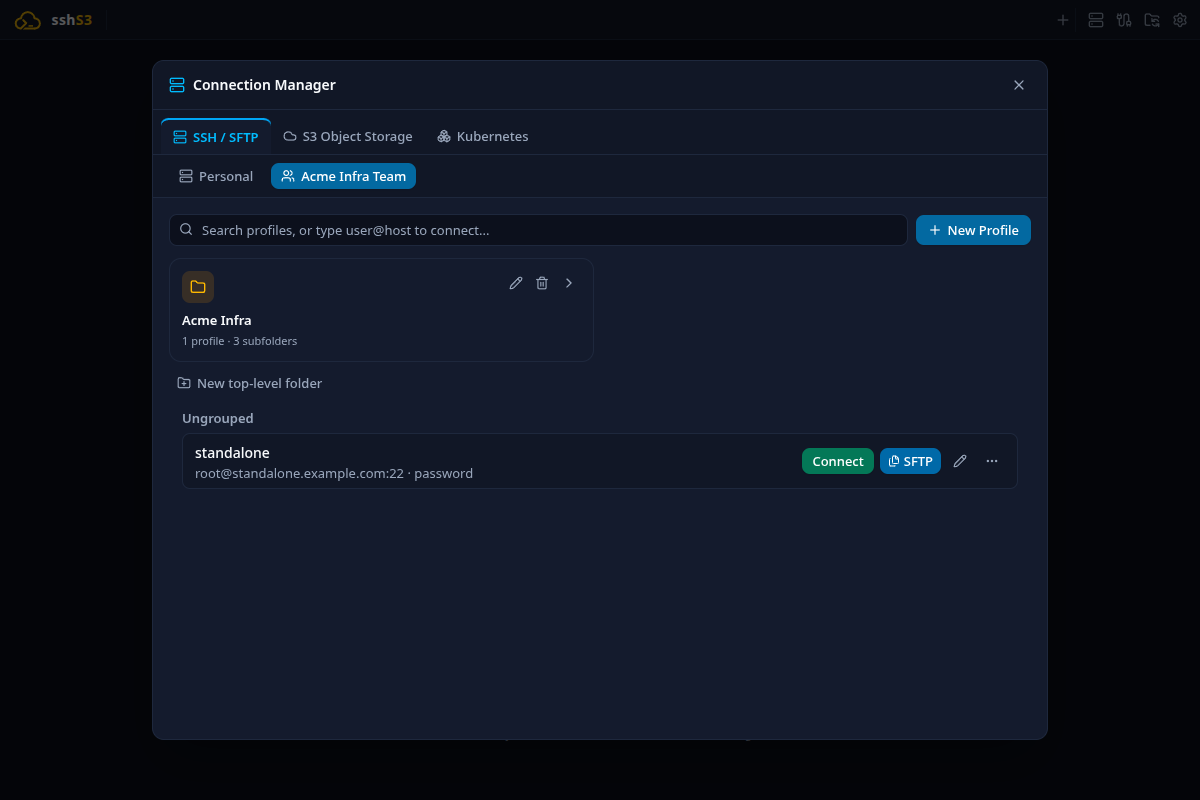
When Team Vaults are configured, the Connection Manager (Ctrl+Shift+O) displays dedicated tabs across the top: Personal followed by a tab for each configured team (e.g. [Acme Infra], [Security Ops]).
- Team Tabs & Visibility: You can toggle whether each team appears as a tab in Connection Manager via the checkbox Show this team as a tab in the Connection Manager (Settings → Team Vault).
- Team Description: Admins can provide a multiline description explaining what the team vault is for. Members can read the description directly on the team's tab, and admins can edit it inline with the pencil icon.
- Profile Operations: Creating, editing, duplicating, and connecting to SSH and S3 profiles works identically to personal profiles.
- Kubernetes / OpenShift Clusters: Shared clusters (server, project and TLS option only, never a token) are listed in a team section of the Kubernetes tab while the team is unlocked, and any member can add or edit them. They are flat (no folders). Signing in to one saves it as your own profile. Members on an older sshs3 version may drop shared clusters the next time they change the vault, so update everyone first. See Kubernetes & OpenShift.
- PKCS#11 / Smartcard Profiles: Leave the PKCS#11 library path blank on shared profiles. Each member's local default from Settings → Security & Smartcard is applied automatically, accommodating differing Linux distributions without per-profile configuration.
- Private Key Paths: File paths to private keys are shared verbatim. If team members use SSH private keys, ensure the key files are stored at consistent filesystem paths across workstations.
Hierarchical Folders & Custom Icons
Shared profiles can be organized into arbitrary directory trees synchronized across all team members:
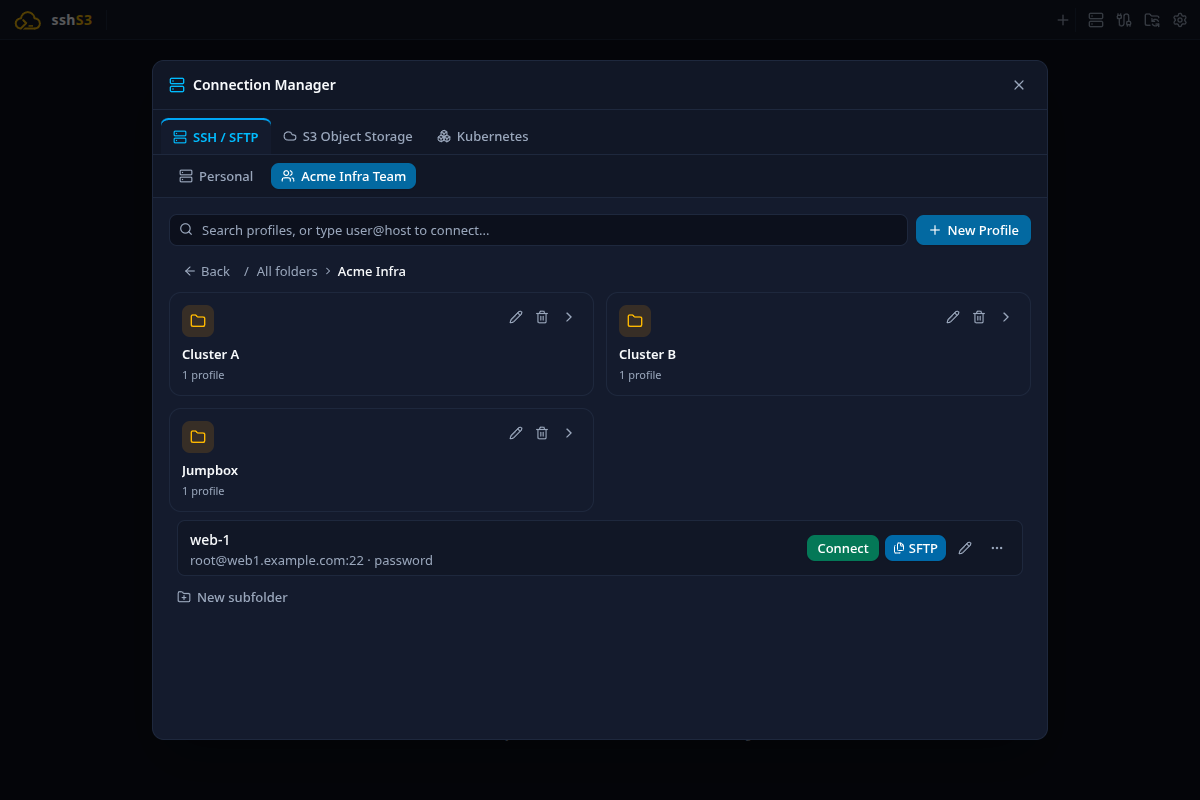
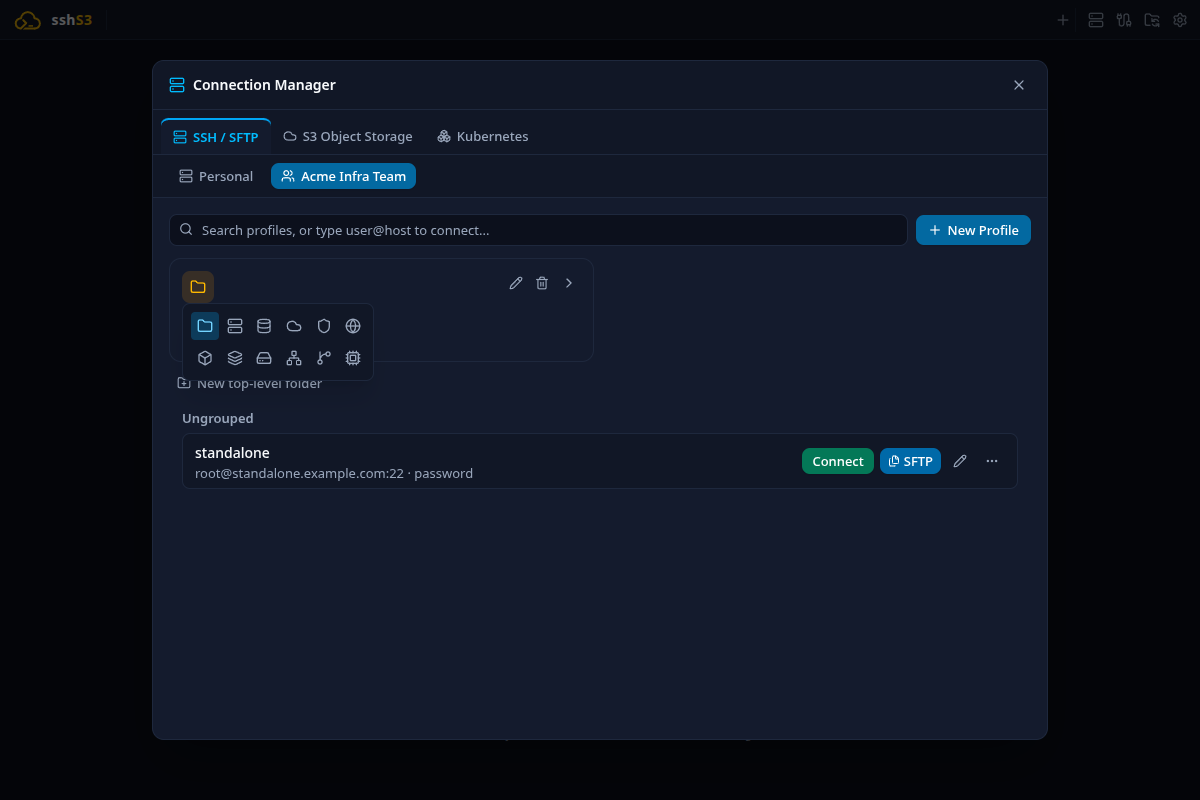
- Folders are rendered as interactive cards. Press Enter or click a card to navigate inside. Breadcrumb navigation at the top provides quick traversal back up the hierarchy.
- New top-level folder and New subfolder create empty directories that persist across team syncs.
- Organize profiles by dragging and dropping cards onto folder cards or breadcrumb segments, or by setting the profile's Group / Folder property (e.g.
Databases/Postgres/Replica). - Click the icon on any folder card to choose from 12 distinct icons (server, database, cloud, shield, globe, box, hard-drive, network, git-branch, cpu, layers, or default folder).
- Deleting a folder moves its profiles to Ungrouped rather than deleting them.
Global Profile Search
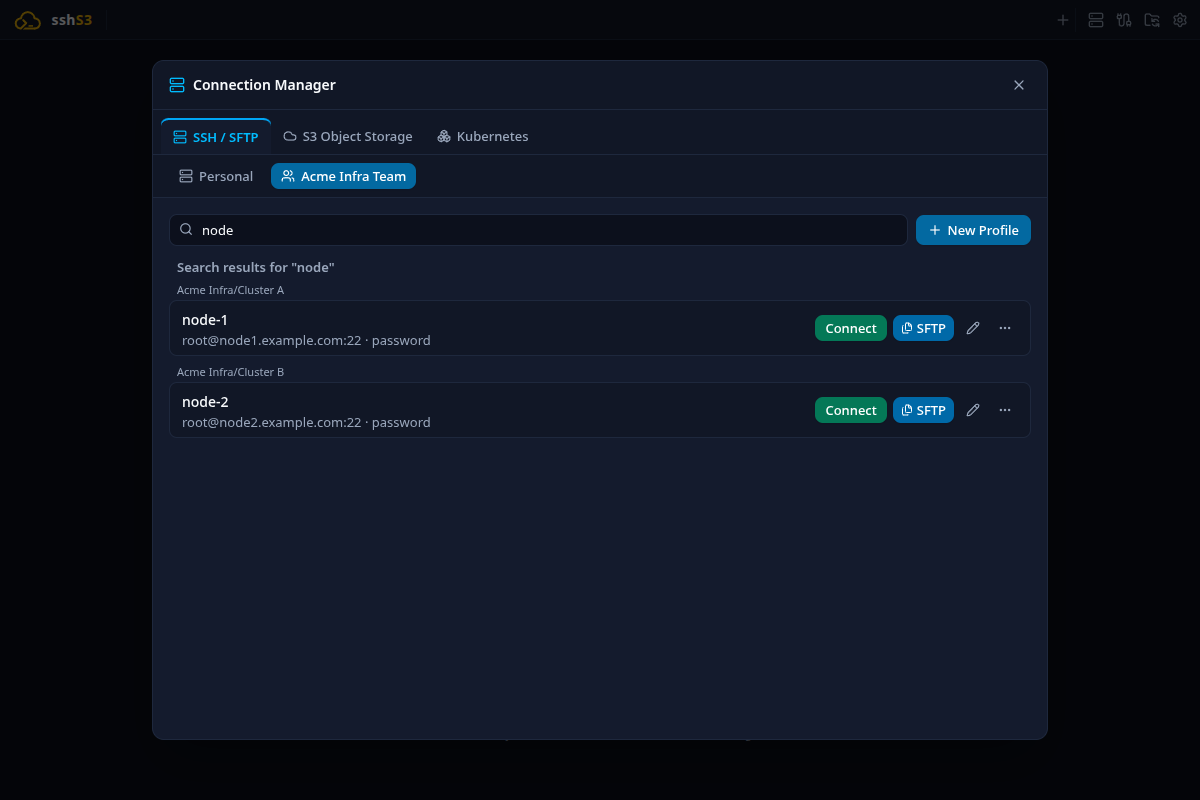
Typing into the search bar instantly searches across all profiles in the active team vault regardless of current folder depth. Results display their full folder path hierarchy. Clearing search restores the folder view.
Automatic Synchronization & Conflict Handling
- Local Changes: Edits to profiles, folders, or team metadata are automatically pushed to S3 approximately two seconds after saving.
- Background Polling: While unlocked, sshs3 checks S3 every 3 minutes for remote revisions. New changes are pulled automatically, marking the team with an Updated badge.
- Sync Status Preview: In Settings, the Push and Pull buttons display a live status preview (indicating whether there are unpushed local changes or remote updates waiting to be pulled) before initiating a sync.
- Conflict Resolution: If remote changes occur while you have unpushed local modifications, sshs3 refuses to push over the newer remote revision (there is no merge and no force-push) and shows "A newer version is available — your unsynced changes here will be lost." with a Get latest button. Get latest discards your unsynced local changes and pulls the remote state; copy anything you want to keep first.
7. Recovery When a Card Is Lost
The Recovery Key (AGE-SECRET-KEY-1...) acts as an emergency software administrative credential. It is completely independent of hardware smartcards.
- On any machine with sshs3, navigate to Settings → Team Vault. (If setting up on a new device, click Join an existing team or configure the S3 target under manual configuration to pull the vault).
- Open the team and click Lost your card? Recover using your saved recovery key....
- Paste the recovery key block into the text box and click Recover vault access.
- The vault unlocks with full Admin rights. You can now enroll a replacement YubiKey, add it via Add a member, click Push, and remove the lost YubiKey's entry.
sshs3 never stores the recovery key on disk; the pasted text is piped to age over stdin and discarded, never written to a file at any point.
Removing a Team From One Machine
- Remove Team from this Device: (Available for locked vaults in the team list) Clears the local vault file, identity path, and configuration from this workstation only. Remote S3 data and other members are completely unaffected.
- Remove Vault from this Machine: (Admin danger zone on the detail panel) Erases the local vault instance. You can re-join the team at any time via invite or manual S3 pull.
8. Security Architecture & Threat Model
Cryptographic Guarantees & Threat Matrix
| Attack Vector | Defense Mechanism |
|---|---|
| Eavesdropping on S3 bucket | Zero-Knowledge Ciphertext: All profile data, folder metadata, passwords, and keys are encrypted with AES-256-GCM. The S3 provider sees only random ciphertext. |
| S3 Bucket Write Tampering | HMAC-SHA256 Access Header MAC: The access header (member list, public keys, roles, vault name, description, revision) is authenticated by a subkey derived from the Vault Key. An attacker with S3 write access cannot modify roles, insert new members, or tamper with keys without invalidating the MAC. |
| Replay & Rollback Attacks | Monotonic Revisions: Every mutating write increments revision. pullFromRemote strictly rejects incoming files with older revision counters. |
| Unauthorized Member Removal | Rotation Proof (prevKeyProof): Rotating the Vault Key requires computing an HMAC proof keyed by the previous Vault Key, proving the rotation was executed by an active member holding valid credentials. |
| Delimiter Collision Injection | Canonical Input Validation: All metadata fields (vault ID, name, description, recipient IDs) are validated to ensure they cannot contain canonicalization delimiter bytes (\u0001, \u0002, \u0003), eliminating field-boundary manipulation. |
| Untrusted S3 Redirection | Two-Stage Invite Verification: Decrypting an invite does not connect automatically; users must visually confirm the target endpoint and bucket before joining. |
| Memory & Process Safety | In-Memory Channels & node-pty: Decrypted Vault Keys are piped directly from age through a RAM-backed channel — a FIFO on Linux, a named pipe on Windows — and never touch disk. PIN prompts are relayed via pseudo-terminal to prevent console scraping. |
Good to Know & Limitations
- YubiKey Only: Only YubiKey 4 and 5 series hardware keys are supported. Generic smartcards (PKCS#11/PIV) do not implement the necessary management protocols required by
age-plugin-yubikey. - macOS Not Yet Supported: Team Vault currently runs on Linux and Windows only.
- S3 Storage Only: Only S3-compatible object storage is supported. SFTP and Git are not supported storage backends for Team Vault.
- Offline Removal Threshold: A workstation that misses more than one consecutive member removal / key rotation cycle while offline cannot verify intermediate rotation proofs. In that event, pull is halted, and the member should forget the local vault and re-pull fresh after verifying the member list with an admin.
- No Per-Folder Access Control: All members of a given Team Vault can access all connection profiles within that vault. For segregated permissions (e.g. Production vs. Staging), create separate Team Vaults.
Technical Architecture & Source Modules
TeamVaultService(src/main/services/TeamVaultService.ts): Orchestrates local vault files (~/.config/sshs3/team-vaults/<vault-id>.json), mutation queues, and memory Vault Key caching.TeamVaultCryptoService(src/main/services/TeamVaultCryptoService.ts): Manages AES-256-GCM payload encryption, HMAC access-header MAC calculation, rotation proofs, and age envelope wrapping.AgePtyPinRelay(src/main/services/AgePtyPinRelay.ts): Spawns bundledageandage-plugin-yubikeyprocesses in an isolated pseudo-terminal, relaying PIN and touch events directly to Electron modals.TeamVaultConfigStore(src/main/services/TeamVaultConfigStore.ts): Stores per-vault S3 connection parameters and remembered local identity mappings.