Quickstart & 60-Second Connect
Welcome to sshs3 — the keyboard-first, high-performance terminal workspace designed for systems administrators, DevOps/SRE engineers, and developers who demand zero nonsense and real OpenSSH ergonomics.
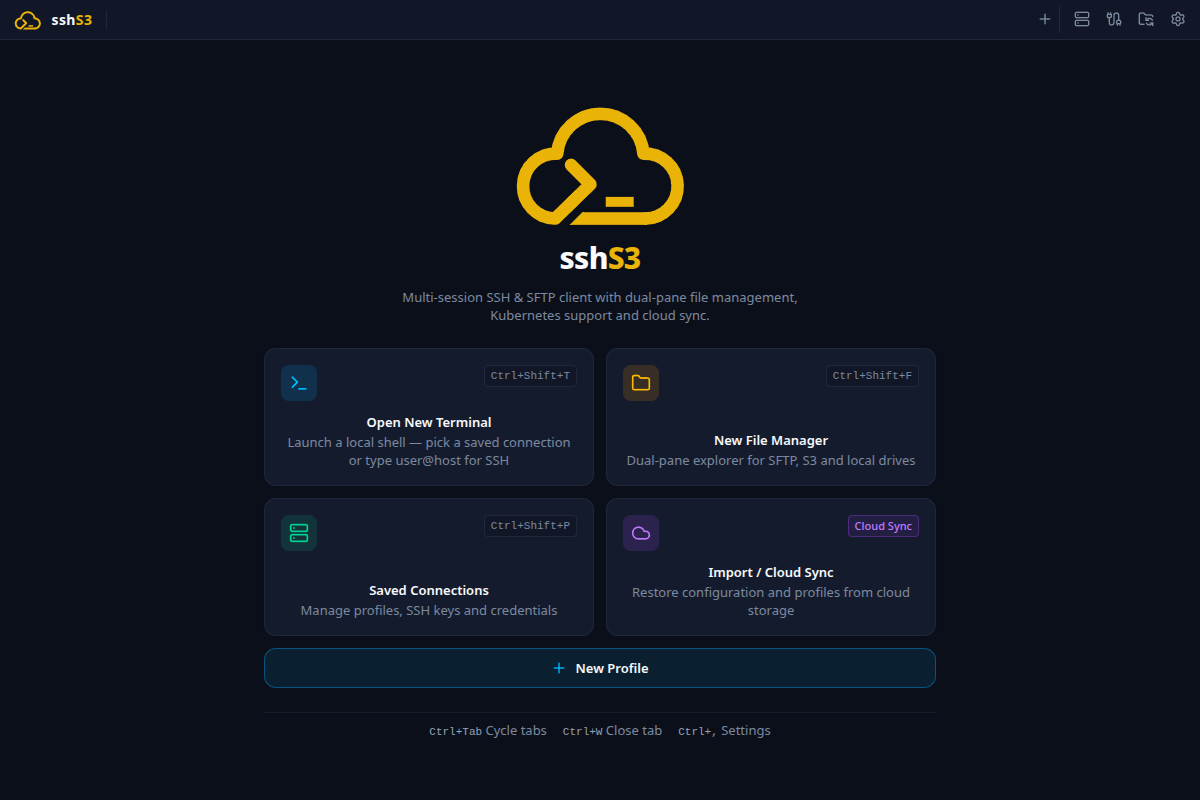
1. Quick Connect: Connect in 5 Seconds
When launching sshs3 without an open session, the start screen provides a focused Quick Connect command bar.
- Type your target host:
user@hostname(Or with a custom port: user@192.168.1.50:2222)
- Press Enter.
- sshs3 immediately spawns a dedicated native terminal running a real OpenSSH process. Type your password in the terminal to connect.
Quick Connect uses password authentication: public-key and agent authentication are not offered (PubkeyAuthentication=no). Options from your ~/.ssh/config for that host, such as ProxyJump, still apply. For key-based logins, create a saved profile.
Fuzzy Profile Search: The same Quick Connect bar searches all your saved SSH and S3 profiles by name, host, user, or group in real time. Matching profiles appear immediately below the input. Press Down and Enter to launch.
2. Terminal Ergonomics: Splits & Spatial Navigation
sshs3 lets you split terminal panes recursively without tmux overhead, keeping your native shell history and scrollback pristine.
| Action | Default Shortcut | Description |
|---|---|---|
| Split Vertically | Ctrl+Shift+D | Split current pane into left and right sub-terminals. |
| Split Horizontally | Ctrl+Shift+E | Split current pane into top and bottom sub-terminals. |
| Spatial 2D Focus | Ctrl+Shift+Arrows | Move focus spatially across splits in 2D space. |
| Zoom Split Pane | Ctrl+Shift+Z | Zoom the focused pane to full window; press again to restore. |
| Close Split Pane | Ctrl+Alt+Shift+W | Close the active sub-terminal without closing the entire tab. |
| Close Active Tab | Ctrl+Shift+W | Close the active workspace tab and all its splits. |
3. Dual-Pane File Explorer (SFTP, Local & S3)
Switch instantly between terminal commands and graphical dual-pane file management with zero context switching.
- Press Ctrl+Shift+F to open the Dual-Pane File Manager for the current host.
- Both panes connect over the active OpenSSH multiplexed session or native S3 API.
- Drag & Drop: Drag files directly between the remote pane and your local desktop or between two remote servers.
- Inline Editing: Hit Enter on any remote file to edit in-place with syntax highlighting (CodeMirror 6). Changes save back atomically over SFTP.
4. Smart Path Detection & Live Hover Peek
Hover your mouse over any file path printed in the terminal (e.g. /var/log/nginx/error.log or ./deploy.sh):
- Live Quick Peek: Displays the first 3 lines, total line count, and file size over the active connection.
- Image Thumbnails: Hovering over an image (
.png,.jpg,.svg,.webp) renders a live thumbnail directly in the hover card. - Instant Actions: Click Reveal in File Manager, Copy Absolute Path, or Edit File.
Noise & Latency Prevention: sshs3 verifies that paths actually exist over the active connection before rendering cards, automatically filtering out package names (Node.js), domains (example.com), and abbreviations. A 500 ms safety timeout aborts background lookups silently over high-latency WAN links.
5. Live Telemetry Diagnostics Bar
Tick Show performance bar above terminals under Settings → Performance (off by default) to show the Live Telemetry Bar above your terminals:
- Samples remote
/proc/stat,/proc/meminfo, and load averages with zero remote agent installation. - Over Kubernetes pods, streams container metrics directly from the Kubernetes
metrics.k8s.ioAPI. - Minimal CPU overhead: multiplexes transparently through the OpenSSH
ControlMastersocket with-o BatchMode=yes.
Next Steps
Now that you know the basics, explore the dedicated guides: