Dual-Pane File Manager & SFTP
Dual-Pane File Manager & SFTP Engine
The File Manager in sshs3 provides a high-performance, keyboard-driven dual-pane explorer modeled after Midnight Commander and WinSCP, modernized for hybrid cloud infrastructure. It enables transparent file operations across local disks, remote OpenSSH SFTP servers, S3 object storage, and running Kubernetes containers.
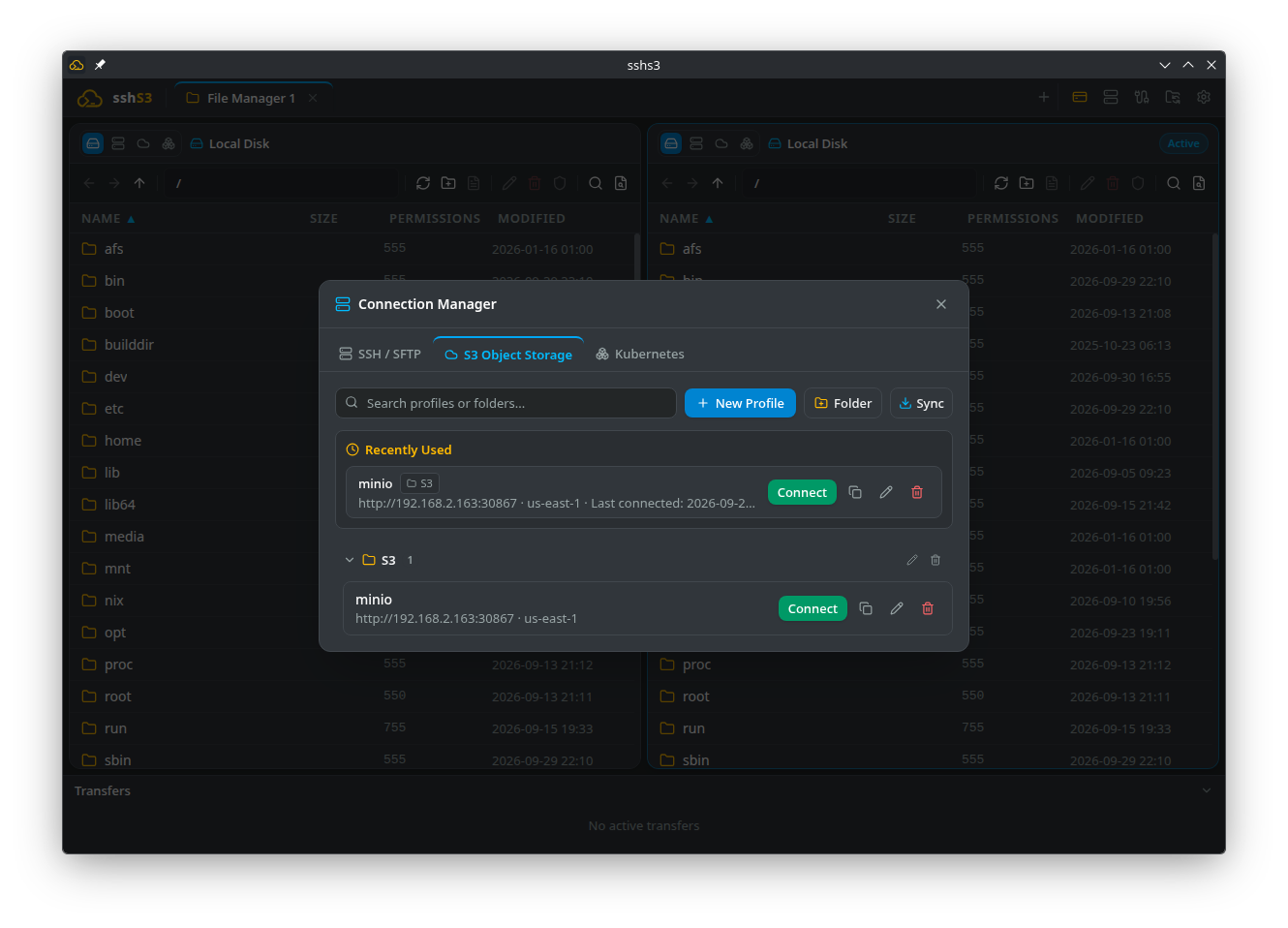
1. Native OpenSSH SFTP v3 Engine
Feature: Subsystem Execution via System OpenSSH
🎯 Purpose
Replace vulnerable JavaScript SSH libraries with the operating system's native OpenSSH client to ensure uncompromising cryptographic security, hardware token compatibility, and seamless proxy routing.
🛠️ How to Use
- Launch the file manager via Ctrl+Shift+F or double-click an SFTP profile.
- Navigate via keyboard (Tab switches active pane, Enter enters directories or opens files, Backspace ascends to parent folder).
- Drag and drop files between panes or directly from your workstation's desktop.
- Manage permissions via right-click → Change Permissions (chmod)... with octal (e.g.
0755,0644) and symbolic checkboxes. Tick Apply recursively to underlying files and folders to apply the mode to everything inside a selected folder.
Drives, Volumes & Free Space
The disk icon at the right of the pane toolbar shows how much space is free where you are (the equivalent of df ) as a fill bar plus a "NN GB free" label.
- Local panes: click it to list every drive (Windows:
C:,D:, ...) or mounted filesystem (Linux/macOS) with its fill level, and pick one to jump to its root. Offline network drives are skipped rather than freezing the list. Up one level from a drive root stays on that drive. - SFTP panes: shows the free space of the filesystem holding the current folder. It needs a server with the
statvfs@openssh.comextension (OpenSSH servers have it); otherwise the indicator is hidden. A remote list of all mounts is in the Performance Bar.
Search in Files (Ctrl+Shift+K)
Opens Search in Files for the active pane's source: local disk, SFTP or S3.
- Choose Literal or Regex, and tick Case sensitive if needed.
- Narrow the search with Include: and Exclude: globs (for example
.log, .csvand*.min.js). - Matches stream in as they are found; select one to preview the surrounding lines, and use Jump to file in pane to open its location.
- The search stops at 500 matches (Result limit reached — narrow your search to see more.). On local disk, files larger than 50 MB are skipped, and on S3 objects larger than 10 MB; unreadable entries (sockets, system-protected files) are reported as warnings.
Keyboard Ergonomics & Spatial Navigation
The file manager is designed to be fully operable without a mouse:
- Spatial Navigation (Ctrl+Shift+Arrows):
- Ctrl+Shift+Left / Right: Toggles focus directly between the left and right file pane. - Ctrl+Shift+Up: Shifts focus up to the Tab Bar (where Left/Right switches active workspace tabs, and Down or Enter returns focus into the file pane). - Ctrl+Shift+Down: Returns focus from the toolbar directly into the active pane's file list.
- In the File List:
- Up / Down: Moves selection up and down. - Enter: Enters the selected folder or opens the file in the built-in viewer (focus remains in the file list). - Escape: Clears the current selection.
| Key / Shortcut | Action | Description |
|---|---|---|
| Enter | Open / Edit | Opens the selected folder, or opens the file in the built-in text editor. |
| Backspace / Alt+Up | Up Directory | Ascends one directory level up the tree. |
| Alt+Left / Alt+Right | History Back / Forward | Navigates through previously visited folders. |
| Ctrl+C / Ctrl+X / Ctrl+V | Copy / Cut / Paste | Clipboard operations across folders and protocols (cut items dim until pasted). |
| Ctrl+A | Select All | Highlights all files and folders in the active pane. |
| Escape | Clear Selection | Clears current file selections without changing directory. |
| F2 | Rename | Renames the selected file or folder in place. |
| Delete | Delete | Prompts for confirmation and deletes selected items. |
| F5 | Refresh | Re-reads directory listings from the underlying storage provider. |
| Home / End | First / Last Item | Jumps directly to the start or end of the directory list. |
| Type letters | Quick Jump | Typing characters immediately jumps focus to the matching file name. |
| Ctrl+F | Filter List | Filters visible items with wildcard matching (e.g. *.log, data-?-final.csv). |
| Ctrl+Shift+K | Search in Files | Recursive content search (with regex support) across local disk, SFTP, and S3. |
⚠️ Limitations & Caveats
- SFTP v3 does not natively support advanced POSIX Access Control Lists (ACLs) within the protocol frame.
- Exceptionally large directory listings (>100,000 files) may take a few seconds to parse depending on network latency.
⚙️ Technical Internals & Architecture
SFTPStorageProvider (src/main/storage/SFTPStorageProvider.ts) spawns the OpenSSH client in subsystem mode:
ssh <args from SmartcardDetector> -o BatchMode=no -s -- [user@]host sftpSftpPacketProtocolprocesses binary SFTP v3 packets (SSH_FXP_INIT,SSH_FXP_OPEN,SSH_FXP_READ, etc.) and rejects any packet larger than 16 MB, protecting against faulty or hostile servers.SftpStreamsdeliversReadableStreamandWritableStreamwith Node.js backpressure management, preventing memory exhaustion over saturated links.- Hardware token touch prompts and smartcard PIN requests are handled transparently via the app's
AskpassServer.
2. In-Memory Streaming Across Storage Providers
sshs3 implements a unified IStorageProvider abstraction for all storage backends:
Feature: Zero Disk Staging Transfers
🎯 Purpose
Enable direct file transfers between disparate storage systems (e.g., from an SFTP server directly to an Amazon S3 bucket, or from a Kubernetes pod to a local disk) without writing intermediate staging files to your workstation's hard drive.
🛠️ How to Use
- Open an SFTP server in the left pane and an S3 bucket in the right pane.
- Select files and press F5 (Copy) or drag and drop across panes.
- The transfer queue dock at the bottom displays progress, speed (MB/s), and estimated time to completion.
- Transfers can be paused and resumed at any time.
⚠️ Limitations & Caveats
- Data streams through your workstation's network interface; transfer speed is bound by the slowest link.
- Suspending your workstation suspends the stream.
⚙️ Technical Internals & Architecture
TransferPipeline (src/main/transfer/TransferPipeline.ts) pipes the source createReadStream() into the target createWriteStream(). ByteMeter calculates transfer velocity using a sliding 100ms window. PauseController suspends the Node.js stream flow without terminating underlying TCP sockets.
3. Conflict Resolution
When a destination file already exists, sshs3 presents an interactive collision dialog:
- Overwrite: Overwrites the existing destination file.
- Skip: Skips the file and advances the queue.
- Rename: Automatically saves the file under a new name instead of replacing the existing one.
Renaming a file in place (F2) to a name that already exists in the same folder is refused instead of silently replacing it.
- Apply to all remaining conflicts in this transfer: Applies the chosen action to all subsequent conflicts in the batch.
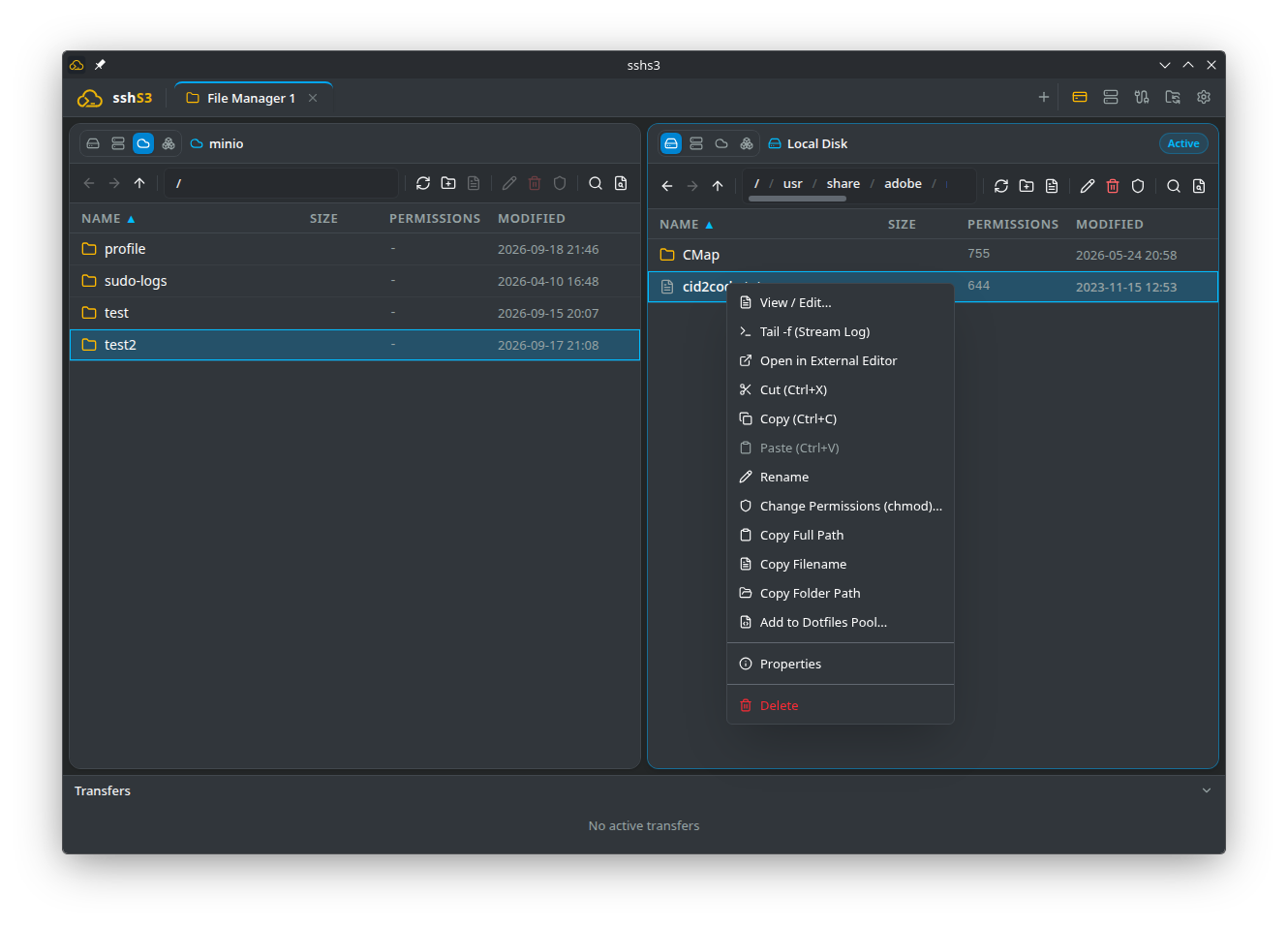
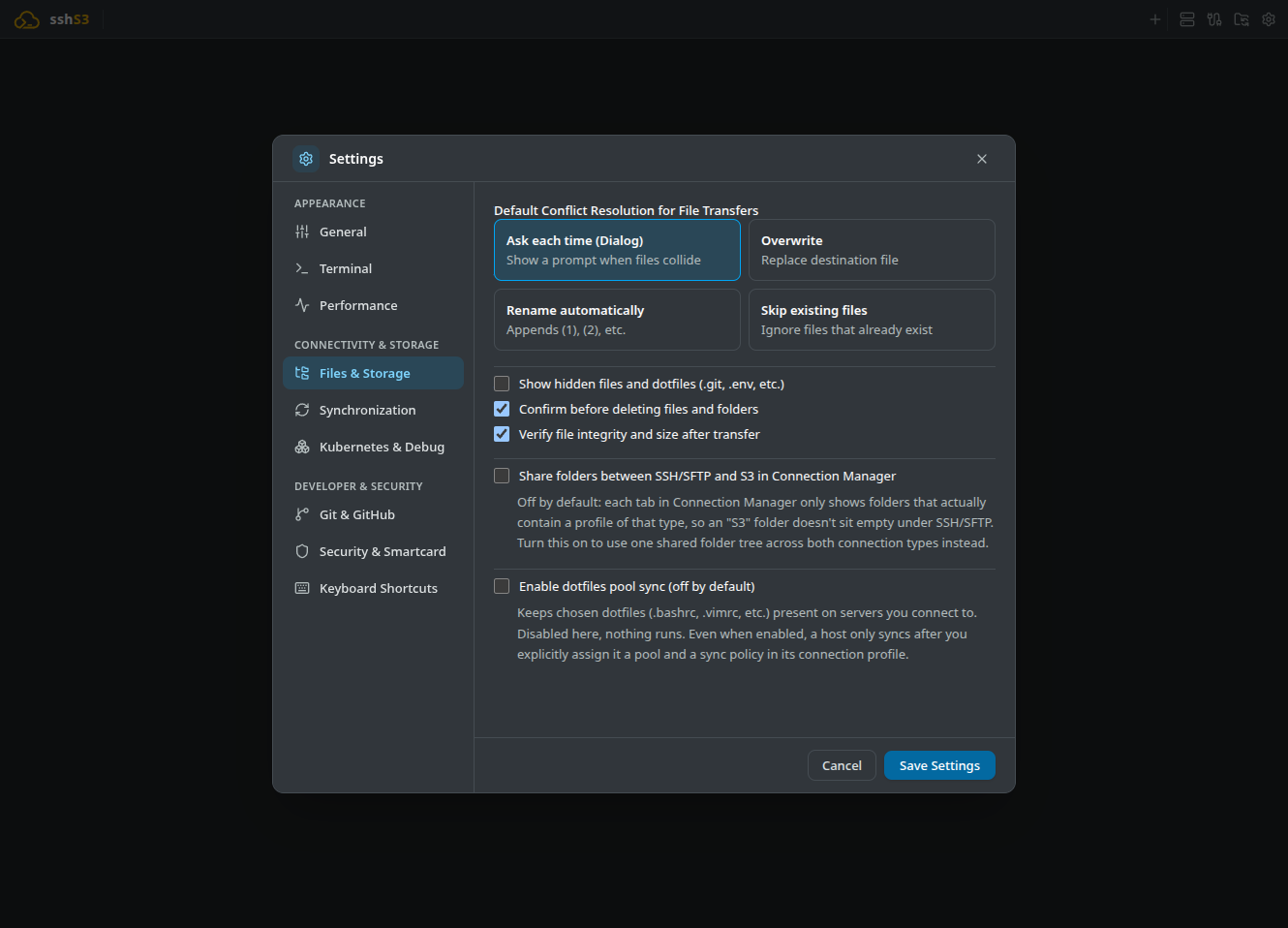
Under Settings → Files & Storage → Default Conflict Resolution for File Transfers you can choose Ask (the default), Overwrite, Skip or Rename so the dialog does not appear. Transfers in the queue can be paused, resumed and cancelled.
4. Directory Diff & Synchronization Engine
Feature: Directory Synchronization
🎯 Purpose
Compare a source directory with a target directory (on the same or different servers) and synchronize the differences, with a diff preview before anything is copied.
🛠️ How to Use
- Right-click a folder and select Sync to..., then pick the target folder. The Sync Directory dialog opens with the Source and Target.
- Review the diff:
- New on source: will be copied to the target. - Modified: will overwrite the target (newer target files are flagged). - Only in target: kept by default (safe sync). - Identical: nothing to do.
- Optionally tick Enable mirror (delete extraneous files in target) to also delete files that exist only in the target. Deletions happen only for the files you select.
- Run the sync. Enter a Profile name to save the configuration as a saved sync profile; saved profiles are listed under Saved Sync Profiles, where Compute diff and run sync repeats them.
⚠️ Limitations & Caveats
- The sync is one-way, from source to target.
- Symbolic links to folders are listed but not followed, and a folder that cannot be read (for example permission denied) is reported as skipped. Nothing below a skipped folder is copied or, in mirror mode, deleted, because its real contents are unknown. If the root folder of the source or target cannot be listed for any reason other than not existing yet, the comparison stops with an error instead of treating it as empty.
- Files are compared by size and modification time, with a fixed 2-second tolerance because SFTP and S3 backends truncate timestamps and clocks drift.
⚙️ Technical Internals & Architecture
DirectorySyncService (src/main/dirsync/DirectorySyncService.ts) traverses directory hierarchies in memory, categorizes files, and enqueues sync tasks through TransferQueue.
5. Built-in Editor, Live Log Tail & External Editor
Feature: In-App Editing, Live Markdown & tail -f
🎯 Purpose
Inspect and modify remote files or monitor server logs without launching an external editor or switching to a terminal window.
🛠️ How to Use
- Built-in Editor: Double-click or press Enter on a text file to open it in the built-in viewer. Press Ctrl+S to save directly back to the remote server. For documentation files, toggle the Source / Preview switch for an instant live-rendered Markdown preview.
- Live Log Tail: Right-click a growing log file (e.g.
access.log,app.log) and select Tail -f (Stream Log). The editor streams new lines in real time and is read-only while tailing; click Stop Tail -f to end the stream. - External Editor: Right-click any file and select Open in External Editor. The file opens in your local desktop IDE (VS Code, Neovim, Sublime). Press Ctrl+S locally, and sshs3 automatically detects the file write and streams updates back to the server in the background!
⚠️ Limitations & Caveats
- The built-in editor is optimized for lightweight text/markdown editing without heavy syntax trees. For complex multi-file projects, use External Editor hand-off.
- Files larger than 5 MB (only the first 5 MB are loaded), binary files and files that are not valid UTF-8 (for example ISO-8859-1) open read-only, and the lock button is disabled, so saving can never overwrite the file with a partial or re-encoded copy. Use Open in External Editor to change them.
- External editors must save files in place without breaking filesystem inode watches.
⚙️ Technical Internals & Architecture
FileEditorService downloads target files into an isolated temporary directory with 0700 permissions, launches the local application via Electron shell.openPath(), and registers an fs.watch event listener. When change events fire, modified buffers stream back across TransferPipeline.
6. Git Integration in the File Manager
Feature: Visual Git Status & SFTP Repository Management
🎯 Purpose
Inspect Git repository status, pull updates, or clone repositories directly within remote SFTP folders without opening a separate terminal session.
🛠️ How to Use
- When browsing a folder containing a
.gitdirectory (locally or over SFTP), sshs3 automatically detects the repository:
- Branch & Status Indicator: Displays active branch, uncommitted/untracked changes, and commit delta ahead (↑) or behind (↓) origin. - Git Pull: Click the pull icon to synchronize the remote repository with upstream in a single click. - Open in GitHub/GitLab: Opens the repository homepage in your default browser when remote.origin.url is configured. - Clone Git repository here...: Right-click any folder to clone a repository with optional shallow-clone depth (--depth=1).
- Git polling can be toggled on or off under Settings → Git & GitHub to eliminate background network checks on constrained servers.
⚠️ Limitations & Caveats
- Remote Git operations over SFTP require
gitto be installed on the remote server.
⚙️ Technical Internals & Architecture
Driven by GitStatusService (src/main/git/GitStatusService.ts) and RemoteGitService (src/main/git/RemoteGitService.ts). Remote status inspections run non-blocking git status --porcelain=v2 commands over the ControlMaster channel.
7. Troubleshooting & Diagnostics Runbook
| Symptom / Error Message | Probable Root Cause | Corrective Action |
|---|---|---|
Permission denied on file upload | Remote directory lacks write permissions for user | Verify directory permissions via ls -ld . Run chmod 755 or elevate via sudo in a terminal. |
SFTP subsystem not found | Remote server's sshd_config lacks SFTP subsystem | Ensure Subsystem sftp /usr/lib/openssh/sftp-server is configured in /etc/ssh/sshd_config. |
| External editor edits do not upload | Editor saves via atomic temporary files | Configure your editor to write in place (e.g. in Vim: :set backupcopy=yes). |
| Transfer hangs at 99% | Remote partition exhausted available disk space | Run df -h on the remote server to ensure free space is available. |