# Dual-Pane File Manager & SFTP
> Dual-pane SFTP client and file manager: stream files between servers, S3 and local disk, resume transfers, diff and sync directories, edit in place.
- Canonical page: https://sshs3.com/docs/workspace/file-manager/
- Category: Core Workspace
- Platforms: Linux, Windows, macOS
- Last updated: 2026-11-26 19:17
- Documents sshs3 version: 0.98.6
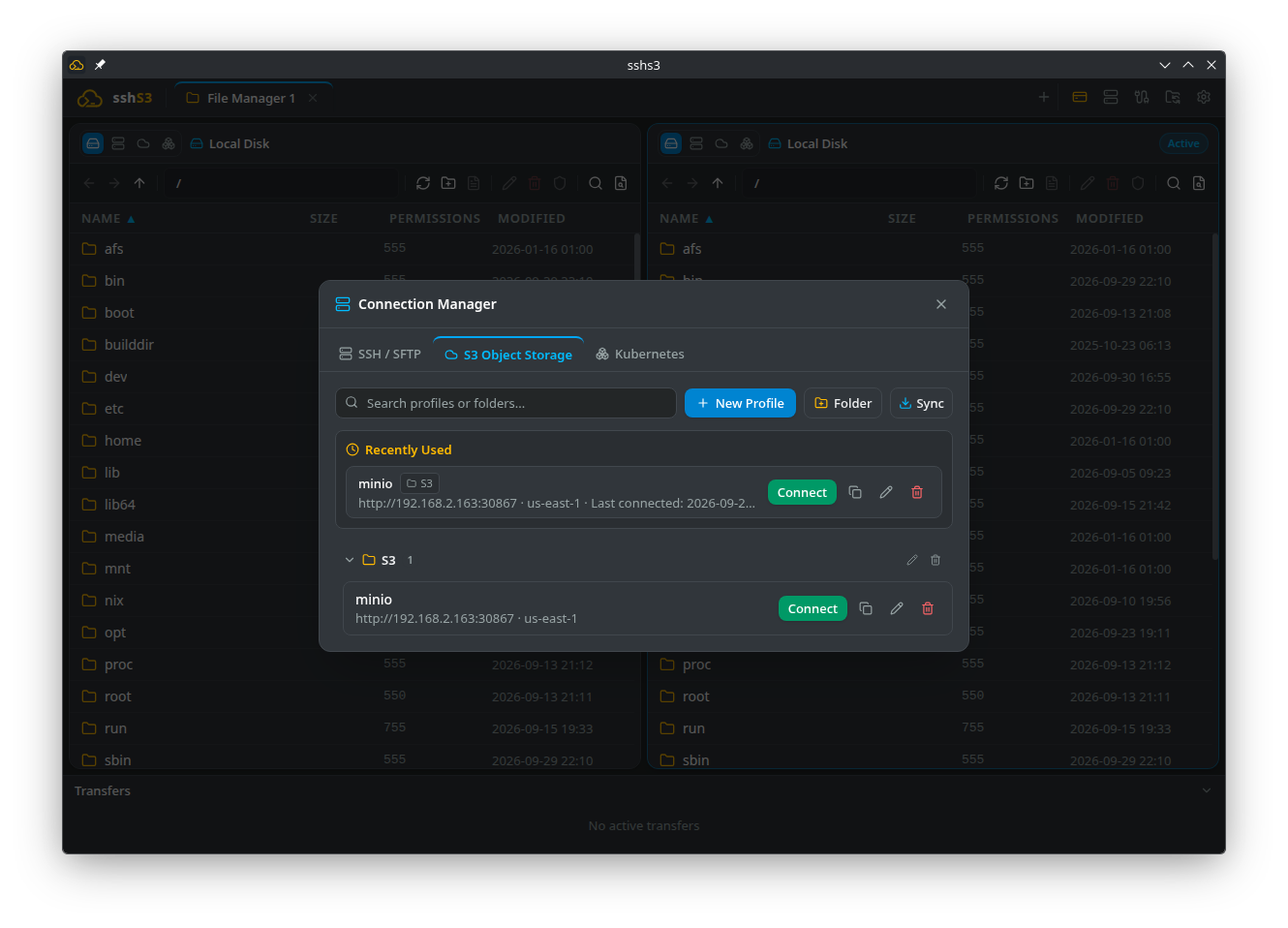
The File Manager in **sshs3** provides a high-performance, keyboard-driven dual-pane explorer modeled after Midnight Commander and WinSCP, modernized for hybrid cloud infrastructure. It enables transparent file operations across local disks, remote OpenSSH SFTP servers, Amazon S3 object storage, and running Kubernetes containers.
---
## 1. Native OpenSSH SFTP v3 Engine
Unlike tools relying on JavaScript SSH emulators, sshs3 executes your operating system's real `ssh` binary in SFTP subsystem mode (`ssh -s sftp`). All hardware security tokens (YubiKey PIV, FIDO2), smartcards, `~/.ssh/config` directives, and proxy bastions function out of the box with zero emulation layers.
### Navigation & Spatial Keyboard Ergonomics
The dual-pane explorer is engineered to be 100% operable without a mouse:
| Key / Shortcut | Action | Description |
| :--- | :--- | :--- |
| Ctrl+Shift+Left / Right | Switch Active Pane | Toggles keyboard focus between the left and right file panes. |
| Ctrl+Shift+Up | Escape to Tab Bar | Focuses the Tab Bar to switch active workspace tabs with Left/Right. |
| Enter | Open / Edit | Enters the highlighted directory, or opens file in built-in editor. |
| Backspace / Alt+Up | Ascend Directory | Navigates one directory level up the folder hierarchy. |
| Alt+Left / Right | History Back / Forward | Navigates backward and forward through visited directories. |
| Ctrl+L / Alt+D | Edit Path | Edits the breadcrumb path directly as text; press Enter to jump. |
| Ctrl+C / X / V | Copy / Cut / Paste | Clipboard file operations across folders, servers, and protocols. |
| Ctrl+F | Filter Items | Real-time wildcard filter (e.g. `*.log`, `data-?-final.csv`). |
| Ctrl+Shift+K | Search in Files | Recursive text search (with regex support) across SFTP, S3, or local disk. |
| Ctrl+H | Toggle Hidden Files | Shows or hides dotfiles and hidden directories. |
| F2 | Rename | Renames the selected file or folder in place. |
| F5 | Refresh | Re-reads directory listings from the underlying storage provider. |
| Delete | Delete | Prompts for confirmation and deletes selected items. |
> [!TIP]
> **Type to Jump:** Typing letters anywhere in the file list instantly jumps selection to the first file or folder matching those characters.
### Disk Space, Search & Archives
- **Disk space indicator (local panes):** Click it to list every drive (Windows: `C:`, `D:`, ...) or mounted filesystem (Linux/macOS) with its fill level, and pick one to jump to its root. Offline network drives are skipped rather than freezing the list. **Up one level** from a drive root stays on that drive.
- **Disk space indicator (SFTP panes):** Shows the free space of the filesystem holding the current folder. It needs a server with the `statvfs@openssh.com` extension (OpenSSH servers have it); otherwise the indicator is hidden. For a list of all remote mounts, see the [Performance Bar](https://sshs3.com/docs/workspace/telemetry/).
- **Search in Files options:** Choose **Literal** or **Regex**, tick **Case sensitive** if needed, and narrow the search with **Include:** and **Exclude:** globs (for example `*.log, *.csv` and `*.min.js`).
- **Compress / Extract** (local disk and SFTP panes): Right-click a selection and choose **Compress to .tar.gz** or **Compress to .zip**. The archive is created next to the selection and never replaces an existing one (`archive (1).zip`). Right-click an archive (`.zip`, `.tar`, `.tar.gz`, `.tgz`, `.tar.bz2`, `.tar.xz`) and choose **Extract to Folder** to unpack it into a new folder named after the archive. On SFTP the work runs on the server, so `tar` (and `zip`/`unzip` for zip files) must be installed there; on a local Linux machine zip files also need `zip`/`unzip`.
### Technical Architecture: SFTP Subsystem & Packet Guard
`SFTPStorageProvider` (`src/main/storage/SFTPStorageProvider.ts`) spawns the system OpenSSH binary:
```bash
ssh -o BatchMode=no -s -- [user@]host sftp
```
- **Packet Protection:** `SftpPacketProtocol` processes binary SFTP v3 packets (`SSH_FXP_INIT`, `SSH_FXP_OPEN`, `SSH_FXP_READ`, etc.) and enforces a strict 16 MB maximum packet ceiling, shielding the client against malicious or misconfigured remote servers.
- **Backpressure Streaming:** `SftpStreams` uses Node.js `ReadableStream` and `WritableStream` with adaptive backpressure, preventing memory exhaustion when reading from high-bandwidth LAN servers.
- **Zero-Touch Askpass:** Smartcard PIN requests and FIDO2 touch prompts route seamlessly through the internal `AskpassServer`.
### Good to Know & Limitations: SFTP Subsystem & Directory Listings
- **POSIX ACLs:** SFTP v3 does not natively support advanced POSIX Access Control Lists (ACLs) or extended attributes (`xattr`) within the protocol frame; standard POSIX mode bits (`0755`, `0644`) are preserved.
- **Large Directories:** Exceptionally large directory listings (>100,000 files) may take a few seconds to enumerate over high-latency WAN links.
### Reopening Tabs After a Restart
File manager tabs come back when you restart sshs3. A tab that was opened from a saved connection reconnects by itself with that connection's saved password, key passphrase or S3 secret key, so you are not asked again. The saved session itself never contains those secrets.
- If the profile has no saved password, the tab asks for it (**Password Required for SFTP**).
- If the profile's host, port or user (SFTP), or its endpoint, region or access key (S3), was changed after the tab was saved, the tab asks again instead of sending the saved secret to the new address.
- A tab opened from a quick `user@host` has no profile behind it and always asks.
---
## 2. In-Memory Streaming Across Storage Backends
sshs3 implements a unified `IStorageProvider` interface across all storage engines, enabling direct file transfers without writing intermediate staging files to your workstation's disk:
```mermaid
flowchart LR
SFTP["SFTP Server (OpenSSH)"] <--> |In-Memory Stream| Pipeline["TransferPipeline & ByteMeter"]
S3["S3 Bucket (AWS / MinIO / R2)"] <--> |In-Memory Stream| Pipeline
Local["Workstation Local Disk"] <--> |In-Memory Stream| Pipeline
K8s["Kubernetes Pod Container"] <--> |In-Memory Stream| Pipeline
```
### Transfer Queue & Conflict Resolution
- **Zero-Disk Staging:** When copying from SFTP directly to an Amazon S3 bucket (or between two remote servers), bytes stream directly through workstation memory via Node.js stream pipes.
- **Interactive Collision Handling:** When a destination file already exists, choose **Overwrite**, **Skip**, or **Rename** with an optional *Apply to all remaining conflicts* checkbox.
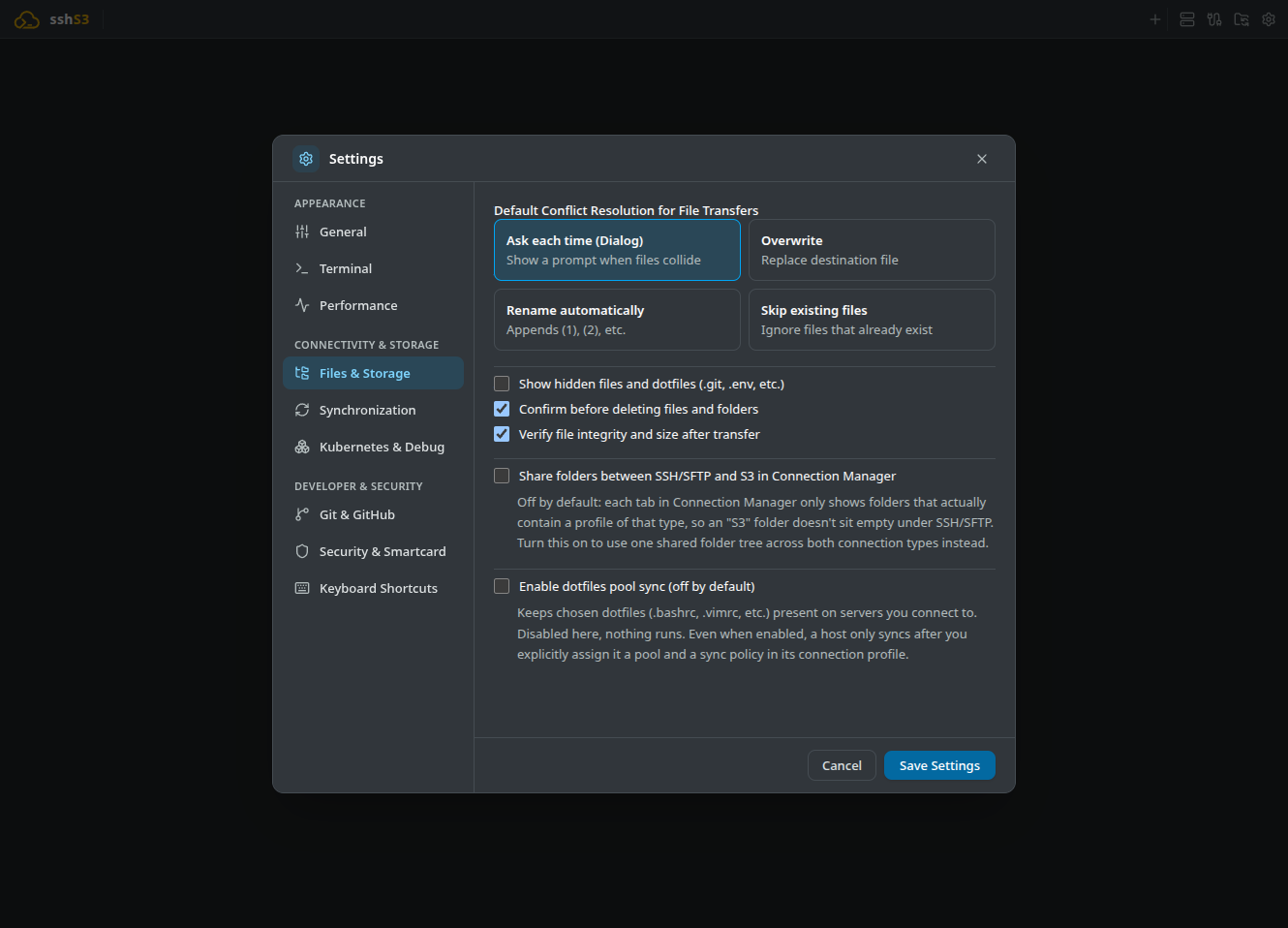
- **Default Action:** Configure your preferred collision policy under *Settings → Files & Storage*.
- **A Failed or Cancelled Transfer Keeps Your Original:** sshs3 only removes a partly written target when the transfer had already opened (and so replaced) it. A transfer that fails or is cancelled before that leaves an existing file untouched. A size or checksum mismatch after a complete write still removes the bad copy.
- **Same File:** Copying a file onto itself is refused ("Source and target are the same file"), including through a hard link or symbolic link on a local disk. **Rename** still copies into the same folder as a duplicate.
- **Special Files:** Named pipes (FIFOs), sockets and devices are skipped when copying folders, and a single one fails with "Not a regular file", instead of hanging the transfer.
- **Write Errors on Close:** If the server reports a failed write only when the file is closed (disk full, quota), the transfer fails instead of looking successful.
### Good to Know & Limitations: In-Memory Stream Transfers
- **Workstation Bandwidth:** When copying between two remote servers (or from SFTP directly to S3), data streams through your local workstation's network interface; transfer speed is bound by your local upload and download bandwidth.
- **Laptop Sleep / Suspend:** Suspending your workstation pauses and interrupts active network streams; keep the workstation awake during massive multi-gigabyte cloud transfers.
---
## 3. Directory Diff & Synchronization Engine
Compare two directory trees (local vs. remote, or remote vs. remote) and synchronize changes with a visual diff preview before touching the filesystem:
1. Right-click any folder and select **Sync to...**, then select your target directory.
2. Review the computed diff preview:
- **New on source:** Will be copied to target.
- **Modified:** Will overwrite target (newer target files are flagged with a warning).
- **Only in target:** Preserved by default (*safe sync*).
- **File and folder with the same name:** Shown as a skipped type conflict (a file on one side, a folder on the other). It is never copied or deleted, not even in Mirror mode, and nothing below it is compared. Rename or remove one side and scan again.
3. **Mirror Mode:** Enable *Mirror (delete extraneous files in target)* to delete target files that no longer exist on the source.
4. **Saved Sync Profiles:** Enter a **Profile name** before running to save the configuration as a reusable profile. Saved profiles are listed under **Saved Sync Profiles**, where **Compute diff and run sync** repeats them.
### Technical Architecture: How Directory Diff Compares Files Across Drifted Clocks
Files are compared using file size and last modification timestamp. A configurable 2-second timestamp tolerance accommodates clock drift between servers and timezone differences across FAT32, NTFS, ext4, and S3 object metadata.
### Good to Know & Limitations: Directory Synchronization & Mirroring
- **One-Way Sync:** Synchronization is strictly one-way from the selected source to the target directory.
- **New Target Folders:** The target folder does not have to exist: the first sync creates it, over SFTP as well.
- **Symlinks & Unreadable Folders:** Symbolic links, to files and to folders, on the source or the target are not synced: they are never copied, compared, written through or deleted, and nothing below a linked folder is compared. The preview lists them as *symbolic links not synced*. (Copying files in the file manager also skips symbolic links.) Folders that cannot be read (e.g. permission denied) are reported as skipped; nothing below a skipped folder is copied or, in Mirror mode, deleted, because its contents cannot be verified. If the root folder of the source or target cannot be listed for any reason other than not existing yet, the comparison stops with an error instead of treating it as empty.
---
## 4. Built-in CodeMirror 6 Editor & Multi-Format Previews
### Built-in Editor
Inspect, edit, and preview remote files or monitor live server logs without opening an external editor:
### Editor & Preview Capabilities
| Format / Tool | Capabilities |
| :--- | :--- |
| **CodeMirror 6 Editor** | Syntax highlighting for 15+ languages (JS, TS, Python, Bash, Nginx, YAML, JSON, SQL, Rust, Go). Monospaced font with line numbers, active line highlight, bracket matching, cursor coordinates (`Ln X, Col Y`), word-wrap toggle, and Ctrl+F search. For JSON files, **Format** beautifies and re-indents minified payloads. |
| **Atomic Save (Ctrl+S)** | Saves updates back to remote SFTP, S3, or Kubernetes with timestamp confirmation (`yyyy-mm-dd HH:mm`). CRLF line endings are preserved. |
| **Markdown Preview** | Toggle between raw source and rendered GitHub Flavored Markdown with tables, task lists and colored code blocks. See the notes below the table. |
| **HTML Sandbox** | Static preview in a hardened, sandboxed iframe (`sandbox=""` with external scripts and navigation blocked). |
| **CSV / TSV Data Grid** | Parses tabular data into an interactive, sortable grid with column headers and text filter. |
| **Media & Image Viewer** | Interactive zoom, pan dragging, and 90° rotation for `.png`, `.jpg`, `.webp`, `.gif`, `.svg` with dimensions and file size display. |
| **PDF Documents** | Native PDF document preview powered by Chromium's embedded PDF engine. |
| **Certificate Viewer** | Right-click a `.crt`, `.cer`, `.cert`, `.pem` or `.der` file and select **View Certificate...** for subject, issuer, validity, SANs, key, key usage, revocation URLs, fingerprints and the bundle's chain in plain language, with copy buttons and a host name check. It is decoded inside sshs3, so `openssl` is not needed on the server. Details: [Certificate Preview](https://sshs3.com/docs/workspace/terminal/#certificate-preview). |
| **Live Log Tail (`tail -f`)** | Right-click any server log (e.g. `access.log`) and select **Tail -f (Stream Log)**. Streams growing logs in real time with auto-scroll and pause/resume without loading giant files into memory. |
**Markdown preview notes**
- **Copying:** Ctrl+Shift+C copies the selection. With **Copy text automatically on selection** turned on (**Settings → Terminal**) it is copied as soon as you release the mouse button. A short *Copied N characters* notice confirms either.
- **Links:** Links to web pages (`http` or `https`) open in your browser; hover over one to see where it really goes. Other links, such as links to another file or to a heading, are shown as plain text.
- **Code blocks:** Common languages are colored and have a copy button (hover over the block, or tab to it). While you search, code blocks show without colors so that a phrase is found even where the colors would split it.
### External Editor Integration
Right-click any file and select **Open in External Editor** to edit in your local desktop IDE (VS Code, Neovim, Sublime):
- The file opens in your local editor.
- When you save locally (Ctrl+S), sshs3 detects the filesystem event and streams the updated buffer back to the remote server automatically in the background!
- **Saving by rename:** Editors that save by writing a new file and renaming it over the old one (Vim, JetBrains IDEs and others) keep working: sshs3 follows the new file. Saves made close together are uploaded one at a time, and a save made just before you close the editor tab is uploaded before the temporary copy is removed.
- **Open in sshs3 as well:** If the same file is open in the built-in editor, it reloads after the upload. When it has unsaved edits, sshs3 asks first (**Reload and discard** or **Keep my edits**). Only the file on the same server and path is touched, never a file with the same path on another server.
- **Security Guard:** To prevent accidental execution of untrusted remote files, types the operating system would run instead of open are blocked from external launching (for example `.exe`, `.msi`, `.jar`, `.desktop`, and on Windows also `.bat`, `.cmd`, `.ps1`, `.vbs`, `.js`, `.reg`). Open them in the built-in editor instead.
### Good to Know & Limitations: Editor File Size Caps & Safety Locks
- **5 MB Text Editor Safety Threshold:** Text files load up to 5 MB into the built-in editor. Files exceeding 5 MB (only the first 5 MB are read), binary files, and non-UTF-8 encodings open strictly **read-only**, and save operations are disabled to prevent corrupting remote files with partial or re-encoded data. Use **Open in External Editor** to modify larger files.
- **100 MB Media Preview Ceiling:** Image and PDF previews stream up to 100 MB directly from remote SFTP or S3 backends.
---
## 5. Visual Git Integration
When browsing any local or remote directory containing a `.git` repository, sshs3 automatically activates the Git indicator toolbar:
- **Branch & Delta:** Displays the active branch name, uncommitted changes, and commit delta ahead (↑) or behind (↓) `origin`. For a local folder, changes inside a submodule are not counted (see below).
- **One-Click Pull:** Click the pull icon to synchronize the remote repository directly over the active SFTP session.
- **Repository Link:** Click the provider badge (**Open in GitHub/GitLab**) to open the repository homepage in your default browser. It appears when `remote.origin.url` is configured.
- **Remote Clone:** Right-click an empty area and select **Git Clone to here...** with optional shallow clone (`--depth 1`).
- **Repositories with custom configuration:** For a **local** folder, sshs3 reads the repository's own `.git/config` before it runs `git`. If the file defines anything other than ordinary repository settings (a custom filter, `core.sshCommand`, an `include`, an alias, and similar), the branch is still shown but uncommitted-change counts and ahead/behind are not, and **Pull** is refused with the name of the setting that stopped it. Repositories made by `git clone` (also with `--recurse-submodules` or `--filter=blob:none`), sparse checkouts, linked worktrees and reftable repositories work normally. A repository that uses Git LFS shows the branch only, because LFS adds a filter to the config.
### Good to Know & Limitations: Remote Git Integration
- **Remote Git CLI Required:** Displaying Git status indicators and pulling remote repositories over SFTP requires `git` to be installed and accessible on the remote server's system `$PATH`.
> [!IMPORTANT]
> **Why some local repositories are not queried:** A `.git/config` can make `git` run programs, for example a clean filter that runs every time `git status` hashes a file. A folder you downloaded from a server you do not control could contain such a file, and the indicator would run it as soon as you open the folder. sshs3 therefore only runs `git` in a local repository whose config contains known, harmless settings, and it does not look inside submodules: a submodule has a config of its own, so a change in a submodule is not counted as an uncommitted change, and a repository with submodules shows no *clean* marker when nothing else has changed, because sshs3 cannot tell. Remote repositories over SFTP are not affected: sshs3 only reads their `HEAD` and `config` files, and **Pull** runs the `git` on the server.
---
## 6. Troubleshooting & Diagnostics
| Symptom / Error | Probable Root Cause | Corrective Action |
| :--- | :--- | :--- |
| `Permission denied` on file upload | Remote directory lacks write permissions | Check folder mode via `ls -ld `. Use `chmod 755` or connect as an authorized user. |
| `SFTP subsystem not found` | Remote `sshd_config` lacks subsystem definition | Verify `Subsystem sftp /usr/lib/openssh/sftp-server` exists in `/etc/ssh/sshd_config`. |
| External editor edits do not upload | The editor removed the file without putting a new one in its place (the notice *The file was removed by the external editor; automatic upload stopped.* appears), or the file type is blocked from external launching | Save again in the editor, or reopen with **Open in External Editor**. Blocked types open in the built-in editor. |
| "Forbidden" cursor while dragging (Linux) | Upstream Chromium / Wayland cursor quirk | Cosmetic issue: the drop operation completes normally when you release the mouse button. |
| **Password Required for SFTP** appears after a restart although a password is saved | The tab was saved for another host, port or user than the profile has now | Reconnect from **Saved Connections**; the tab then uses the current profile. |
| **Pull** says *Refusing to pull: ... (the installed git is too old to list the repository configuration (git 2.26 or newer is needed))*, or the Git bar never shows change counts | The installed `git` is older than 2.26, which sshs3 needs to check a repository's configuration | Update `git` (on Windows, install a current Git for Windows). |
| Git bar shows the branch but no change counts, or **Pull** says *Refusing to pull: the repository configuration could not be verified as safe (the setting `core.sshcommand` is not on the list of safe settings)* | The local repository's `.git/config` (or `.git/config.worktree`) holds a setting sshs3 does not treat as harmless: a filter (this includes Git LFS), `core.sshCommand`, an `include`, an alias and similar. The message names the setting | Run `git` in a terminal if you trust the repository. To use it here, remove the setting: `git config --local --list` and `git config --worktree --list` show them. |