# Configuration, Settings & Shortcuts
> Full field reference across all 7 configuration panels, 2D Spatial Keyboard Navigation, and rebindable keyboard shortcuts.
- Canonical page: https://sshs3.com/docs/reference/shortcuts-settings/
- Category: Reference & Platform
- Platforms: All Platforms
- Last updated: 2026-11-24 22:01
- Documents sshs3 version: 0.98.6
This chapter provides a complete reference across all configuration panels in **sshs3**, details the 2D Spatial Keyboard Navigation system, and includes an autogenerated reference table of all keyboard shortcuts extracted directly from the application source code.
---
## 1. Global Preferences Panels (Ctrl+,)
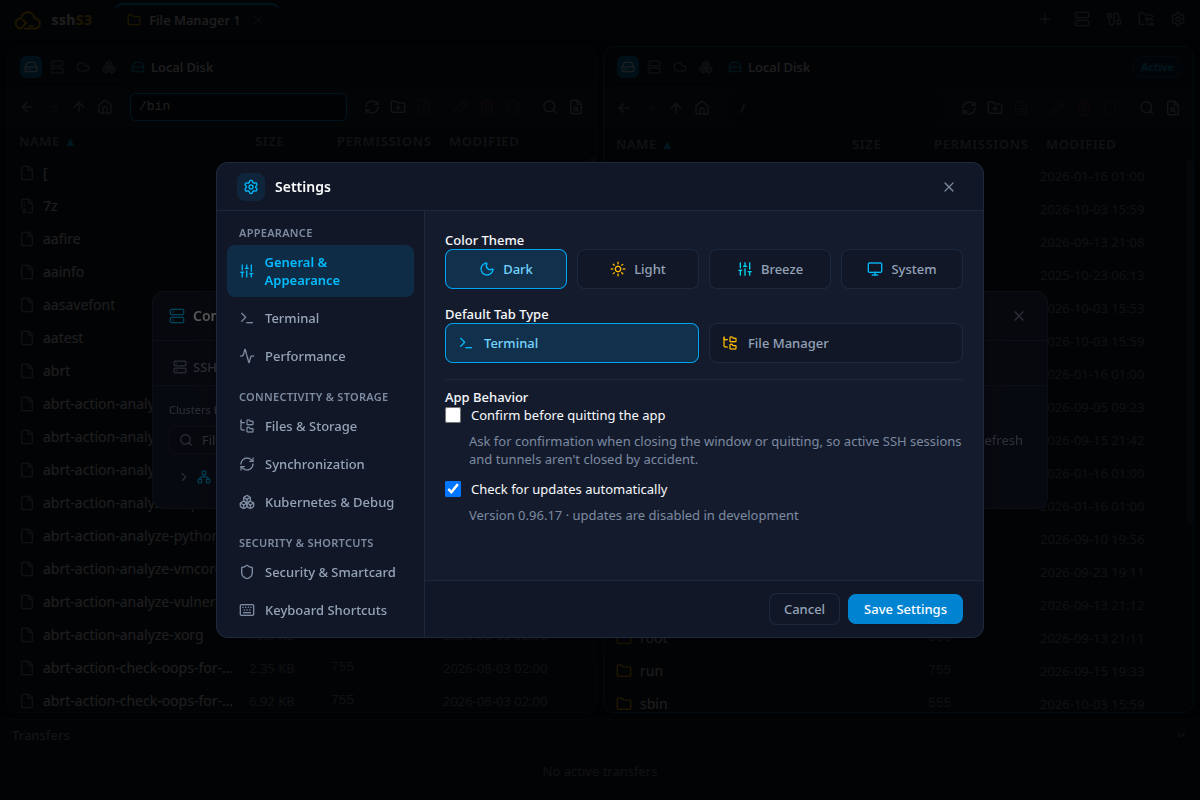
Access the preferences dialog via the gear icon in the top toolbar or via the keyboard shortcut Ctrl+,.
> [!NOTE]
> Settings that an administrator has locked show **Managed by your organization** and cannot be changed here. See [Enterprise Deployment & Policy](https://sshs3.com/docs/reference/enterprise-deployment/).
Closing Settings with changes you have not saved (Escape, **Cancel**, the close button, or a click outside) asks **Discard unsaved changes**; **Keep editing** returns to the dialog, **Save Settings** stores the changes.
### Instant Settings Filter
The Settings modal features a real-time search filter at the top of the sidebar. Typing a keyword filters the 11 settings categories by their names (for example *git* shows **Git & GitHub**), so you can jump straight to a category. Individual option titles and descriptions are not searched.
### 1.1 General & Appearance
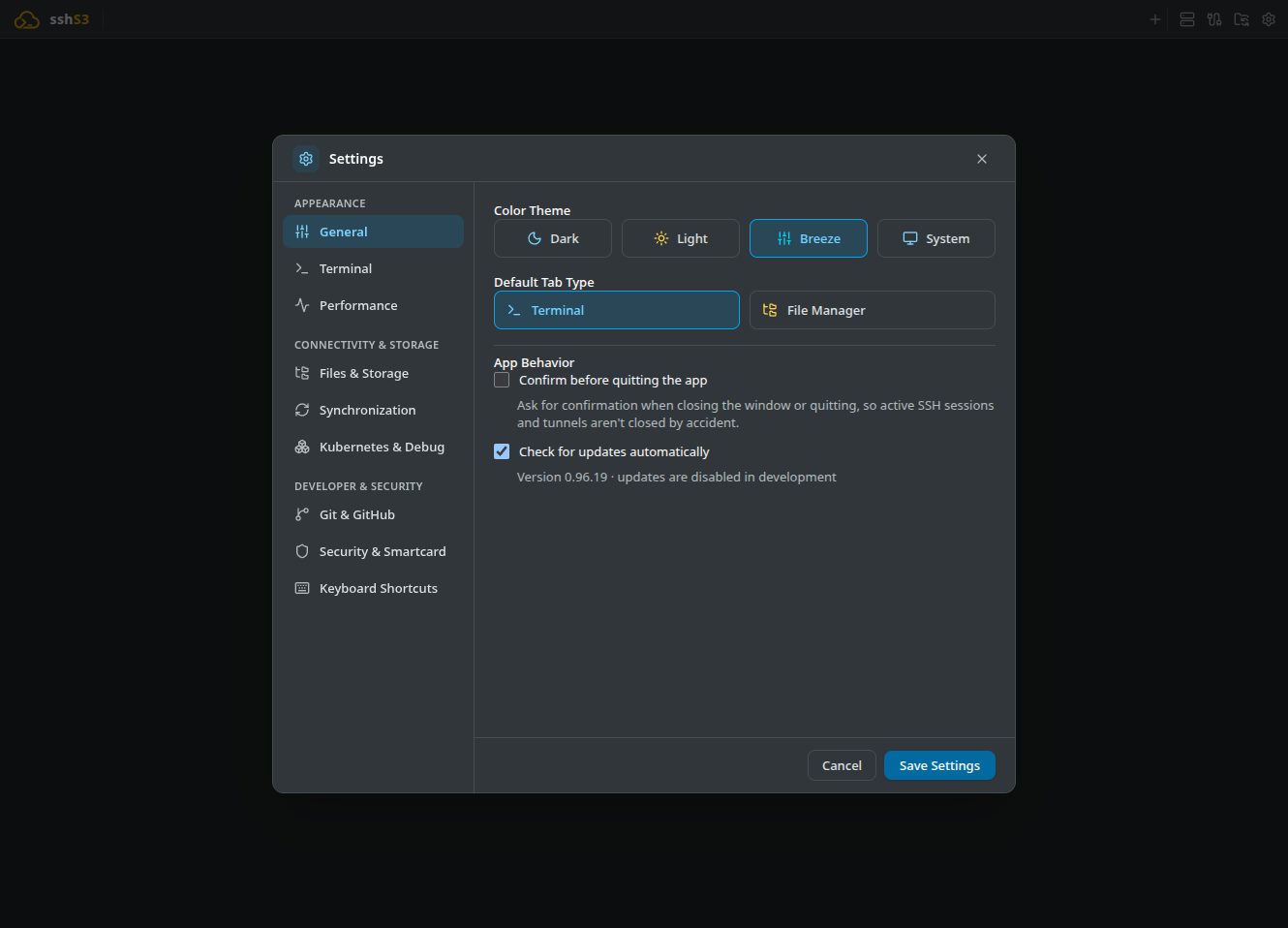
- **Color Theme:** **Dark** (slate dark), **Light** (clean gray), **Breeze** (KDE-inspired theme with cyan accents), or **System** (tracks OS dark/light mode).
- **Default Tab Type:** Whether opening a blank tab launches a **Terminal** or a **File Manager**.
- **Confirm Before Quitting:** Warns if active terminal sessions or background file transfers are in progress when closing the window.
- **Enable Global Search:** On by default. Shows the magnifier in the top bar and enables Ctrl+Shift+G (see [Global Search](https://sshs3.com/docs/workspace/connections/#global-search)). Switched off, the key combination is left free for other uses.
- **Check for Updates Automatically:** Checks GitHub Releases in the background every 6 hours; **Check now**, **Download**, and **Restart and install** are explicit actions. Permanently locked off when `SSHS3_DISABLE_UPDATES=1` is set.
- **Application Logging:** Configures log verbosity (**Errors only**, **Warnings**, **Normal**, **Debug**). Rotated at 5 MB (last 5 kept). PINs, passwords, and private keys are strictly never logged. **Open log folder** opens the log directory, and **Copy diagnostics** copies a diagnostics summary to the clipboard for a bug report.
### 1.2 Terminal
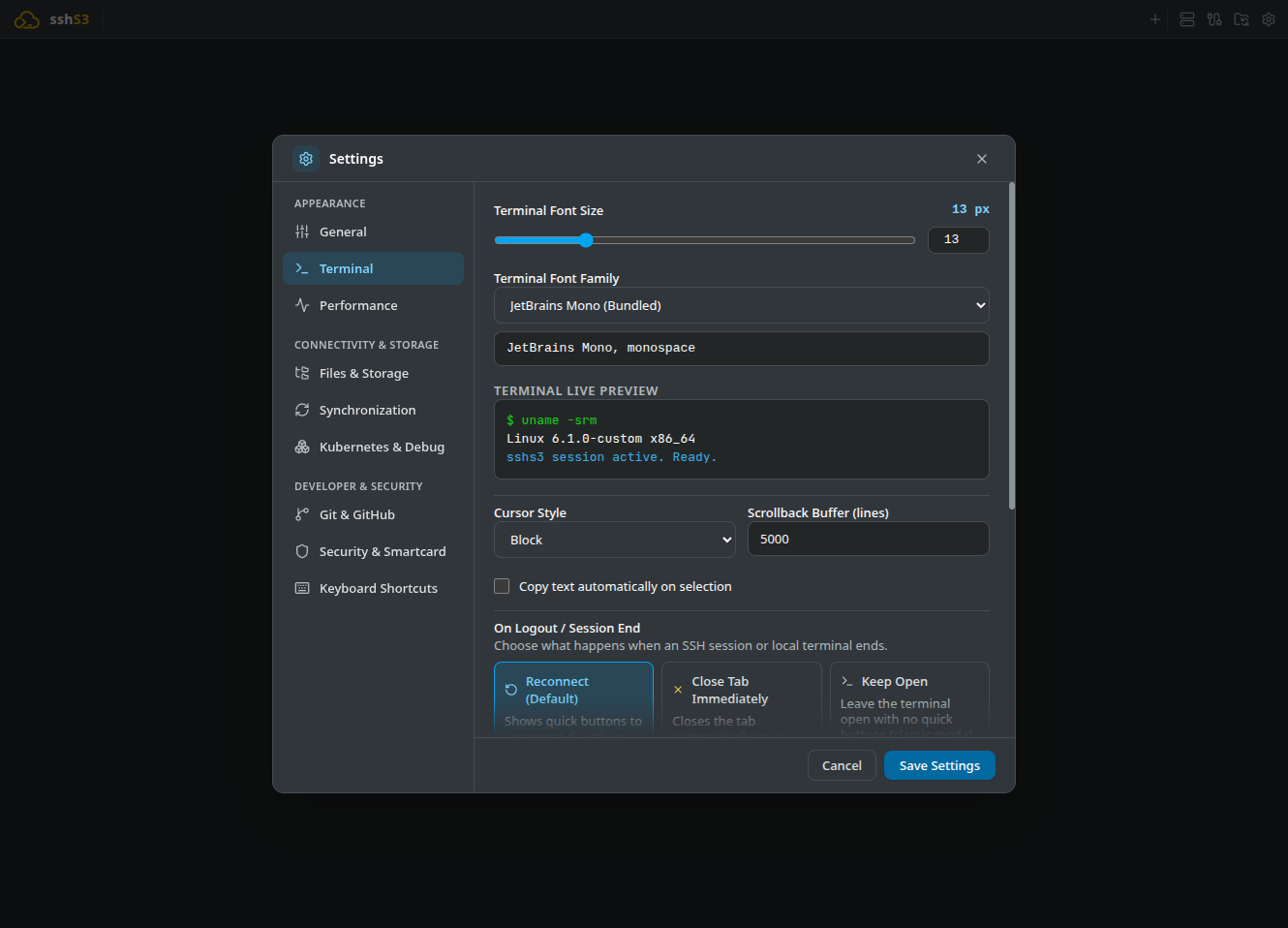
- **Typography:** Configurable font family and font size (8-32 px) with live preview render.
- **Cursor Style:** **Block**, **Underline**, or **Vertical Bar**.
- **Scrollback Buffer:** Retained history per terminal pane (default 5,000 lines; 500-50,000 in steps of 500, and a typed value is adjusted to the nearest allowed one when you leave the field). Searchable with Ctrl+Shift+S.
- **Copy text automatically on selection:** Copies highlighted terminal text to the clipboard and stores it in the encrypted clipboard history. Scope can be **Global** or **Per Host**, and **Clear history** deletes every entry after a confirmation. The setting also applies to the Markdown preview in the file editor, which copies to the clipboard only (nothing goes into the history).
- **Session End Behavior:** **Reconnect (Default)**, **Close Tab Immediately**, or **Keep Open**.
- **Local Terminal SSH Agent:** Selects `$SSH_AUTH_SOCK` injection for local workstation shell tabs: **Auto** (`AppAgent` under Global PIN caching), **System Only**, or **Disabled**.
- **Local X11 Server (GUI Forwarding):** Shows whether a local X server is running (**Running** with its display, or **Stopped**) and refreshes on demand. See [Graphical X11 Forwarding](https://sshs3.com/docs/cloud/tunnels/) for the setup.
- **Keep `~/.ssh/config` in Sync:** On by default. Maintains a marked block in your local `~/.ssh/config` at startup and whenever an SSH profile is saved, deleted or imported, so `ssh ` works in any external terminal. Only the sshs3 block is touched.
### 1.3 Performance
- **Show Performance Bar Above Terminals:** Toggles real-time host telemetry. Select layout (**Compact Text**, **Bars**, **Sparklines**), update interval (2s, 5s, 10s, 30s), and custom metrics.
### 1.4 Files & Storage
- **Show Hidden Files and Dotfiles:** Toggles visibility of hidden files (`.git`, `.env`).
- **Confirm Before Deleting Files and Folders** and **Verify File Integrity and Size After Transfer:** Both on by default.
- **Default Conflict Resolution:** Automatic policy for filename collisions: **Ask** (default), **Overwrite**, **Skip**, or **Rename**.
- **Share folders between SSH/SFTP and S3 in Connection Manager:** Off by default, so each tab shows only the folders that contain a profile of its own type. Turn it on to use one shared folder tree for both connection types.
- Transfers run up to 3 files in parallel (this is not configurable).
- **Dotfiles Pool Sync:** Opt-in session staging for personal shell configuration files.
### 1.5 Security & Smartcard
- **PIN Caching Policy:** **Always Prompt (Default)**, **Once Per Terminal Connection**, or **Global (App Lifetime)**. Under Global, all unlocked smartcards and FIDO2 keys reside in a single app-wide `ssh-agent` (`AppAgent`).
- **Detected PKCS#11 Libraries:** Scans system libraries (`p11-kit`, `opensc`, `libykcs11`, Net iD) with 1-click **Rescan**.
### 1.6 Kubernetes & Debug
- Red Hat OpenShift support toggle, default diagnostic container presets for `kubectl debug` (Netshoot, RHEL Support Tools, BusyBox, Curl, Ubuntu).
### 1.7 AWS
- **Enable AWS features** switch (off by default), saved IAM Identity Center sign-ins with status and **Sign in**, regions to search, proxy and CA for AWS calls, and the AWS CLI and plugin status. The workflow is described in [SSH over AWS Systems Manager](https://sshs3.com/docs/cloud/aws-ssm/).
### 1.8 Synchronization
- Sets up the target for encrypted Remote Profile Sync (S3 or SFTP) and offers **Push** and **Pull**. Changes in this category save immediately. See [Environment & Profile Synchronization](https://sshs3.com/docs/security/sync-environment/).
### 1.9 Team Vault
- Lists your teams and lets you create or join one, unlock it, and manage its members and storage target. Changes in this category save immediately. See [Team Vault](https://sshs3.com/docs/security/team-vault/).
### 1.10 Git & GitHub
- **Developer SSH Keys & Git Providers:** copy a public key or register it on GitHub or GitLab, and set the key used for commit signing (**Git Sign**).
- **SFTP & File Manager Git Integration:** a switch that shows or hides the Git branch and Git actions in the SFTP and file manager panes.
- **Lookup Public Keys (username.keys):** fetch a user's public keys with **Fetch keys**.
- See [Git Integration & Developer Tooling](https://sshs3.com/docs/security/git-developer/).
---
## 2. 2D Spatial Keyboard Navigation & Mouse-Free Ergonomics
The application is engineered to be fully operable **without a mouse**:
### Spatial Focus Navigation (Ctrl+Shift+Arrows)
- Shifts focus spatially in the direction of the pressed arrow across split panes, tabs, dual file manager panes, menus, and dialogs.
- **Tab Bar Escape:** Pressing Ctrl+Shift+Up from the top row of splits moves focus directly into the **Tab Bar** (where Left/Right switches active tabs, and Down or Enter returns focus into the active tab).
- **In Dialogs & Modals:** Ctrl+Shift+Arrows moves focus between fields, dropdowns, and buttons **even while typing inside a text input field**!
### Universal Keyboard Actions
- **Open / Execute (Enter):** Activates whatever element is currently focused: enters folders, connects profiles, toggles checkboxes, and clicks focused buttons.
- **Dismiss / Back (Escape):** Closes open menus, popups, and modal dialogs, cleanly restoring keyboard focus back to the exact element or terminal pane you came from.
- **Tab Navigation (Ctrl+1…Ctrl+8, Ctrl+9 for last tab):** Direct jumping to open workspace tabs.
### Technical Architecture: 2D Geometric Spatial Scoring
`spatialNavigation.ts` reads the bounding boxes (`getBoundingClientRect`) of all candidate focusable elements. For the pressed arrow, it scores each candidate in that direction by its gap along the axis plus a weighted orthogonal offset (candidates that do not overlap the current element are penalized). The candidate with the lowest geometric score wins focus.
---
## 3. Keyboard Shortcuts Reference Table
> [!TIP]
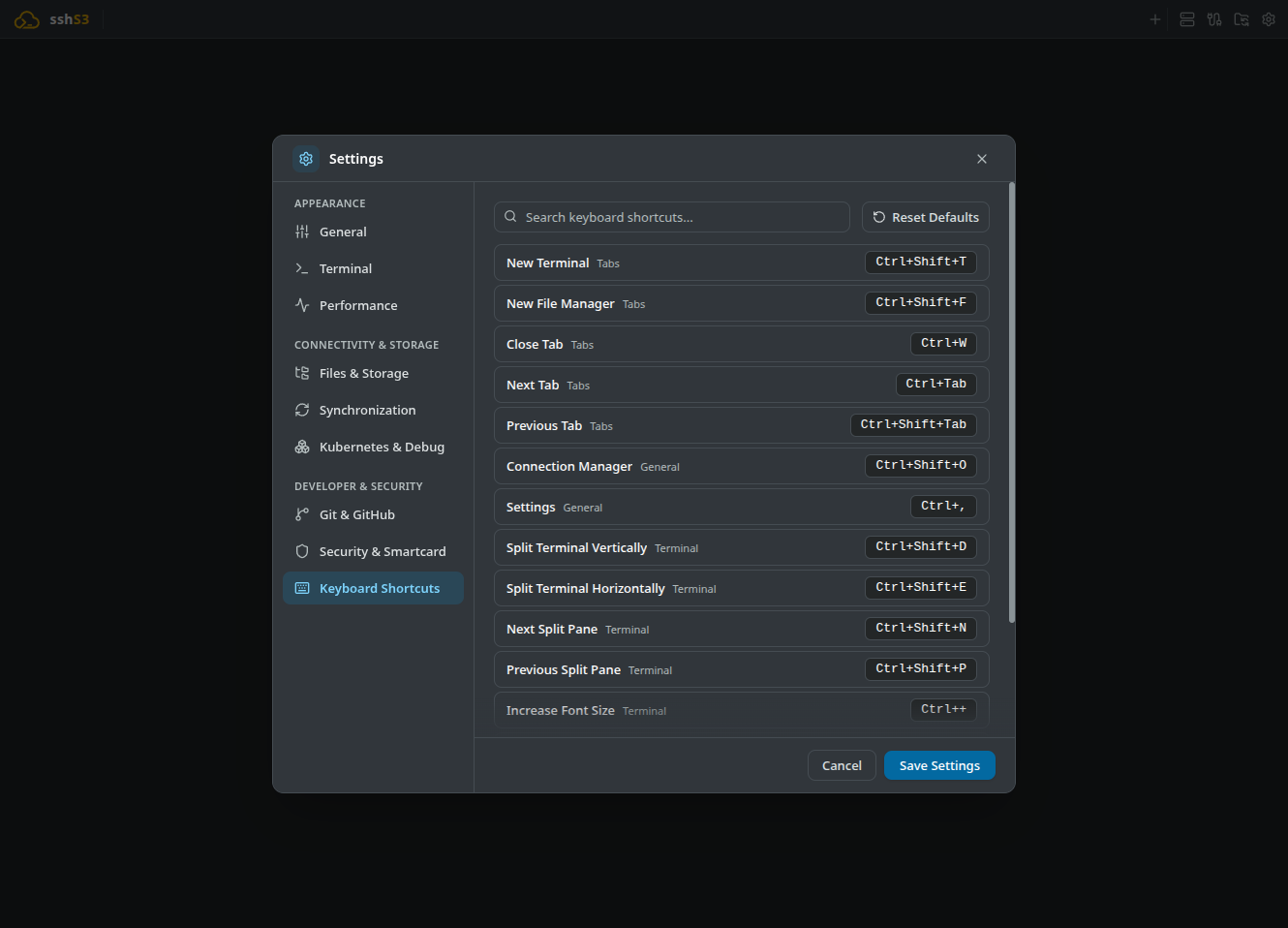
> If your desktop environment (e.g. GNOME or Windows) binds a combination globally, rebind the action under *Settings → Keyboard Shortcuts*.
> [!NOTE]
> The window cannot be made smaller than 1024 × 600 pixels; at the minimum width the file manager toolbar wraps onto a second row.
> [!NOTE]
> The table below is **autogenerated directly from the application source code** during every documentation build to guarantee 100% accuracy with runtime keybindings.
| Action / Command | Default Shortcut | Category | Internal Action ID |
| :--- | :--- | :--- | :--- |
| `New Terminal` | Ctrl+Shift+T | Tabs | `newTerminal` |
| `New File Manager` | Ctrl+Shift+F | Tabs | `newFileManager` |
| `New Remote File Manager` | Ctrl+Alt+Shift+F | Tabs | `newRemoteFileManager` |
| `New Window` | Ctrl+Alt+Shift+N | Tabs | `newWindow` |
| `Tab Actions (Move to Window)` | Ctrl+Alt+Shift+K | Tabs | `openTabMenu` |
| `Move Tab to New Window` | Ctrl+Alt+Shift+M | Tabs | `moveTabToNewWindow` |
| `Close Tab` | Ctrl+Shift+W | Tabs | `closeTab` |
| `Next Tab` | Ctrl+Tab | Tabs | `nextTab` |
| `Previous Tab` | Ctrl+Shift+Tab | Tabs | `prevTab` |
| `Keyboard Shortcuts` | Ctrl+Shift+H | General | `showShortcuts` |
| `Connection Manager` | Ctrl+Shift+O | General | `openProfiles` |
| `Settings` | Ctrl+, | General | `openSettings` |
| `Navigate Left (Split / Panel)` | Ctrl+Shift+Left | General | `navigateLeft` |
| `Navigate Right (Split / Panel)` | Ctrl+Shift+Right | General | `navigateRight` |
| `Navigate Up (Split / To Tabs)` | Ctrl+Shift+Up | General | `navigateUp` |
| `Navigate Down (Split / Into Tab)` | Ctrl+Shift+Down | General | `navigateDown` |
| `Split Terminal Vertically` | Ctrl+Shift+D | Terminal | `splitVertical` |
| `Split Terminal Horizontally` | Ctrl+Shift+E | Terminal | `splitHorizontal` |
| `Close Split Pane` | Ctrl+Alt+Shift+W | Terminal | `closePane` |
| `Zoom Split Pane` | Ctrl+Shift+Z | Terminal | `zoomPane` |
| `Next Split Pane` | Ctrl+Shift+N | Terminal | `nextPane` |
| `Previous Split Pane` | Ctrl+Shift+P | Terminal | `prevPane` |
| `Increase Font Size` | Ctrl++ | Terminal | `increaseFontSize` |
| `Decrease Font Size` | Ctrl+- | Terminal | `decreaseFontSize` |
| `Reset Font Size` | Ctrl+0 | Terminal | `resetFontSize` |
| `Clipboard History` | Ctrl+Shift+R | Terminal | `clipboardHistory` |
| `Search in Terminal` | Ctrl+Shift+S | Terminal | `terminalSearch` |
| `Copy Last Command Output` | Ctrl+Shift+Y | Terminal | `copyLastOutput` |
| `Re-run Last Command with sudo` | Ctrl+Shift+X | Terminal | `rerunWithSudo` |
| `Snippets` | Ctrl+Shift+L | Terminal | `snippets` |
| `Search in Files` | Ctrl+Shift+K | General | `searchInFiles` |
| `Search Profiles, Tabs and Hosts` | Ctrl+Shift+G | General | `globalSearch` |
| `Open SFTP for Active Pane` | Ctrl+Alt+Shift+S | Terminal | `openPaneSftp` |
---
## 4. Troubleshooting & Diagnostics
| Symptom / Error | Probable Root Cause | Corrective Action |
| :--- | :--- | :--- |
| Settings do not persist after restart | File permissions locked on `settings.json` | Check permissions on `~/.config/sshs3/settings.json`. |
| Shortcut conflicts with window manager | Global OS hotkey intercepts keydown event | Open *Settings → Keyboard Shortcuts*, click the action, and record a custom combination. |
| Terminal text appears distorted | Selected font is proportional | Choose a fixed-width monospace font (e.g. JetBrains Mono, Fira Code, Consolas). |