# Quickstart & 60-Second Connect
> Jump straight into an interactive terminal session, explore split panes, and discover dual-pane file management in under 60 seconds.
- Canonical page: https://sshs3.com/docs/get-started/quickstart/
- Category: Getting Started
- Platforms: Linux, Windows, macOS
- Last updated: 2026-11-21 21:21
- Documents sshs3 version: 0.98.6
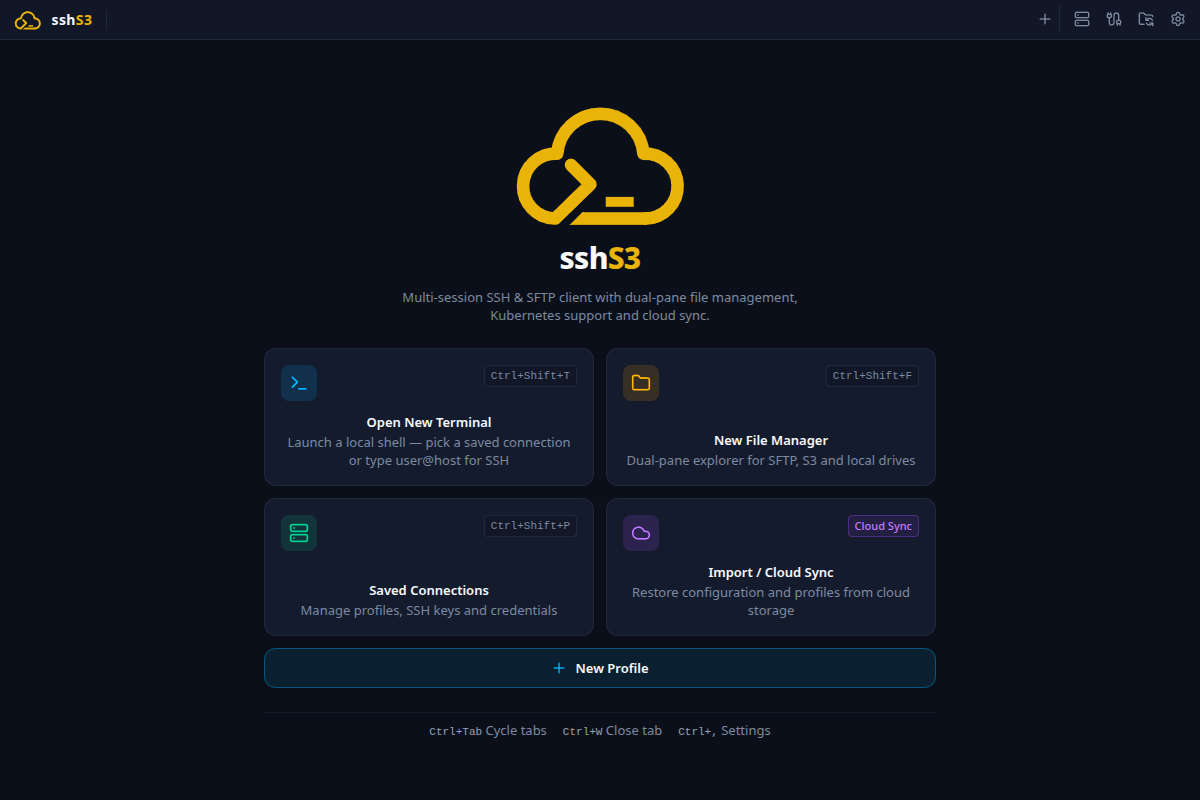
Welcome to **sshs3** — the keyboard-first, high-performance terminal workspace designed for systems administrators, DevOps/SRE engineers, and developers who demand zero nonsense and real OpenSSH ergonomics.
---
## 1. Quick Connect: Connect in 5 Seconds
When launching sshs3 without an open session, the start screen provides a focused **Quick Connect** command bar.
1. Type your target host:
```text
user@hostname
```
*(Or with a custom port: `user@192.168.1.50:2222`)*
2. Press Enter.
3. sshs3 immediately spawns a dedicated native terminal running a real OpenSSH process. Type your password in the terminal to connect.
> [!NOTE]
> Quick Connect uses password authentication: public-key and agent authentication are not offered (`PubkeyAuthentication=no`). Options from your `~/.ssh/config` for that host, such as `ProxyJump`, still apply. For key-based logins, create a saved profile.
> [!TIP]
> **Fuzzy Profile Search:** The same Quick Connect bar searches your saved SSH profiles with the same fuzzy search as Ctrl+Shift+G: type a few letters of the name, host, folder or system, several words (`prod web`), or `#tag` to filter by tag. Matching profiles appear below the input with the matched letters highlighted. Press Down or Up to pick one and Enter to connect, or Shift+Enter to open SFTP. Without any text the start screen lists your six most recent connections with the time since you last used them. S3 profiles and Team Vault profiles are found with Ctrl+Shift+G.
---
## 2. Terminal Ergonomics: Splits & Spatial Navigation
sshs3 lets you split terminal panes recursively without tmux overhead, keeping your native shell history and scrollback pristine.
| Action | Default Shortcut | Description |
| :--- | :--- | :--- |
| **Split Vertically** | Ctrl+Shift+D | Split current pane into left and right sub-terminals. |
| **Split Horizontally** | Ctrl+Shift+E | Split current pane into top and bottom sub-terminals. |
| **Spatial 2D Focus** | Ctrl+Shift+Arrows | Move focus spatially across splits in 2D space. |
| **Zoom Split Pane** | Ctrl+Shift+Z | Zoom the focused pane to full window; press again to restore. |
| **Close Split Pane** | Ctrl+Alt+Shift+W | Close the active sub-terminal without closing the entire tab. |
| **Close Active Tab** | Ctrl+Shift+W | Close the active workspace tab and all its splits. |
---
## 3. Dual-Pane File Explorer (SFTP, Local & S3)
Switch instantly between terminal commands and graphical dual-pane file management with zero context switching.
- Press Ctrl+Shift+F to open the **Dual-Pane File Manager** for the current host.
- Both panes connect over the active OpenSSH multiplexed session or native S3 API.
- **Drag & Drop:** Drag files directly between the remote pane and your local desktop or between two remote servers.
- **Inline Editing:** Hit Enter on any remote file to edit in-place with syntax highlighting (CodeMirror 6). Changes save back atomically over SFTP.
---
## 4. Smart Path Detection & Live Hover Peek
Hover your mouse over any file path printed in the terminal (e.g. `/var/log/nginx/error.log` or `./deploy.sh`):
- **Live Quick Peek:** Displays the first 3 lines, total line count, and file size over the active connection.
- **Image Thumbnails:** Hovering over an image (`.png`, `.jpg`, `.svg`, `.webp`) renders a live thumbnail directly in the hover card.
- **Instant Actions:** Click **Reveal** (or **Browse** for a folder), **Copy Path**, or **Edit** (or **View** for images and PDFs).
> [!NOTE]
> **Noise & Latency Prevention:** sshs3 verifies that paths actually exist over the active connection before rendering cards, automatically filtering out package names (`Node.js`), domains (`example.com`), and abbreviations. A 500 ms safety timeout aborts background lookups silently over high-latency WAN links.
---
## 5. Live Telemetry Diagnostics Bar
Tick **Show performance bar above terminals** under *Settings → Performance* (off by default) to show the **Live Telemetry Bar** above your terminals:
- Samples remote `/proc/stat`, `/proc/meminfo`, and load averages with zero remote agent installation.
- Over Kubernetes pods, streams container metrics directly from the Kubernetes `metrics.k8s.io` API.
- Minimal CPU overhead: multiplexes transparently through the OpenSSH `ControlMaster` socket with `-o BatchMode=yes`.
---
## Next Steps
Now that you know the basics, explore the dedicated guides:
- [Terminal, Split Panes & Ergonomics](https://sshs3.com/docs/workspace/terminal/)
- [Dual-Pane File Manager & SFTP](https://sshs3.com/docs/workspace/file-manager/)
- [Security, Hardware Keys & Smartcards](https://sshs3.com/docs/security/smartcards/)
- [SSH Certificate Authority (SSH CA)](https://sshs3.com/docs/security/ssh-ca/)
- [Team Vault: Shared Profiles over S3](https://sshs3.com/docs/security/team-vault/)