# Kubernetes & OpenShift Workloads
> Kubernetes and OpenShift from your desktop: pod exec terminals, port-forward into pods, agentless file explorer, kubectl debug and OpenShift browser SSO.
- Canonical page: https://sshs3.com/docs/cloud/kubernetes/
- Category: Cloud & Infrastructure
- Platforms: Kubernetes 1.25+, OpenShift 4+
- Last updated: 2026-10-28 19:17
- Documents sshs3 version: 0.98.6
**sshs3** provides native Kubernetes and Red Hat OpenShift management capabilities directly from your desktop. By combining interactive container exec terminals, resilient streaming logs, agentless pod file exploration, and live `kubectl debug` ephemeral troubleshooting containers, DevOps engineers can diagnose production workloads in seconds.
---
## 1. Automatic Cluster Discovery & Kubeconfig Watching
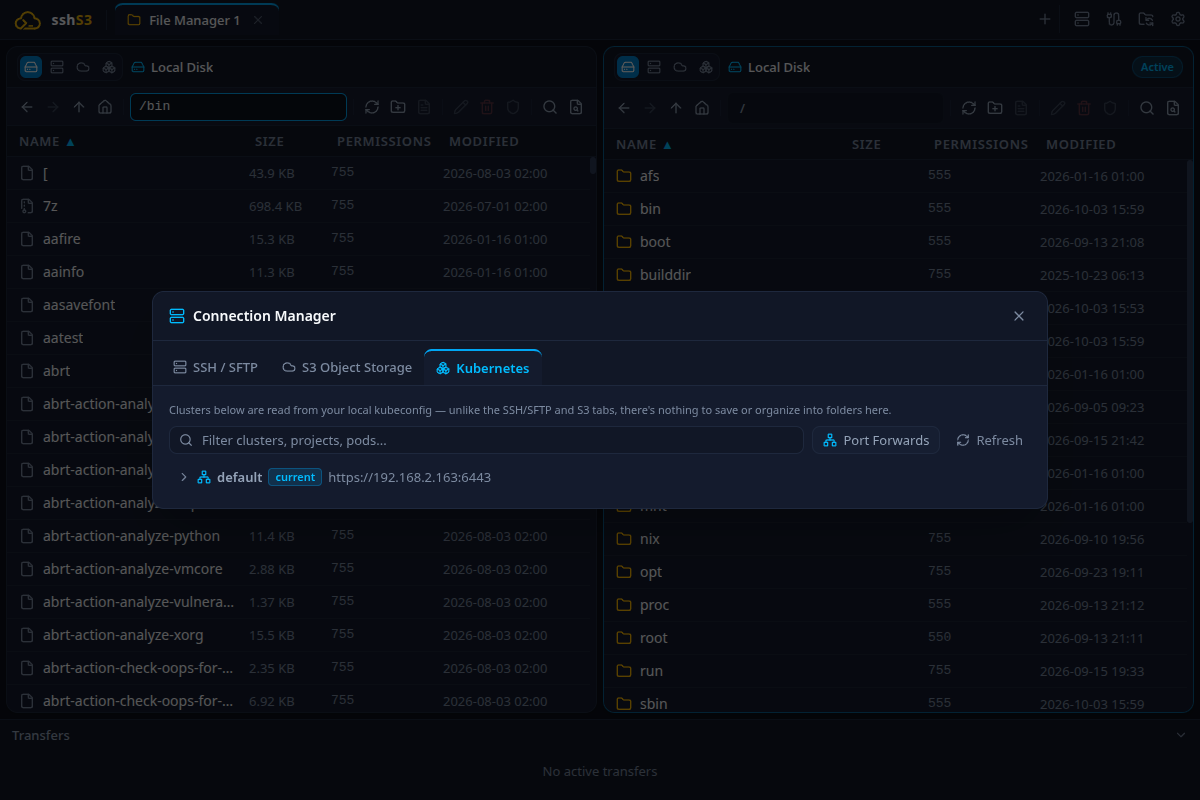
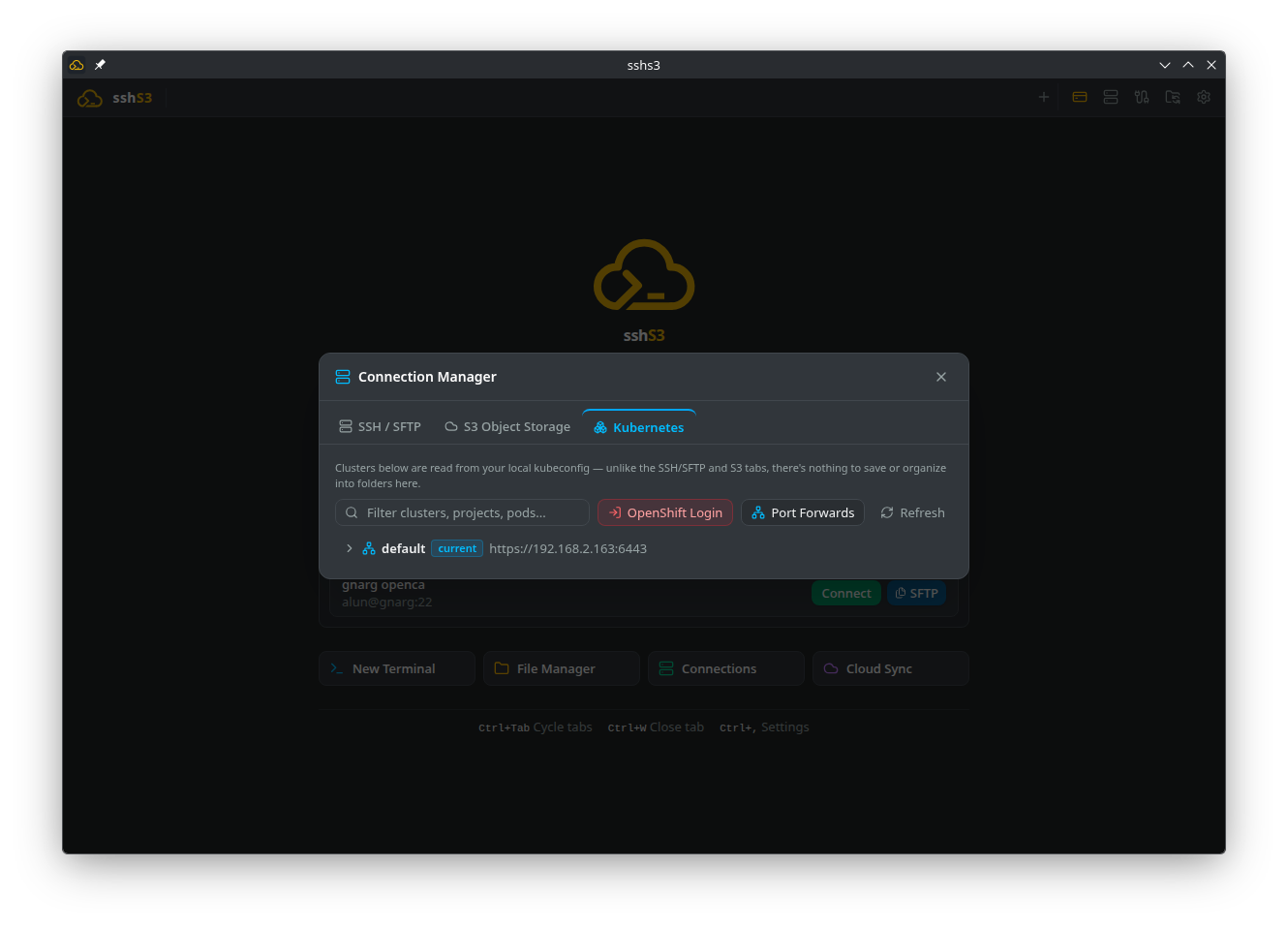
sshs3 provides immediate, zero-configuration access to all configured clusters, namespaces, pods, and containers from your workstation's `~/.kube/config`:
- **Real-Time Context Sync:** Switching contexts or authenticating to new clusters via `kubectl` or `oc` CLI immediately updates the cluster tree (`Cluster → Namespace → Pod → Container`) in real time.
- **External Credential Plugins:** If a cluster relies on a CLI credential plugin (e.g. AWS EKS `aws eks get-token` or Azure AKS `kubelogin`), that tool must be installed and on your `$PATH`.
- **Lazy-Loaded Engine:** To guarantee sub-500ms application startup, the Kubernetes client libraries (`@kubernetes/client-node`) are strictly lazy-loaded on demand when a Kubernetes tab or cluster tree node is expanded.
---
## 2. Interactive Container Exec & Streaming Logs
### Container Terminal (Exec)
- Select any container and click **Exec** (or double-click) to spawn an interactive shell (`/bin/sh`, `/bin/bash`, or custom).
- The exec session opens in a native terminal tab supporting recursive splits (Ctrl+Shift+D / E), search, and font scaling.
- *Distroless Containers:* For stripped images without a shell binary, attach an **Ephemeral Debug Container** (see Section 5 below).
### Resilient Log Streaming
Click **Logs** on any container to open the live streaming viewer:
- **Automatic Reconnection:** If a container restarts, crashes, or rolls out during a deployment, sshs3 automatically reconnects with exponential backoff and tracks the replacement pod.
- **Previous Container Logs:** Click **Previous** to inspect logs of the last crashed container instance (`kubectl logs -p`). If the container has not crashed yet, sshs3 explains this and offers a one-click **Live Logs** switch.
- **Search & Timestamps:** Search log output in real time with Ctrl+F (Enter / Shift+Enter for next / previous match), and toggle RFC3339 timestamps with the **Timestamps** button.
- **Live Metrics Overlay:** Click **Metrics** to toggle a live HUD showing container CPU millicores and memory consumption against configured limits.
- **Restart Pod:** Click **Restart Pod** to delete the pod and trigger its controller (Deployment/StatefulSet) to spin up a clean replica.
### Technical Internals: WebSocket Exec & Pod Replacement Tracking
`K8sTerminalManager` establishes a multiplexed SPDY/WebSocket connection to the Kubernetes API server `/exec` endpoint. `K8sLogManager` streams chunked HTTP logs directly into xterm.js. When pod connections disconnect with HTTP 404 during rollouts, `findReplacementPod()` watches controller labels and smoothly re-targets the log viewer to the newly scheduled pod.
---
## 3. Kubernetes Port Forwarding
Access private pod ports, internal databases, or cluster microservices directly from local desktop tools (browsers, Postman, DBeaver) without creating public Ingress routes:
1. Right-click any pod or container and select **Port Forward into pod...**.
2. Enter the **Container port** (e.g. `5432` for PostgreSQL, `8080` for web APIs) and your desired **Local port**.
3. **Loopback Binding:** The local listener binds strictly to `127.0.0.1` on your workstation.
4. **Lifetime:** Forwarded ports stay active only while sshs3 is running.
5. **Auto-Reconnect on Rollouts:** If the pod terminates during a cluster deployment, the forwarder automatically relocates the controller's replacement replica without terminating your local port socket.
---
## 4. Agentless Pod File Explorer
Browse and edit files inside a running container using the standard dual-pane file manager without installing SSH servers or debug daemons inside the container image:
1. Select a container and click **Files** (**Browse container filesystem**).
2. The pod opens as a pane in the dual-pane file manager.
3. Browse directory trees, download logs or dumps, upload configs, and edit files in-place using the built-in [CodeMirror 6 Editor](https://sshs3.com/docs/workspace/file-manager/#built-in-editor).
> [!NOTE]
> - **Uploads are checked:** A write to a pod counts as done only when the container has finished writing the file. A full disk or a read-only file system shows up as an error, and cancelling an upload stops the write in the container.
> - **Symlinks and special files:** Copying a folder skips symbolic links and special files, so a link inside the container cannot lead the copy outside the folder or into an endless loop.
### Technical Architecture: How Pod File Browsing Works Without Remote Daemons
`K8sPodStorageProvider` (`src/main/storage/K8sPodStorageProvider.ts`) implements `IStorageProvider`. It executes non-interactive POSIX commands (`stat`, `cat`, `dd`, `chmod`) over the container's exec WebSocket API, streaming raw bytes into `TransferPipeline`.
---
## 5. Live Ephemeral Pod Debugging (`kubectl debug`)
When a container crashes in a `CrashLoopBackOff` state or is built as a minimal distroless image lacking `curl`, `tcpdump`, or `strace`, traditional exec fails.
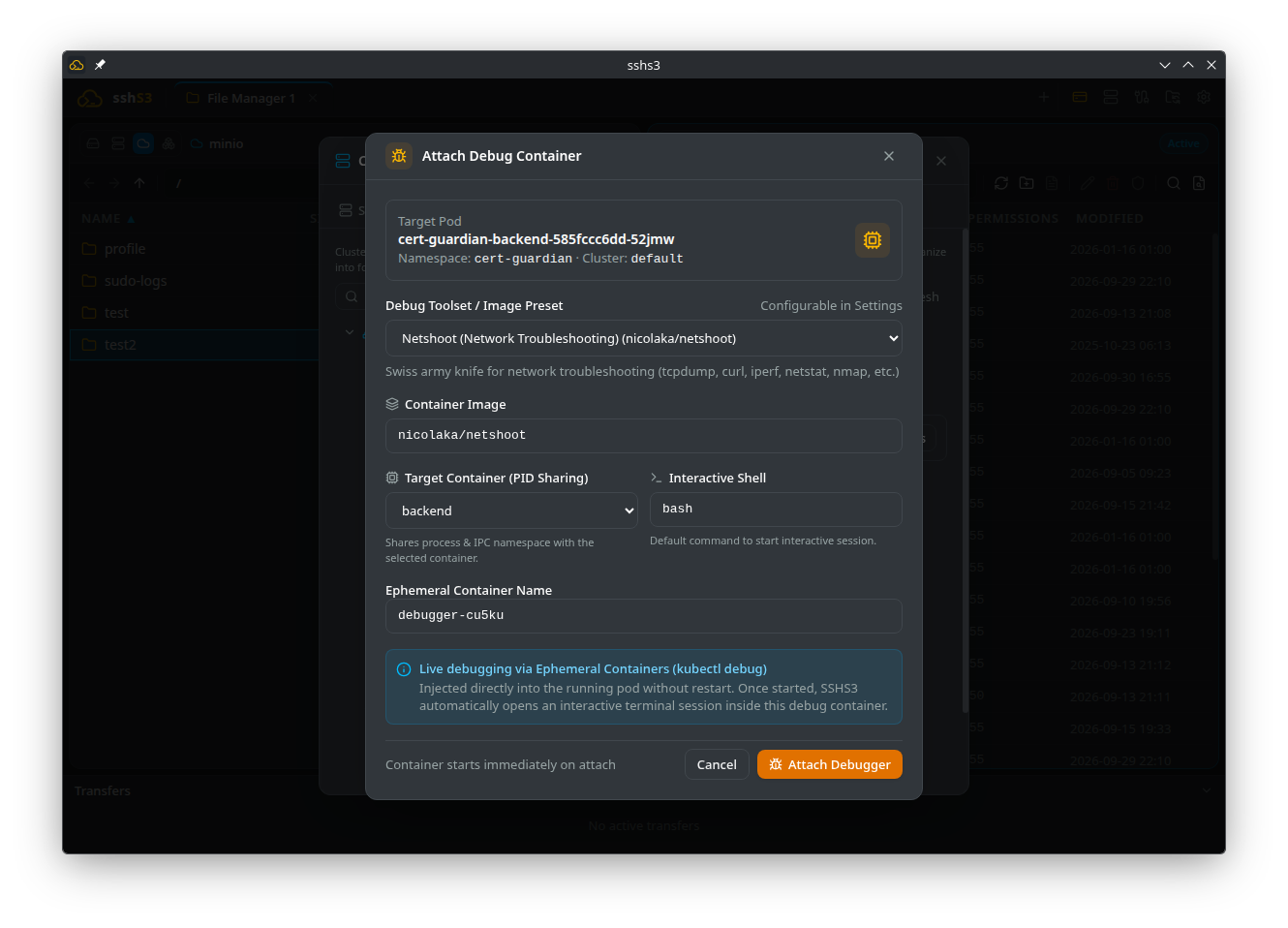
1. Select a pod and click **Debug** (**Attach ephemeral debug container**).
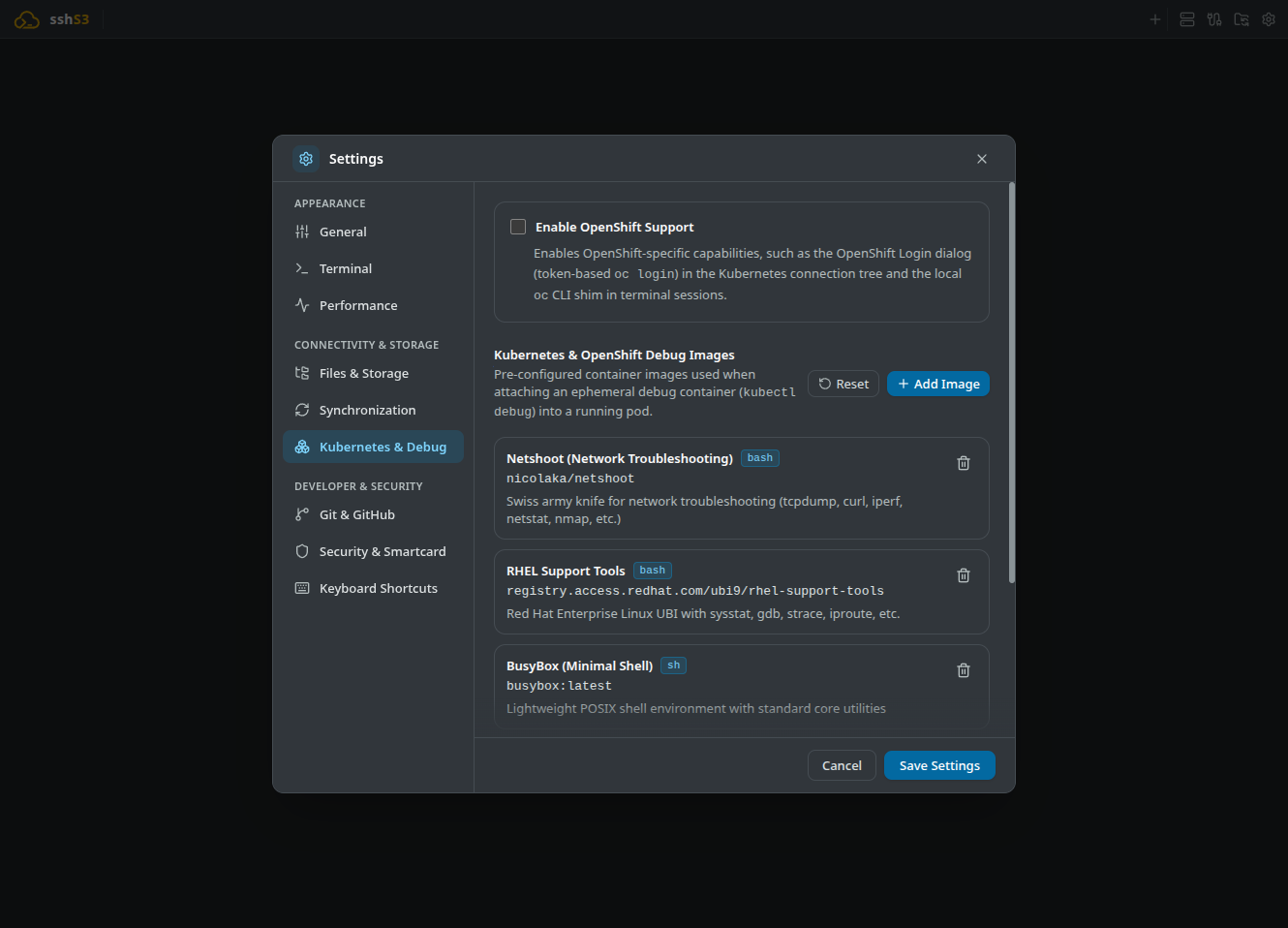
2. Select a preconfigured diagnostic profile:
- **Netshoot:** Complete network troubleshooting suite (`tcpdump`, `curl`, `iperf`, `dig`, `mtr`, `socat`).
- **RHEL Support Tools:** Enterprise debugging suite (`strace`, `gdb`, `sysstat`, `lsof`, `ubi9`).
- **BusyBox / Ubuntu:** Lightweight diagnostics and shell environments.
3. Click **Attach Debugger**. sshs3 injects the ephemeral container and opens an interactive shell sharing the target container's process namespace (`targetContainerName`).
### Technical Architecture: Ephemeral Container Injection & PID Sharing
Sends a strategic merge `PATCH` request to `/api/v1/namespaces/{namespace}/pods/{pod-name}/ephemeralcontainers`. By specifying `targetContainerName`, Linux PID namespace sharing is engaged, enabling tools like `strace -p ` in the debug container to inspect running application threads in the target container.
---
## 6. OpenShift Web Console Login & Browser OAuth
For enterprise environments running Red Hat OpenShift:
1. Enable **OpenShift Support** under *Settings → Kubernetes & Debug*.
2. **Browser OAuth Login (Recommended):** Enter the OpenShift API server URL and select **Sign in with browser**. sshs3 launches your system browser to authenticate via your organization's SSO / Identity Provider (Keycloak, Azure AD, Okta).
3. **Pasted Token Login:** Alternatively, click **Copy Login Command** in the OpenShift Web Console and paste the `oc login --token=...` string into sshs3.
4. **CLI Shim:** In local terminal tabs, commands like `oc whoami`, `oc project`, and `oc login` work immediately thanks to sshs3's built-in CLI shim without requiring manual `oc` binary installation.
### How Browser Sign-In Works
When you enter the API server URL, sshs3 checks whether the cluster has OpenShift's built-in OAuth server. A switch at the top of the dialog then lets you choose **Sign in with browser** (the default) or **Use a token**; browser sign-in stays disabled, with an explanation, until the cluster is detected. In browser mode press Enter in any field to start.
1. sshs3 opens your default browser at the cluster's login page. The cluster's identity provider handles sign-in, including single sign-on and MFA.
2. After you log in, the browser returns to a temporary local address (`http://127.0.0.1:/callback`) that only sshs3 listens on.
3. sshs3 exchanges the result for a token, stores it in `~/.kube/config` exactly like the pasted-token flow, and adds the cluster to the tree.
Esc or **Cancel** abandons a pending sign-in, and it times out after 5 minutes. If anything goes wrong, switch to **Use a token**.
> [!IMPORTANT]
> **Good to know**
> - **Supported:** OpenShift / OKD **4.13 or newer** with the built-in OAuth server (any identity provider behind it), the same flow as `oc login --web`. Older versions, clusters with direct external OIDC authentication (4.19+), clusters where the `openshift-cli-client` OAuth client was removed, and plain Kubernetes only offer the token form.
> - The flow follows the OpenShift source code (library-go / `oc`) but has not yet been tested against a live cluster. Please report the OpenShift version if it does not work for you.
> - The token lifetime is set by the OpenShift OAuth server (typically 24 hours). Browser sign-in does not renew it silently; sign in again when it expires.
> - Browser sign-in needs a browser on the same machine that can reach `http://127.0.0.1`. Local firewall or proxy policies that block loopback traffic make it time out.
### Saved Cluster Profiles & Project Limit
- **Save as profile** (on by default) remembers the cluster (name, server, TLS option and project) after a successful sign-in. The token itself is never stored in the profile; it only lives in `~/.kube/config`.
- A saved cluster shows its profile name in the tree. **Sign in** next to it reopens the dialog prefilled, which is also how you refresh an expired token or edit the profile. The trash button removes only the profile; the kubeconfig entry stays.
- A profile whose kubeconfig entry has gone is listed as **not signed in** until you sign in again. You can keep several profiles, one per cluster.
- If you fill in **Default Project / Namespace**, the tree for that cluster shows only that project. Leave it empty to list all projects you can access. Changing a profile's project creates a new kubeconfig context (`//`); the old one stays in `~/.kube/config`.
- The server URL must use `https://` (plain `http://` is only accepted for localhost, e.g. `kubectl proxy`) and must not contain a user name, password, query or fragment, so a saved, synced or shared cluster can never carry a secret.
- Profiles are stored locally in `k8s-profiles.json` and take part in [encrypted profile sync](https://sshs3.com/docs/security/sync-environment/) (name, server, project and TLS option only, never a token or kubeconfig context).
### Shared Clusters in Team Vaults
- When a Team Vault is unlocked, its shared clusters appear in a **team section** at the top of the Kubernetes tab. Locked vaults are only counted: unlock them in the SSH or S3 tab first.
- **Sign in** on a shared cluster opens the dialog prefilled and saves the result as *your own* profile. Tokens are never shared.
- Any unlocked member can add, edit or remove a shared cluster with the **+**, pencil and trash buttons. Removing one removes it for the whole team; members keep their own profiles and kubeconfig entries.
- To share a cluster you already saved, use the team icon on its row.
- Shared clusters are flat (no folders). Members on an older sshs3 version may drop them the next time they change that team's vault, so update everyone before sharing. See [Team Vault](https://sshs3.com/docs/security/team-vault/).
---
## 7. Pod File Access Limits & RBAC Requirements
### Storage & Filesystem Limitations
- **Distroless & Scratch Images:** Containers without a POSIX shell cannot run the file manager directly; attach an Ephemeral Debug Container instead.
- **Read-Only Root Filesystem:** In pods configured with `readOnlyRootFilesystem: true`, file writes outside mounted PersistentVolumes or `emptyDir` volumes are rejected.
- **Container User:** Operations run as the container's user. With `runAsUser` / `runAsNonRoot` (for example UID 10001), files owned by root cannot be changed and writes to system directories fail with `Permission denied`.
- **Several Containers per Pod:** Check which container (`main`, `istio-proxy`, `debugger-*`) you selected before opening Exec or Files.
- **Transfer Sizing:** Streaming files through the Kubernetes API server is optimized for configs, bundles, and logs up to 100 MB. For multi-gigabyte database dumps, use object storage or cloud volume snapshots.
### Cluster RBAC Matrix
| Feature | API Group / Resource | Required Verbs |
| :--- | :--- | :--- |
| **Cluster Tree & Pod Discovery** | `core`: `namespaces`, `pods`, `events` | `get`, `list` |
| **Exec Terminal & File Explorer** | `core`: `pods/exec` | `create` |
| **Log Streaming** | `core`: `pods/log` | `get` |
| **Port Forwarding** | `core`: `pods/portforward` | `create` |
| **Ephemeral Debug Containers** | `core`: `pods/ephemeralcontainers` | `patch` |
| **Pod Restart** | `core`: `pods` | `delete` |
| **Resource Telemetry** | `metrics.k8s.io`: `pods` | `get`, `list` |
---
## 8. Troubleshooting & Diagnostics
| Symptom / Error | Probable Root Cause | Corrective Action |
| :--- | :--- | :--- |
| `executable file not found in $PATH` | Container lacks `/bin/sh` (distroless) | Click **Debug** and attach a Netshoot or BusyBox ephemeral container. |
| `pods/ephemeralcontainers is forbidden` | User role lacks RBAC patch permissions | Request `patch` rights on `pods/ephemeralcontainers` from cluster admin. |
| Cluster missing from tree view | Context absent in `~/.kube/config` | Run `kubectl config get-contexts` or re-authenticate via OpenShift login. |
| Port forward drops on idle | Corporate firewall or API server idle timeout | Forwarder reconnects automatically; verify network keep-alives. |
| `Timed out waiting for the pod to finish writing the file` | The container did not report back within 60 seconds after the last byte (slow disk or network) | Retry the upload; check the container's disk and the connection to the cluster. |
| `Connection to the pod closed before the write finished` | The connection to the Kubernetes API dropped during an upload | Retry the upload. |